What Do Visitors from AI Do? Fix Your Entry Page Based on Their Behavior
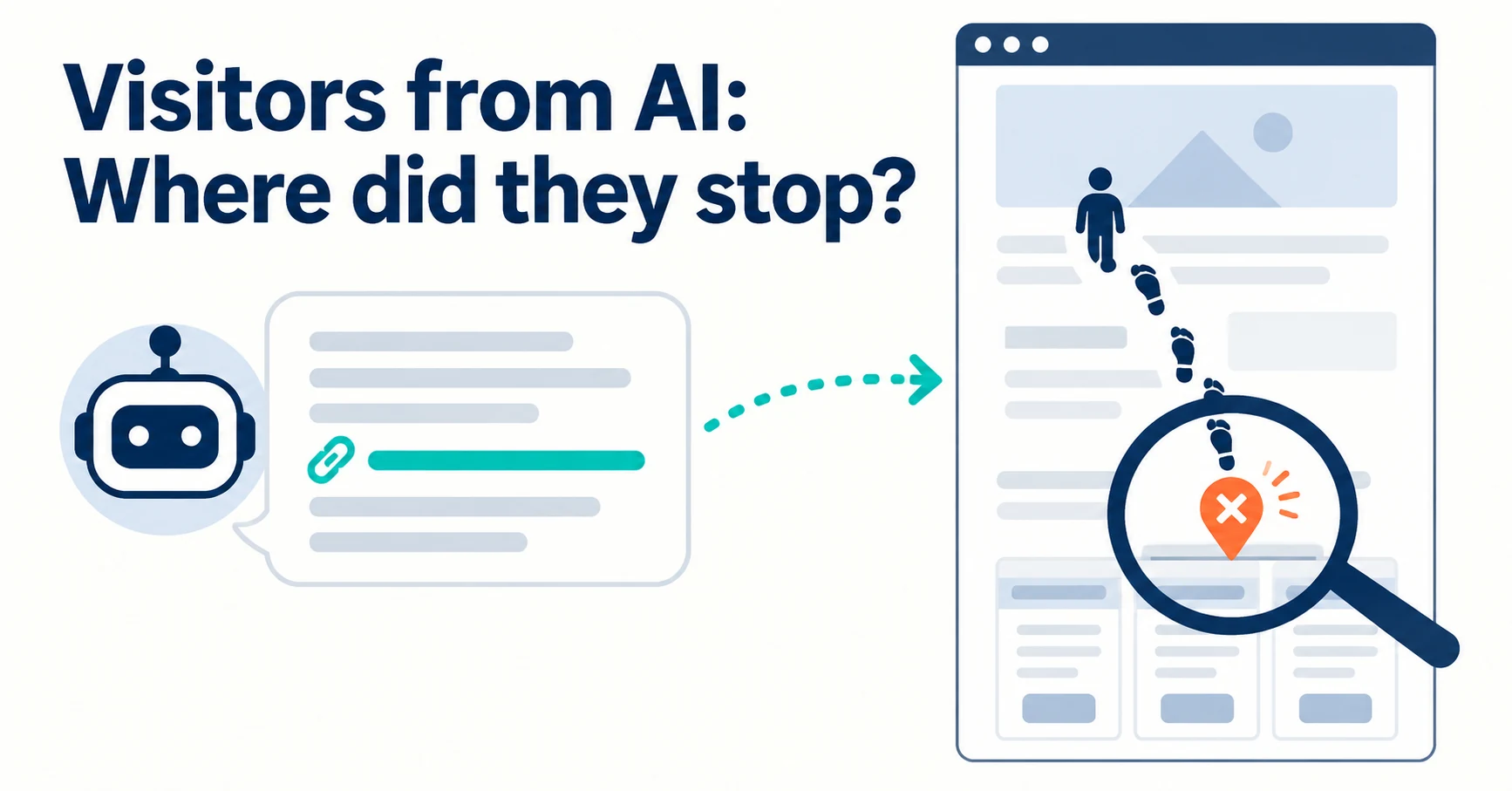
People arrive from AI answers, yet enquiries do not follow. Use session recordings to see what happens on the entry page: how to filter recordings to AI referrals, how to use page-wide heatmaps as a supplement, what to fix for each behavior pattern and how to recheck after the change.
People are clicking links in AI answers and landing on your website. Yet enquiries are not increasing. In this situation, looking at what those visitors did on the entry page helps you narrow down what to fix.
The entry page is the first page a visitor opens. This article explains how to use AgentSignal’s web recordings to select only visits from AI services, check how far people read, what they clicked and where they left, and then fix the page.
What Happens When AI Visits Don’t Lead to Enquiries
A visit count alone cannot tell you where on the page visitors stopped. The number only tells you how many times people came.
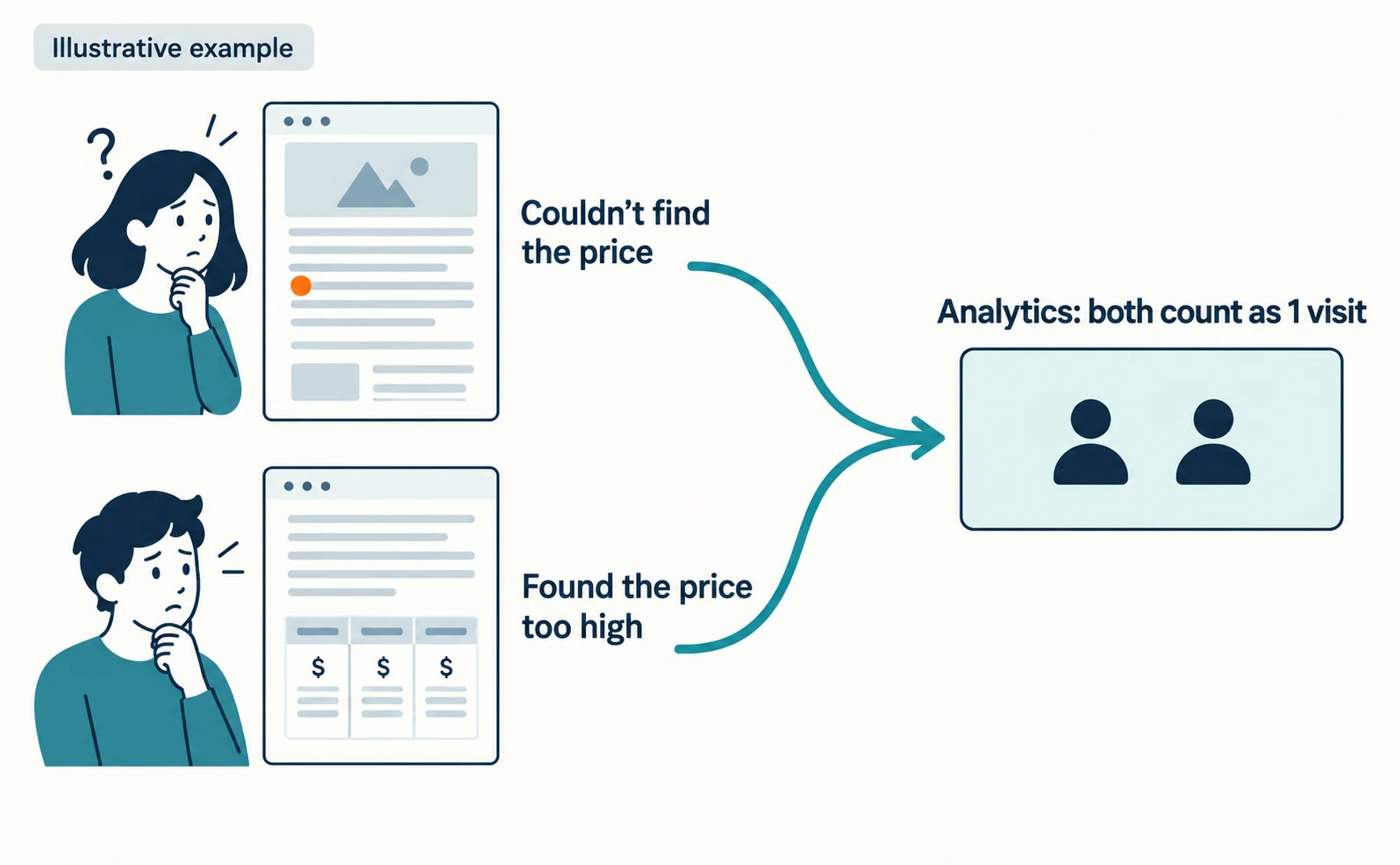
Consider a fictional example for illustration. A company offering corporate training receives visitors on its service page from ChatGPT answers. The answer said that pricing is available on the website.
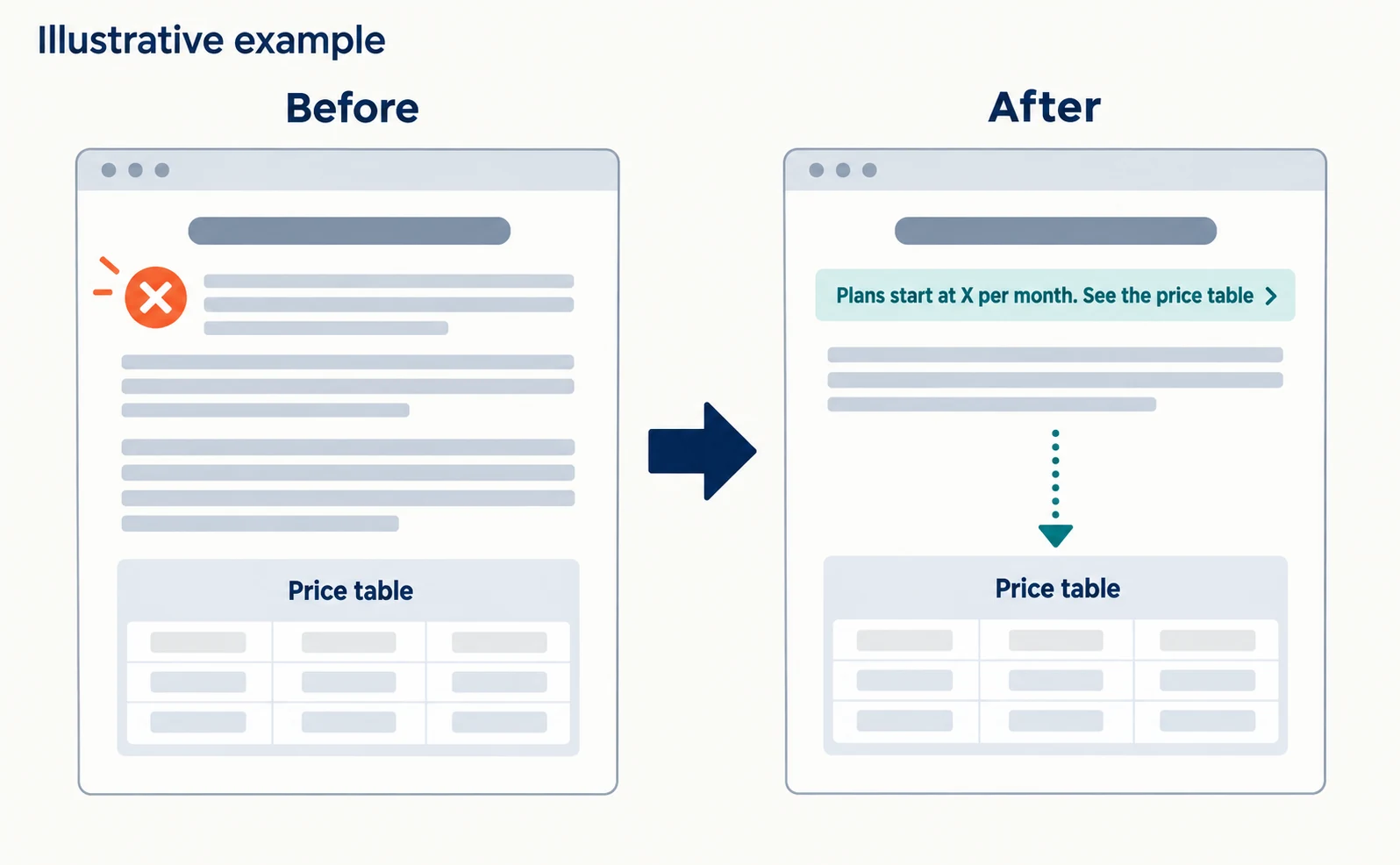
However, the price table on that page sits below a long company introduction. Visitors read the opening, cannot find the price and leave.
Analytics counts this as one visit. The number cannot tell you whether the person left because they could not find the price or because the price was too high.
You also need to separate human visits from AI access. OpenAI explains that ChatGPT may visit a page under the name ChatGPT-User when a user asks a question [1]. That is a record of AI reading the page, not a person clicking a link to visit.
This article covers visits by people who clicked a link in an AI answer. You watch their actions in recordings to find where they struggled.
Filter Recordings to AI Visits and Use Heatmaps for the Whole Page
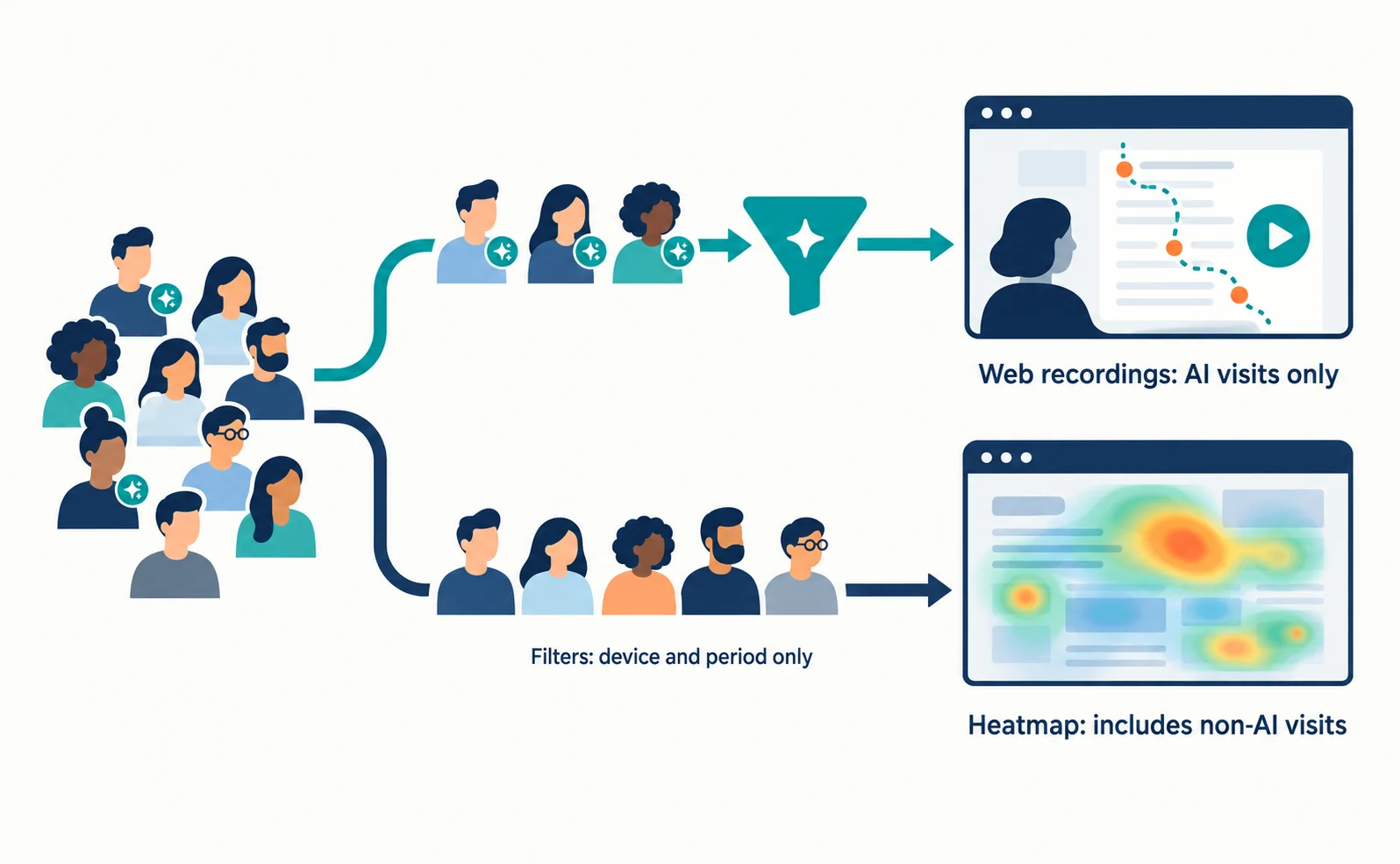
In AgentSignal’s web recordings, the AI referral filter lets you select visits that came from AI services. Heatmaps can only be filtered by device and period, so use them for page-wide trends that include non-AI visits.
You need the tracking tag installed on your site and permission to view recordings. If the tag is not in place yet, start with how to install the tracking tag.
Follow these steps.
- After logging in, open Web recordings (/recordings).
- Open the AI referral filter at the top of the list and choose the option for any AI service. To see ChatGPT only, choose ChatGPT. Other options are Perplexity, Gemini, Claude, Microsoft Copilot, Poe and DuckDuckGo AI.
- Enter the entry page URL in the URL filter. In the example, that is the service page URL.
- Choose a period such as the past 7 days or past 30 days. If few results appear, widen the period.
- If needed, turn on the conversions-only switch to compare visits that reached an enquiry. A conversion (CV) is an action you registered as an outcome, such as a purchase or a completed enquiry.
The list then shows visits that match your conditions. Play a few recordings first and note what you see.
For heatmaps, open the target page from UI improvements (/heatmap). There you can choose smartphone (SP) or desktop (PC) and the period. There is no option to limit the data to AI visits.
For that reason, use heatmaps as a supplement to find where people click across the whole page and where clicks get no response. Confirm in recordings whether a behavior belongs to AI visitors.
What the Referrer Can and Cannot Tell You
The AI referral label is based on information about the previous site (the referrer) and a marker added to the link. That means it cannot count every person who came from AI.
The referrer is information the browser sends about where the visitor came from. If chatgpt.com or a similar site is recorded, the visit is labeled as coming from AI.
When no referrer is available, the utm_source marker on the link is used instead. Links from ChatGPT sometimes include utm_source=chatgpt.com.
Visits with neither are not captured by the AI referral filter. Bing is not included because ordinary search and AI answers cannot be told apart.
Visits from Google’s AI Overviews and AI Mode are also outside this filter. Google Analytics 4 likewise places them in Organic Search rather than AI Assistant [2].
The ChatGPT-User access described earlier is a record of AI reading a page [1]. Recordings show what a person did after opening the page. Do not count the two as the same kind of AI visit.
Three Behaviors to Watch on the Entry Page: How Far They Read, What They Clicked, Where They Left
In recordings, check how far people read, what they clicked and which screen they were on at the end. Compare those three with what the AI answer promised.
In the example, the AI answer said pricing was available. So focus on whether visitors reached the price table.
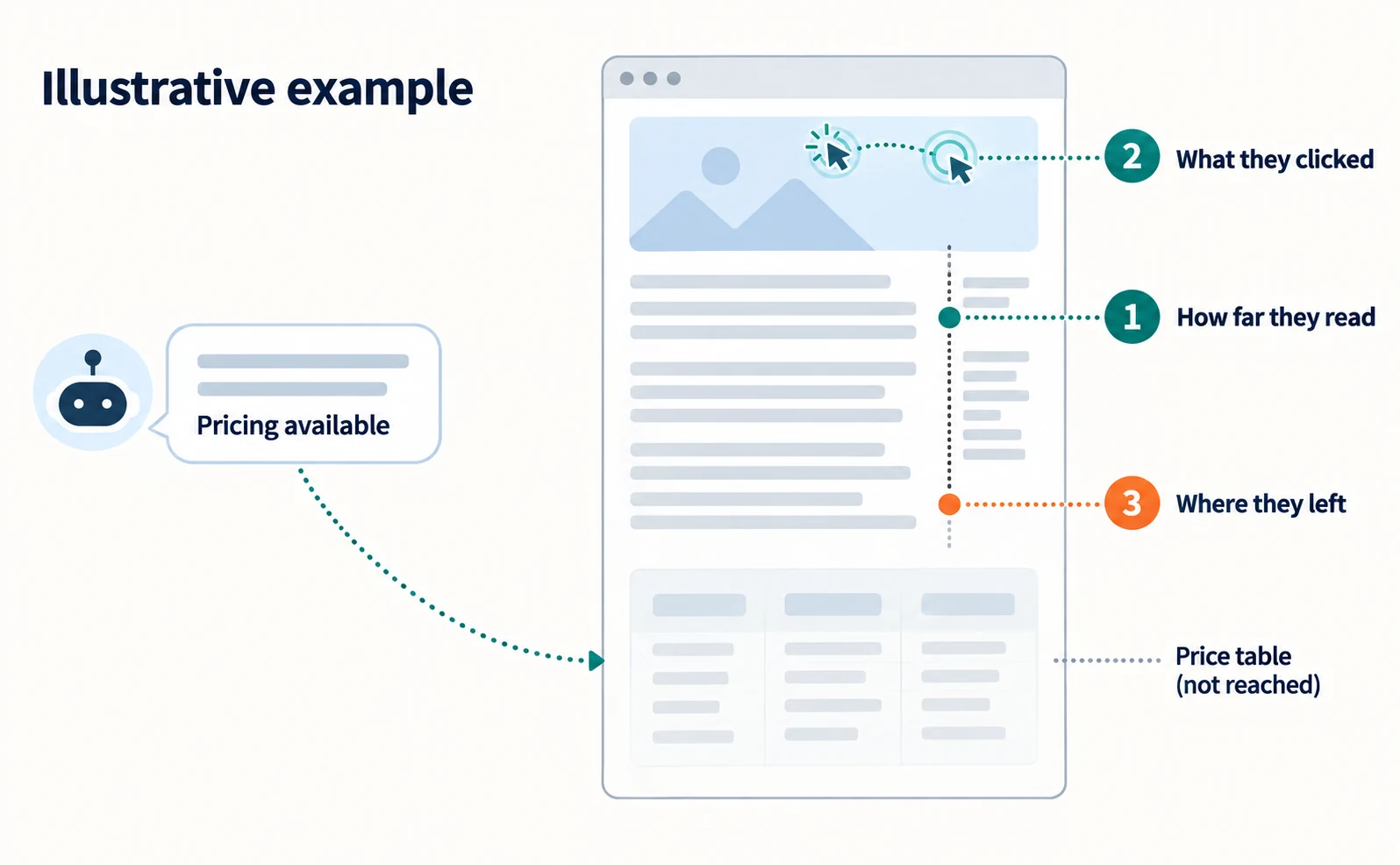
| Behavior | What to check in the recording | What you notice in the example |
|---|---|---|
| How far they read | How far they scrolled down | They stop just above the price table |
| What they clicked | Buttons, images or links they clicked | They click the service list and go to another page |
| Where they left | The screen shown at the end of the recording | The recording ends partway through the company introduction |
In the player, you can follow actions in the order clicks and page changes happened.
Keeping a record like the one below for each recording makes comparison easier.
| Item to record | Example entry (for illustration) |
|---|---|
| Filter conditions | AI referral = ChatGPT, entry URL = service page, past 30 days |
| What the AI answer led them to expect | Pricing information |
| How far they read | Second paragraph of the company introduction |
| What they clicked | Clicked the logo image twice |
| Where they left | Partway through the company introduction |
| Possible reason (hypothesis) | Pricing is not visible |
The possible reason is your inference from the recording. Write it separately from what you actually saw. Do not decide based on one or two recordings; watch several with the same conditions and see whether similar behavior repeats.
Heatmap numbers include non-AI visits. Even if the logo image is clicked often, that does not mean it is typical of AI visitors.
Fix the Entry Page by Behavior Pattern
What you fix depends on the behavior you saw in recordings. The table below is an editorial example we created. It is not the right answer for every site.
| Behavior seen | Possible reason | Where to fix (example) | What to check afterwards |
|---|---|---|---|
| Read only the opening, then leave | The answer is low on the page | Place what the AI mentioned briefly near the top | More recordings reach the price table |
| Move to another page immediately | The AI description and the entry page do not match | Add a link to the relevant page at the top | They keep reading on the next page |
| Click something that does not respond | An image or text looks like a link | Make it a link, or make it look different from links | Fewer dead clicks in the same place |
| Stop partway through a form | Fields are unclear or errors are not visible | Review input examples and error messages | Recordings that reach submission (CV) |
| The recording ends on a “page not found” message | The link target was moved or deleted | Set up a redirect or a notice | The old URL leads to the intended content |
A dead click is a click that did not change the screen. You can check the count for each element in the UI improvements screen.
If people stop in a form, see how to fix contact forms. If the link target does not open, see how to check and fix links from AI answers that won’t open.
For the service page in the example, one candidate fix is a short line near the top such as “Plans start at X per month. See the price table,” with a link to the table. Replace the amount with your actual price.
Recheck AI Visits After the Fix
After changing the page, record the date and compare before and after with the same filter conditions.
Record these four items.
- The target URL
- The date and content of the change
- Filter conditions (AI referral type, device, conversions-only on or off)
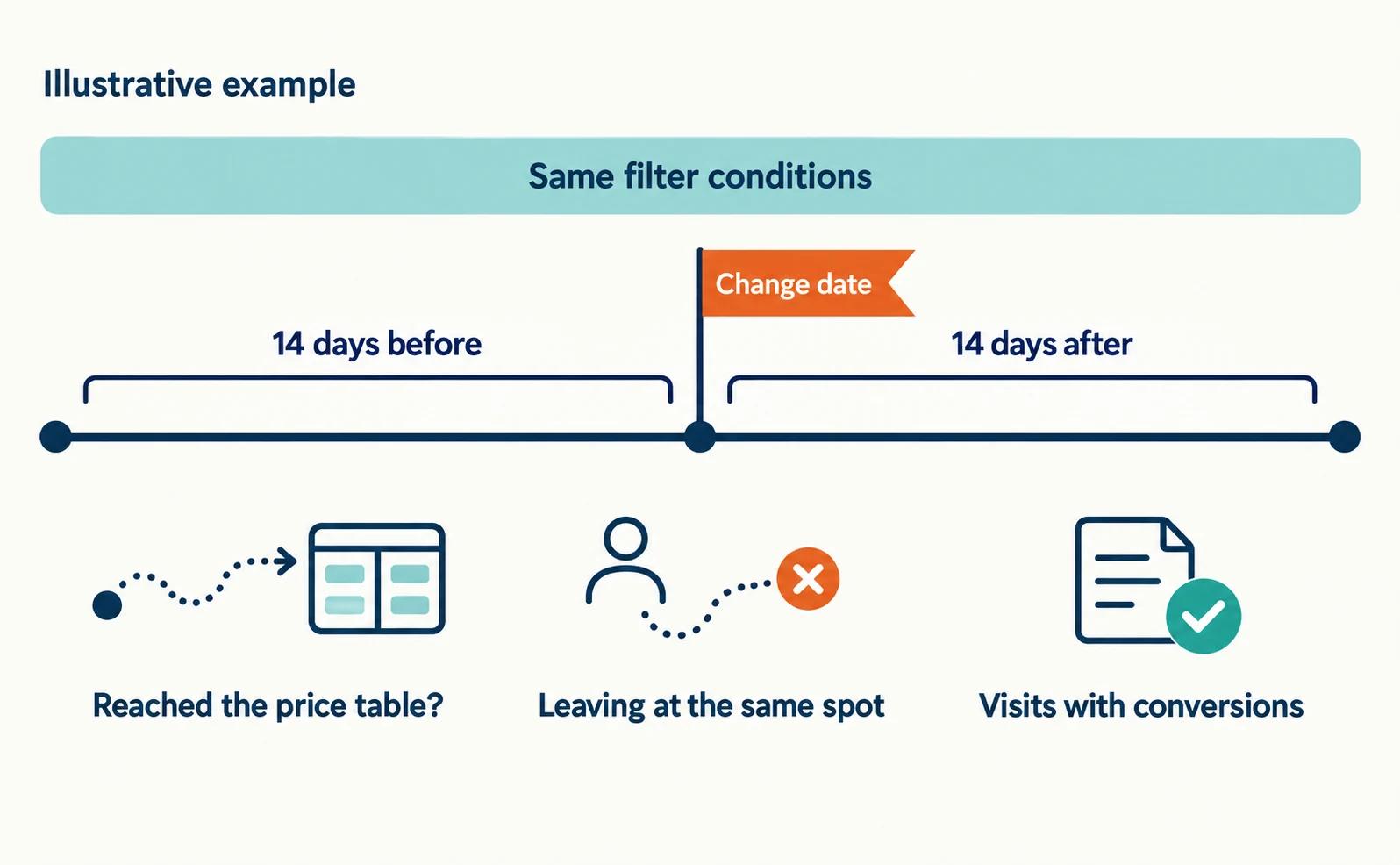
- The comparison periods (the same number of days before and after)
Choosing a custom period lets you set specific dates. For example, show the 14 days before the change and the 14 days after, with the same conditions.
Compare whether recordings now reach the price table, whether people leave at the same spot less often and whether there are visits with conversions. If you use Google Analytics 4, the session key event rate in the Traffic acquisition report also shows the share of sessions where an outcome occurred [3].
However, a before-and-after comparison alone does not prove that the fix increased enquiries. Changes in AI answers, seasons, advertising and other factors also affect visits. When AI visits are few, a difference of one or two may be chance.
First, check whether the problems you saw in recordings no longer appear after the fix. Then extend the period and watch how outcomes change.
FAQ
- Q. AI visits are few. Is it worth analyzing them with recordings?
- Yes. Even a few recordings can reveal candidates to fix, such as an answer placed too low or a misleading link. Do not treat a handful of recordings as the cause for all visitors; watch more under the same conditions and see whether the behavior repeats.
- Q. How do I tell AI crawler records apart from human visits?
- ChatGPT-User and similar agents are records of AI reading a page after a user asks a question, not a person clicking a link. The AI referral filter in web recordings selects human visits that were labeled as coming from an AI service based on the referrer or utm_source.
- Q. Can I see visits from Google’s AI Overviews with the AI referral filter?
- No. They cannot be told apart from ordinary Google Search by the referrer, so they are not included. Google Analytics 4 also counts visits from AI Overviews and AI Mode as Organic Search.
Sources
- [1] Overview of OpenAI Crawlers (OpenAI) — accessed 2026-09-23
- [2] Default channel group (Google) — accessed 2026-09-23
- [3] [GA4] Traffic acquisition report (Google) — accessed 2026-09-23
About the author
Shogo MizushimaCEO of kairos Inc. / AgentSignal Developer
Develops AgentSignal, a tool for measuring AI crawler visits and AI-referred traffic, and diagnosing AIO readiness. Writes about measurement and practical improvements for AI search using observed data.
Related articles
Measurement and site improvement
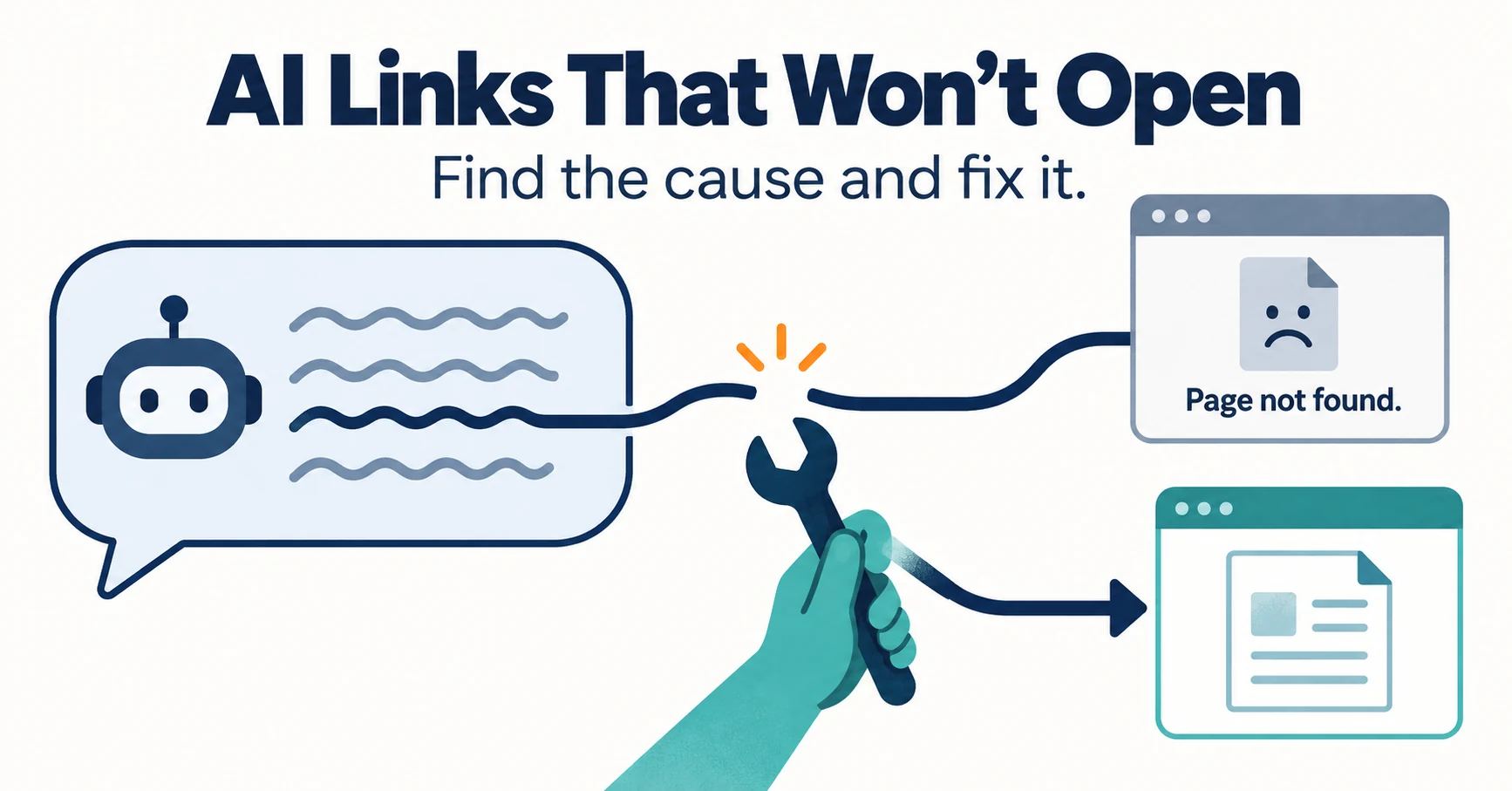
How to Check and Fix Links from AI Answers That Won’t Open
If clicking a link in an AI answer shows “Page not found,” the cause is usually a move, a deletion or an outage. Learn to tell them apart from visit records and response codes, then fix redirects and notices.
Published
Measurement and site improvement
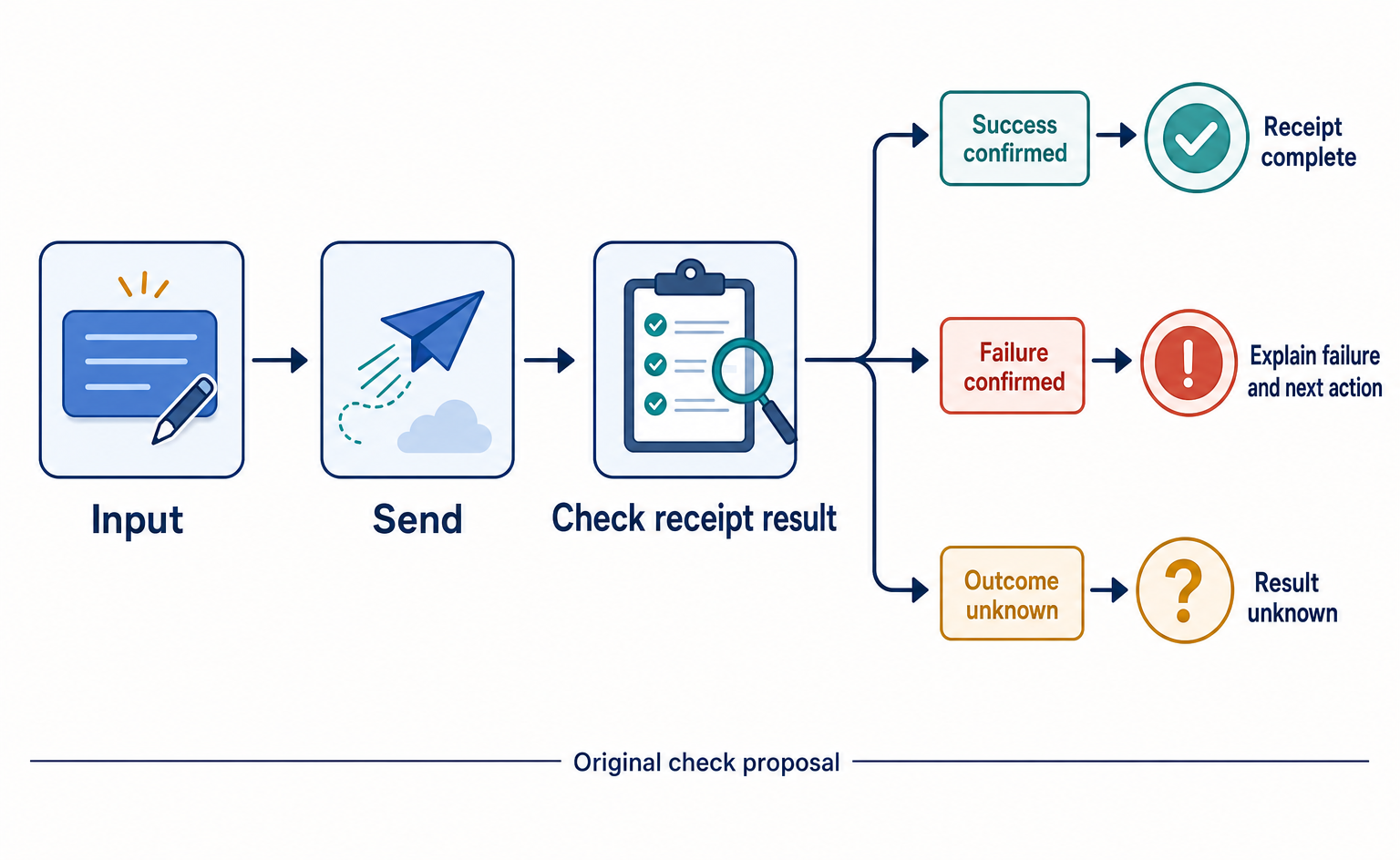
How to Fix Contact Forms That Leave Customers Thinking They Have Submitted
Learn how to tell customers what to enter, how to fix errors, and whether their inquiry was received. Original before-and-after examples and review tables help you check each step from clicking Submit to confirmed receipt.
Published
Measurement and site improvement
71,147 AI Answers: Why Customer Context Matters for AIO
A persona study shows why AI recommendations need context. Build comparable customer questions, record mentions and links, then improve pages with verified information.
Published