How to Fix Contact Forms That Leave Customers Thinking They Have Submitted
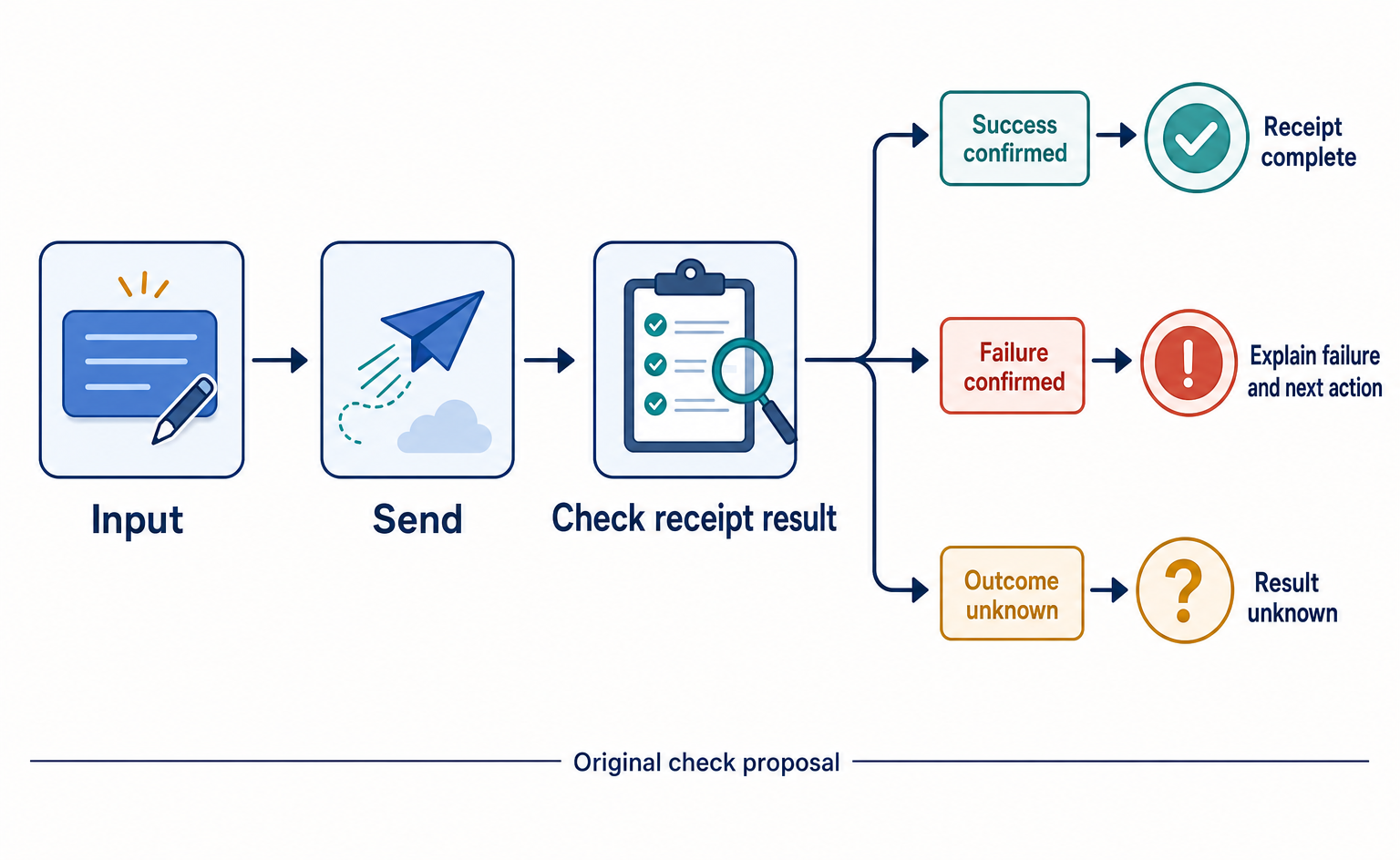
Learn how to tell customers what to enter, how to fix errors, and whether their inquiry was received. Original before-and-after examples and review tables help you check each step from clicking Submit to confirmed receipt.
A contact form collects inquiries about quotes, bookings, and similar requests. If nothing is clear after customers press the Submit button, they cannot tell whether their inquiry was received. This article shows service managers how to review the process from data entry to confirmed receipt and record which messages need changing.
The guidance is based on the forms tutorials from the World Wide Web Consortium’s Web Accessibility Initiative (W3C WAI), which works to make the web usable by people with a wide range of needs. These tutorials recommend telling users whether submission succeeded or failed and providing clear instructions for correcting errors.[1] The quote request form, wording, and review tables below are original editorial suggestions. They are not screens from a real company or measured improvement results.
References checked: September 15, 2026. This review guide is based on the text of the official documentation. Settings and submissions have not been checked in a live account.
Treat a click and confirmed receipt as separate events
First, decide what must be verified before the form displays “We have received your request.” This review separates pressing the button, the process of sending the information, and the result confirming receipt. That prevents a response from the button alone from being treated as proof of successful receipt.
For illustration, we use a fictional form for requesting a commercial cleaning quote. The customer enters a company name and inquiry details, the service receives the request, and a staff member then gets in touch. Receipt of a quote request does not mean that a cleaning booking is confirmed.
For this example, we suggest a design that displays a confirmation message once receipt of the request has been verified on the service’s side. If receipt cannot be determined, treat that as a separate issue to check rather than assuming either success or failure. Agree in advance with the person who manages your form on where to check the receipt record.
Keep field names visible after customers start typing
Give each input field a name that explains its purpose. This name is called a “label.” WAI recommends associating labels with their input fields. This matters not only visually but also for screen readers, software that reads screen content aloud.[2]
In the cleaning quote example, “Name” alone could mean either the company’s name or the contact person’s name. “Contact name” makes the intended information clearer. We suggest keeping the field name visible after typing, rather than relying only on faint example text inside the field.
Mark fields that must be completed as “Required.” WAI explains how to identify required fields in their labels and also configure them as required in the underlying form.[3] Check for differences between the wording and the actual rules—for example, a form that refuses to submit merely because an optional phone number is blank.
The following is an original review table for staff to fill in while examining their own form. “Suggested wording” means text shown to customers; “What to confirm” means conditions to agree internally. Replace the fictional field names with those used in your own quote request form.
| Field to review | Before: example | Suggested wording | What to confirm |
|---|---|---|---|
| Name | Name | Contact name (required) | Is this needed separately from the company name? |
| Contact details | Reply email address (required) | Will replies actually be sent to this address? | |
| Phone | Phone number | Phone number (optional) | Can the form be submitted with this blank? |
| Inquiry details | Details | Cleaning location and inquiry details (required) | Is there guidance on the information needed for a quote? |
Even when making “Details” more specific, avoid asking for unnecessary information. For this example, possible supporting text is: “Please tell us the type of premises, such as an office or shop, and what you would like to discuss.” The staff who actually handle incoming inquiries should decide what customers need to write to start the conversation.
Show both where the error is and how to fix it
An error message should do more than announce a failure. It should help customers find the field that needs attention and correct it there. WAI describes an approach in which an error list at the top of the form includes the relevant field name, an explanation of the problem, instructions for fixing it, and a link to the field.[1]
Our original “before” example is “Input error.” This alone does not tell customers whether to check the company name, email address, or inquiry details. The suggested improvement displays “Please check the reply email address” at the top, then explains what is missing near that field.
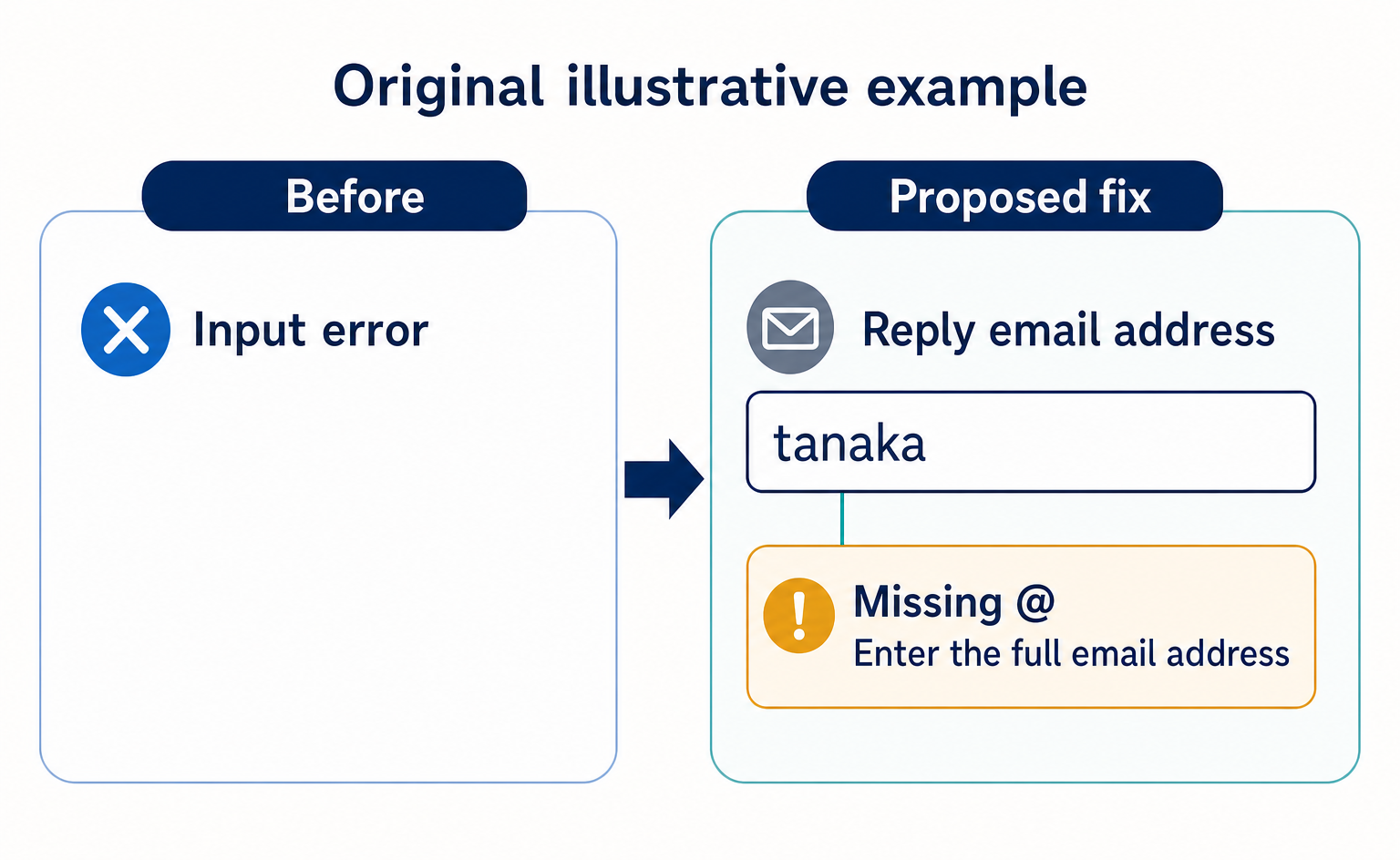
For example, if the illustrative input is “tanaka,” the suggested message is: “The reply email address is missing an @ symbol. Please enter the full email address.” This wording is intended for cases where a missing @ symbol has actually been detected. Do not display the same message when the address is rejected for a different reason.
Use text to explain the problem rather than relying on a red border alone. If the company name and inquiry details are correct, also check whether they can remain in place so that only the email address needs changing. Decide which entered information to retain based on the information you handle and your company’s security requirements.
Do not stop at the first error message when checking whether customers can correct a problem. After fixing the email address, check whether the old error disappears, whether another field has been cleared, and whether the form can be submitted again. If customers must rewrite their inquiry every time they correct an error, record that repeated entry as an issue to improve.
Do not treat typing and submitting the same way
Some entries, such as dates, do not match the required format until the customer finishes typing. WAI also gives examples where checking input while someone is typing is unsuitable and shows an example of checking after the user moves to another field.[1] Consider each field separately: is a prominent warning really needed every time only a few characters have been entered?
For phone numbers, WAI describes accepting multiple ways of writing them, including different separators.[3] If your request-handling system can process numbers both with and without hyphens, consider avoiding a request for customers to rewrite them. If it cannot, specify the same format in both the instructions shown before entry and the error guidance.
Separate what was received from what happens next
After receipt, state specifically what has been completed. WAI emphasizes the importance of success messages and describes communicating the result in the page’s main heading or page title.[1] For the cleaning quote example, a possible message is “We have received your quote request” rather than simply “Complete.”
Next, explain what contact the customer should expect. If you include an estimated response time, first confirm the conditions that the staff handling inquiries can meet. Also check that the page does not say “We have sent a confirmation email” if the system does not send automatic replies.
The following is an original illustrative comparison. “After” refers to proposed wording, not verified results such as an increase in inquiries.
| Situation | Before: example | After: suggested wording |
|---|---|---|
| Receipt confirmed | Complete | We have received your quote request |
| What happens next | Thank you | A staff member will contact you at the email address you entered |
| Distinction from a booking | Request complete | Your cleaning booking is not confirmed at this stage |
| Receipt status unknown | Error. Please resend | We could not verify whether your request was received. Before resending, please contact the support contact below to check its status |
The final suggestion assumes that a contact point able to check the actual receipt status is available. When using this wording, follow it with your company’s existing contact details for status checks and the information customers need to provide. If no such contact point exists, do not use the wording unchanged. Start by redesigning how receipt status can be checked.
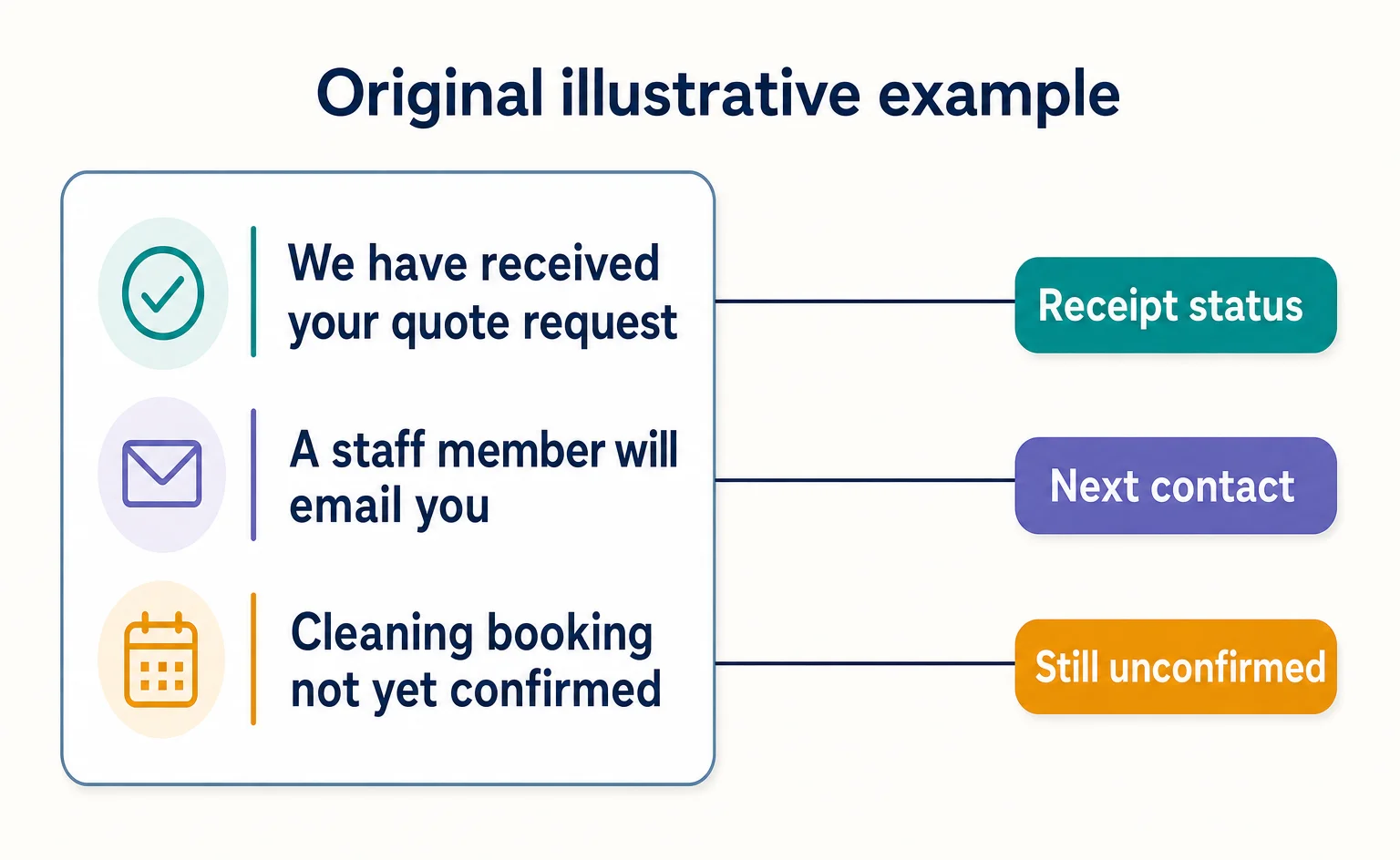
By avoiding a single “Complete” message that combines receipt of a quote request with confirmation of a booking, you can make the commitment to the customer clear. Booking services should likewise distinguish between merely receiving an inquiry and confirming a date and time, according to what the system actually does. The guiding rule is not to make the screen wording promise more than the underlying process delivers.
Review the official examples, then check your own test form
First, use the official examples to see how required fields and email address format checks work. Service managers should open WAI’s input validation tutorial. Input validation means checking whether entered information meets the form’s requirements. This page is a place to read explanations and try input examples, not a settings screen for your own form.[3]
“Validating required input” covers checking required fields. “Validating common input” covers checking common formats such as email addresses. Entering the illustrative string “tanaka” in the latter section’s “Email” field lets you try an entry that is not in a valid email address format. The display and timing of checks can vary by the environment you use, so do not assume that a particular warning will always appear.[3]
Next, switch to a test page prepared by the person who manages your company’s form. A test page is a place to check how the form works without creating real quote requests or sales notifications. Before proceeding, obtain the page URL, any access permissions needed, the notification destinations, and the location of receipt records. The documentation does not show individual services’ administration screens, so this article does not specify settings button names.
Record each test from entry to receipt
This review checks whether customers can finish correcting errors and understand whether their request was received. Suggested test entries are “Form testing” for the company name and “Functionality test. This is not a real quote request” for the inquiry details. Use a test email address controlled by the staff member for replies, and do not use real customer information.
- Leave the required inquiry details blank and press your form’s Submit button. Record whether it is clear which field is empty and how to fix it.
- Fill in the inquiry details, enter the illustrative value “tanaka” in the email address field, and try submitting. Check whether the field identified by the error and the reason given match the actual problem.
- Replace the email address with a test address under your control. Check that the company name and inquiry details remain, then submit.
- Read the confirmation message and ask the form administrator to check it against the receipt record. If the display and record do not match, do not record the test as a success.
The table below is another original example of a completed review record. “Not tested” means the condition has not yet been tried; “Display checked only” means the receipt record has not been cross-checked. Record how far the review went, not just whether it passed or failed.
| Test condition | What to inspect | Example record | What to improve or recheck |
|---|---|---|---|
| Inquiry details blank | Field name and correction guidance | Illustrative: red border only | Explain in text that the field is empty |
| Invalid email format | Other input fields | Illustrative: inquiry details disappeared | Retain the details and retest |
| Submit valid information | Confirmation message and receipt record | Display checked only | Have the administrator cross-check the record |
| No receipt result returned | Message for an unknown result | Not tested | Ask whether the administrator can reproduce this safely |
Record screen reader checks separately from visual checks. “Associating labels explicitly” in WAI’s labeling tutorial explains how to explicitly associate a field name with its input field.[2] For error notification methods, see “Listing errors” in the form notifications tutorial.[1] Ask the person responsible for implementation to check whether screen readers also convey the field names and their associated errors correctly.
Checking the format of input on the page alone does not complete a security review. WAI explains that input also needs to be checked on the server—the system that receives and processes the data.[3] Do not treat the review in this article as verification of overall security or support for every user environment.
Check on-page actions with AgentSignal
If you use AgentSignal and a recording of the target page is available, select a visit containing that page in Web Recordings. Replay it to see which controls the visitor clicked and how far they progressed. For a form, review actions around an input error; for a pricing page, review the path to the application guidance.
A recording alone does not establish why someone left or whether an order was completed. Compare the visible actions with the page copy and actual receipt records. Past actions that were not recorded cannot be replayed, so check collection conditions and retention as well.
Fix messages that stop customers moving forward first
Among the recorded issues, we suggest prioritizing “I don’t know what to fix,” “My input disappeared,” and “I don’t know whether my request was received.” Record the responsible person, the wording to change, and the retest conditions together. This helps prevent the work from being closed merely because the appearance has changed.
If AI carrying out a task requested by a person operates the form, the same checks still matter: can it correct errors and verify receipt? The documentation used here does not test AI-specific features. It does not establish that supporting a particular technology such as WebMCP, a protocol for connecting AI agents with website tools, will by itself solve these problems.
After changing the wording, retest with the same input conditions. Whether the guidance has become clearer and whether inquiries have increased are separate questions. Start by recording obstacles from entry to receipt, and work through the process without leaving the handling of incoming requests unverified.
FAQ
- Q. What should an error message say?
- Include the relevant field name, what is wrong, and how to fix it. WAI also describes adding links from an error list at the top of the form to the affected fields.[1]
- Q. Is it enough for an input field’s name to be visible?
- No. In addition to being visible, the field name must be associated with the input field in the underlying implementation. This also needs checking so that screen readers announce the correct field name.[2]
- Q. Should errors appear immediately while customers are typing?
- Decide field by field. WAI gives examples such as dates, which are not in the correct format partway through entry, and shows an example of checking after the user moves to another field.[1]
- Q. Does checking input formats also verify security?
- No. WAI explains that, in addition to checks on the page, input must be checked on the server that receives the data. The review in this article does not verify overall security.[3]
Sources
- [1] User Notification | Web Accessibility Initiative (WAI) | W3C (W3C WAI) — accessed 2026-09-15
- [2] Labeling Controls | Web Accessibility Initiative (WAI) | W3C (W3C WAI) — accessed 2026-09-15
- [3] Validating Input | Web Accessibility Initiative (WAI) | W3C (W3C WAI) — accessed 2026-09-15
About the author
Shogo MizushimaCEO of kairos Inc. / AgentSignal Developer
Develops AgentSignal, a tool for measuring AI crawler visits and AI-referred traffic, and diagnosing AIO readiness. Writes about measurement and practical improvements for AI search using observed data.
Related articles

AIO and AI search
What Is AIO? Its Two Meanings and Where to Start with AI Optimization
AIO has two meanings: work to get your company featured in AI answers, and Google Search’s AI Overviews. Learn how it relates to SEO, what to confirm in a proposal, what Search Console and Bing reports show, and your first tasks.
Published

Measurement and site improvement
What Do Visitors from AI Do? Fix Your Entry Page Based on Their Behavior
People arrive from AI answers, yet enquiries do not follow. Use session recordings to see what happens on the entry page: how to filter recordings to AI referrals, how to use page-wide heatmaps as a supplement, what to fix for each behavior pattern and how to recheck after the change.
Published
Measurement and site improvement
71,147 AI Answers: Why Customer Context Matters for AIO
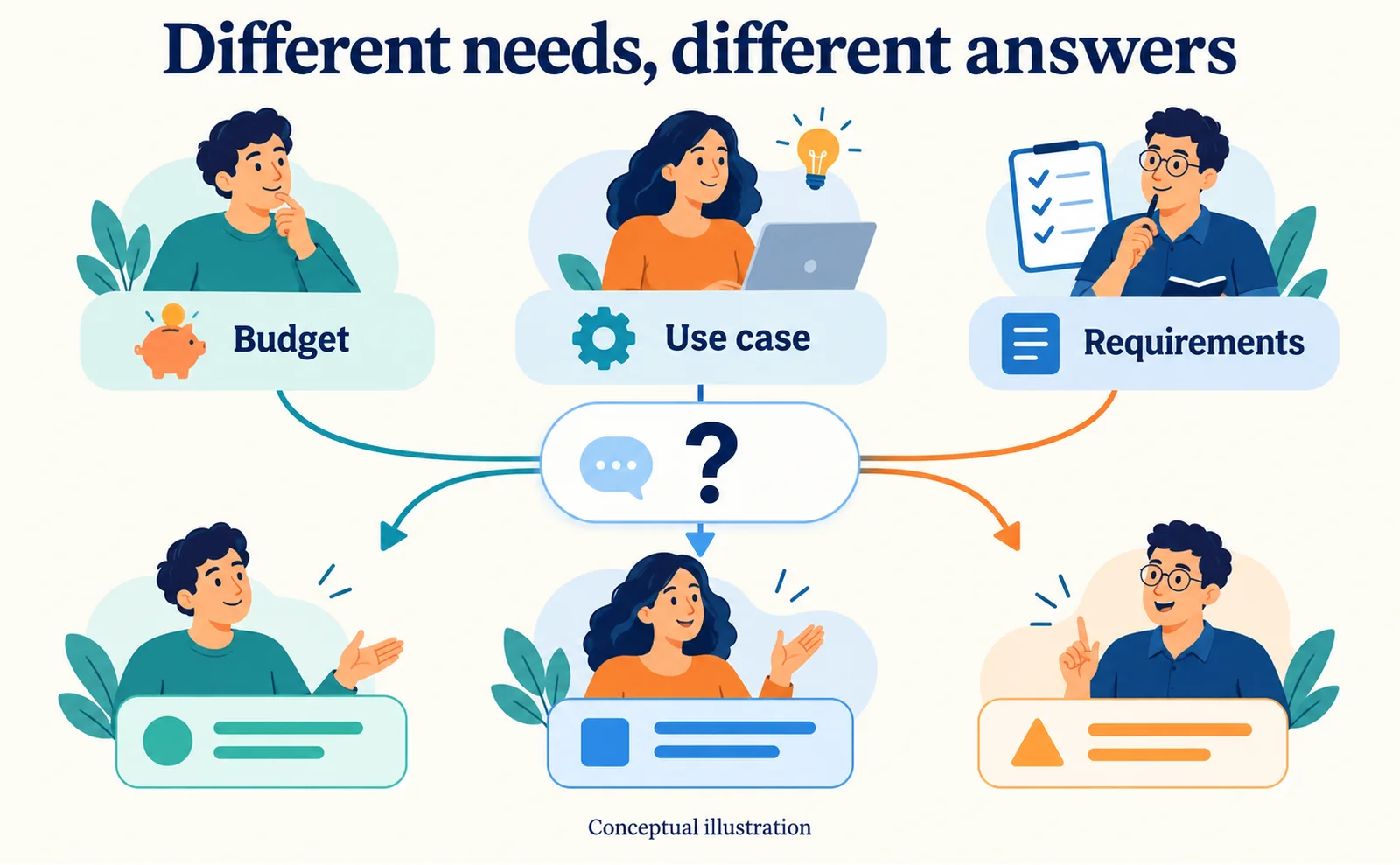
A persona study shows why AI recommendations need context. Build comparable customer questions, record mentions and links, then improve pages with verified information.
Published