How to Hide Personal Information in Recordings and Manage Account Settings
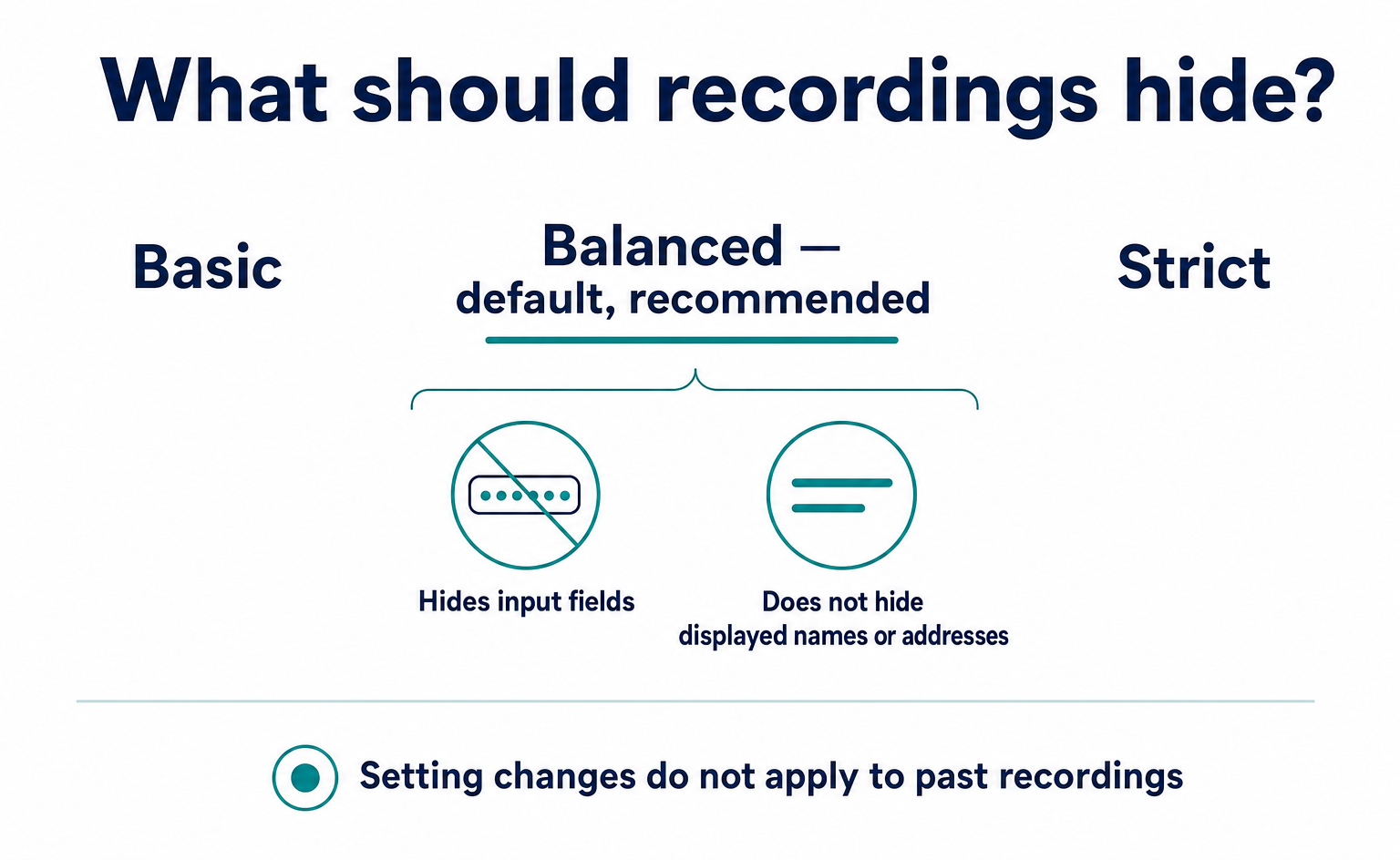
The default Balanced setting hides input fields, but not names or addresses displayed on member pages. Learn how to hide text or exclude areas, test changes, allow for the update delay, handle older recordings, and manage your login methods, password, and display language.
To hide information entered in recordings, go to Settings (設定) → Privacy (プライバシー). The default Balanced (バランス) setting hides input fields, but not names or addresses displayed on the page. If you also record member pages or order confirmation pages, check what information appears and add settings as needed.
“The form fields are masked, but what happens on the confirmation screen that follows?” Before you start recording, check not only the input screen but also the review screen before submission and member pages. Decide what to hide, then check a recording using test information.
The screen examples below show sample settings. In your actual dashboard, check the settings your team has selected. Recording settings belong to the team. The login settings covered later belong to each individual.
1. The privacy settings screen
Go to Settings (設定) → Privacy (プライバシー) (/settings/privacy) to choose what to hide. The top section offers 3 settings. Below them are 2 fields for specifying additional areas to hide. The screen calls this process of concealing information “masking.”
The top section contains Basic (ベーシック), Balanced (バランス), and Strict (ストリクト). The screen calls these bundled settings “presets.” Balanced is selected by default and marked Recommended (推奨).
Try the interactive demo below. The article also explains each step in text.
Specify additional areas to hide under Additional text masks (追加のテキストマスク) or Full block—do not record (完全ブロック(録画しない)). Use CSS selectors, which are expressions that identify locations on a page. Enter one per line. Then click Save settings (設定を保存).
Only the owner or someone with Read and write (閲覧・書き込み) permission for the team's Settings (設定) can make changes. With Read only (閲覧のみ) permission, you can view settings but cannot save them. Ask your team administrator for help, explaining why you want to change the settings.
Password fields are never recorded in readable form, regardless of the setting. However, the setting determines how much other input and page text is hidden. Checking that passwords are hidden is not the same as checking the entire page.
2. Three settings for hiding information
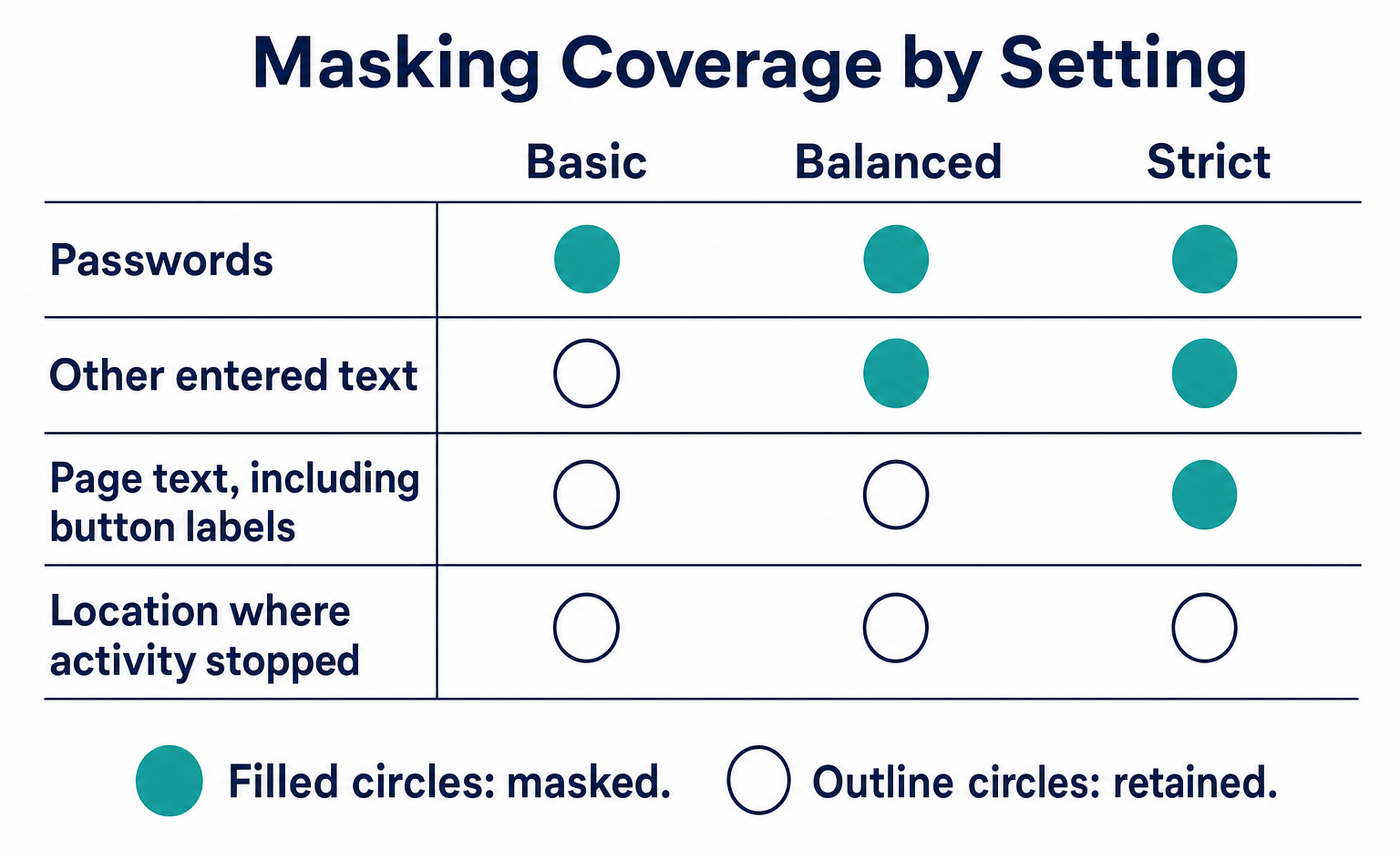
The main difference is whether the setting hides input fields alone or page text as well. Check input areas separately from the areas that display submitted information.
| Preset | What is masked | What remains visible | Suitable sites |
|---|---|---|---|
| Basic (ベーシック) | Password fields only | Other input values, page text, and layout | Landing pages and corporate websites with almost no input forms |
| Balanced (バランス), Recommended (推奨) | All input / textarea fields | Page text, layout, click locations, and scrolling | Contact forms, e-commerce, and many B2B sites |
| Strict (ストリクト) | All input / textarea fields plus page text | Layout, click locations, scrolling, and page navigation | Healthcare, finance, legal, tax, and other professional-service sites where the text itself may contain sensitive information |
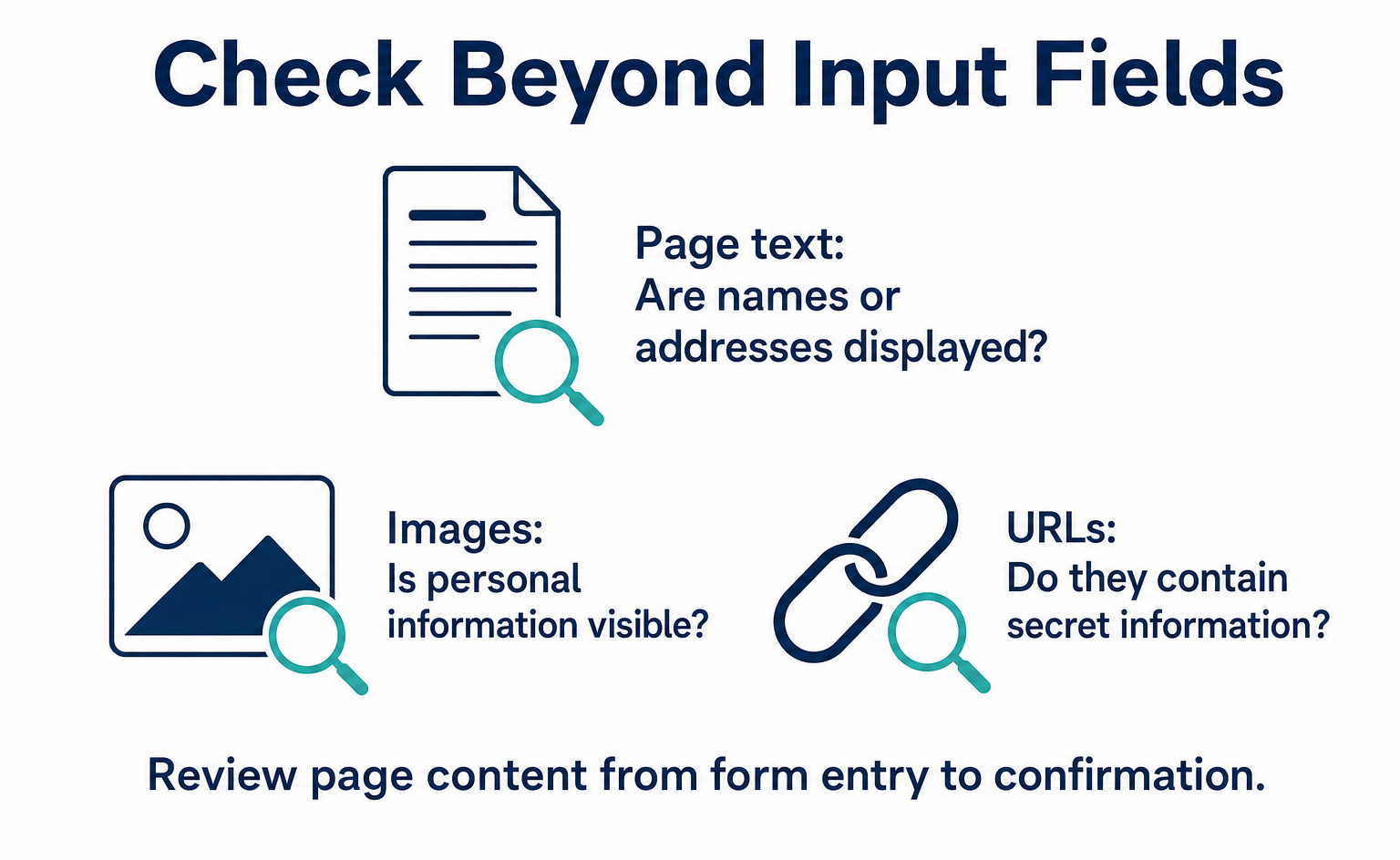
Balanced automatically masks the contents of input fields. Names and addresses on member pages, or product names in order histories, may appear as ordinary page text. In that case, they remain in recordings if you only hide input fields.
The terms input / textarea in the table are the formal names for input fields used on web pages. If you cannot read code yourself, show the relevant person what you want to hide. Ask them to check whether it is a standard input field or an area that displays text.
Choosing Strict does not stop all screen recording. You can still check click locations, scrolling, and the pages visited while hiding text. Use it when you want to study the sequence of actions without retaining the text itself.
What Strict retains and hides in recordings
The following table shows what you can see with each setting. Recordings show a record of actions. Even when text is visible, they do not directly reveal what a visitor was thinking.
| Information | Basic (ベーシック) | Balanced (バランス) | Strict (ストリクト) |
|---|---|---|---|
| Page navigation and time spent | Retained | Retained | Retained |
| Click locations and scroll distance | Retained | Retained | Retained |
| Layout: element positions and sizes | Retained | Retained | Retained |
| Input values other than passwords | Retained | Masked | Masked |
| Page text: headings, descriptions, displayed names, etc. | Retained | Retained | Masked |
| Which buttons were not pressed | Can be identified | Can be identified | Can be identified |
| Text where activity stopped | Readable | Readable | Masked and unreadable |
With Strict, you can see where activity stopped, but cannot read the text at that location. Even with a setting that retains text, the reason for the pause is still an inference. Record the behavior you observed separately from the reasons you inferred.
3. Choose based on your site's content
Choose based on what actually appears on your pages, not just your industry. Product pages and member pages display different information, even on the same site.
For example, an e-commerce site may show public information on product pages but display names and addresses on order confirmation pages. E-commerce means selling products online. Do not choose settings based only on input forms. Check the entire path through placing an order.
If information such as card numbers should not be recorded, check the option to exclude that area from recordings, rather than only masking the input text. Do not apply the examples in the table unchanged to every page on your site.
| Industry or site type | Recommendation | Reason and notes |
|---|---|---|
| B2B landing pages and corporate websites | Balanced (バランス), the default | The only input fields are in contact forms. Page text is public information |
| Media sites and blogs | Basic (ベーシック) may be sufficient | Almost no input fields. Use Balanced if there are comment fields |
| E-commerce: product browsing through cart | Balanced plus Additional text masks (追加のテキストマスク) for names and addresses on order confirmation pages | Input fields are masked automatically. Add masks for displayed personal information |
| E-commerce: card numbers entered on your own screen | Balanced plus Full block (完全ブロック) for the card number field | Avoid recording cardholder data at all, in line with the PCI DSS approach [4] |
| Membership sites: personal account pages | Strict (ストリクト), or Balanced plus additional masks for relevant elements on personal account pages | Most text on personal account pages is personal information |
| Healthcare, medical appointments, and care services | Strict | Medical history and treatment details are personal information requiring special care [3]. Mask the page text as well |
| Applications for finance, insurance, and real estate | Strict; consider Full block for application forms too | Account details, annual income, borrowing, and other information appear on screen |
| Consultation forms for legal and tax professionals | Strict | Free-text consultation fields may contain sensitive information |
| Internal tools and administration screens | Full block, or exclude from recording | There is no reason to record business data |
Even when text is hidden, you can check the order of page visits, how many seconds activity paused, and where visitors clicked. If you want to know whether visitors found a button, start with those action records.
Investigate only what you can retain, based on how the displayed information must be handled. Do not assume that names or consultation details must be retained “because they are needed for improvement.”
Guidelines under Japan's Act on the Protection of Personal Information require organizations to specify the purpose of use and take measures to handle data securely [2]. Changing settings alone may not complete your company's review.
For internal discussions, prepare answers to 3 questions: “What is recorded?”, “Who can view it?”, and “When is it deleted?” Check the recording settings, permissions under Settings (設定) → Team (チーム), and your plan's retention period. Retention ranges from 30–365 days, depending on the plan.
4. Check information recorded beyond text
Masking text does not remove records of visits and actions. Do not assume that masking eliminates the need to review personal information. Check what information you collect and how you use it.
Masking is a setting that keeps unnecessary text out of recordings. Separately review other information handled by tracking, such as IP addresses, device information, and activity history. An IP address identifies the source of a network connection.
What you write in your privacy policy should match what you actually record and your company's policies. Rather than copying another site's wording, check that the description matches your own pages and retention period.
Strict does not stop every type of information from being recorded. Check what remains after text is hidden. Consider what you need to retain for your purpose of studying on-screen actions.
Choose one preset in the top section. To hide specific areas on particular pages, use the additional masks or full blocks below. Keep your site-wide setting separate from the areas you specify individually.
Names and addresses on an order confirmation page appear after input is complete. Even if the input fields are hidden, the information remains in recordings if it can be read on the confirmation screen. Follow the actual journey from form entry to the confirmation screen.
Pre-launch checklist
Complete these 6 items to prepare for an internal review. Replace the example page names and staff numbers with your own. If an item has not been checked, write “Not checked” rather than leaving it blank, and assign someone to review it.
| Item to check | Example entry |
|---|---|
| Sites and pages to record | Entire corporate website; e-commerce product pages through order confirmation |
| Pages displaying personal information | Order confirmation (/checkout/confirm), personal account page (/mypage) |
| Sensitive information entered on your own screens | Card numbers, excluding forms provided by a payment processor |
| Selected preset | Balanced (バランス) |
| Additional mask / block targets | Mask .customer-name and .order-address / block .credit-card-number |
| Members who can view recordings | 2 marketing staff: Read only (閲覧のみ); 1 web manager: Read and write (閲覧・書き込み) |
5. Hide specific areas or exclude them from recordings
Use Additional text masks (追加のテキストマスク) to hide text only, or Full block (完全ブロック) to exclude the area from recordings. The same selector behaves differently depending on which field you enter it in.
| Field | What happens | Suitable targets |
|---|---|---|
| Additional text masks (追加のテキストマスク) | Records the element with its text masked. Position, size, and layout remain | Areas displaying names, addresses, and email addresses; customer information; comment text |
| Full block—do not record (完全ブロック(録画しない)) | Excludes the element itself from recordings. Its structure is not recorded either | Card number and bank account input blocks, internal-only widgets, and chat histories |
A CSS selector is an expression that specifies where on a page to hide information. The following 10 selectors are examples of the syntax. Copying them will not hide anything unless your site has areas with matching names.
Class names, IDs, and data attributes are names or markers attached to areas of a page. If you do not know the syntax, give your web production team the URL and the areas you want to hide. Ask them to confirm the values to enter in the settings fields.
| Example selector | Meaning | Use |
|---|---|---|
.customer-name |
An element with class="customer-name" | Names displayed on order confirmation and personal account pages |
#email |
An element with id="email" | Email address display area |
[data-private] |
An element with a data-private attribute | Lets developers mark elements that should be masked |
.order-address |
Delivery address block | E-commerce order confirmation |
.credit-card-number |
Card number input block | Suitable for Full block |
#bank-account |
Bank account information block | Suitable for Full block |
.chat-history |
Chat history | Support chat text |
table.member-list td |
Each cell in a member list | Administration screens and member lists |
.medical-note |
Treatment or consultation details | Free-text fields for healthcare and professional services |
[data-block-recording] |
An element marked not to be recorded | General-purpose marker for Full block |
The settings fields also show examples. The mask field displays .credit-card-number, [data-private], and #bank-account. The block field displays .internal-tool and [data-block-recording].
These examples show how to enter selectors. A name containing “card” or “account” does not automatically find that information. It must match a name used on the actual page.
For example, .customer-name will not match .customer_name or .c-name on the page. Check every character, including punctuation. Ask your developer to inspect the target area using the browser's developer tools.
If you will continue hiding the same type of information, you can add a marker such as [data-private] to your pages. Establish a rule to add data-private to displays that must be hidden, then specify that marker in the settings field.
Even then, check that markers have not been omitted from new pages. Not having to change the settings field does not mean you can skip pre-launch checks.
Retention and deletion
Recordings remain for 30–365 days, depending on the plan, and are automatically deleted as they expire. When explaining this internally, specify the number of days in your actual plan, not just the range.
You can also delete individual recordings manually. However, deleting a recording does not restore the recording allowance it used. Check retention, deletion, and your remaining allowance separately.
Sample privacy policy wording
The following is an example of wording that explains the use of a tracking tool. It assumes a setting that masks input fields, such as the default Balanced setting. Before using it, check that it matches what your company records and the explanation you intend to publish.
This site uses a tool (AgentSignal) to record visitors' browsing and on-screen actions to improve our services. Information entered into forms is masked when recorded and is not stored in plain text. Recorded data is automatically deleted after a set period.
Do not assume that this sample covers every required disclosure. In addition to what you record, how you hide it, and when you delete it, check what else your operations require. Your published explanation must match the settings you actually select.
6. How long settings take to apply
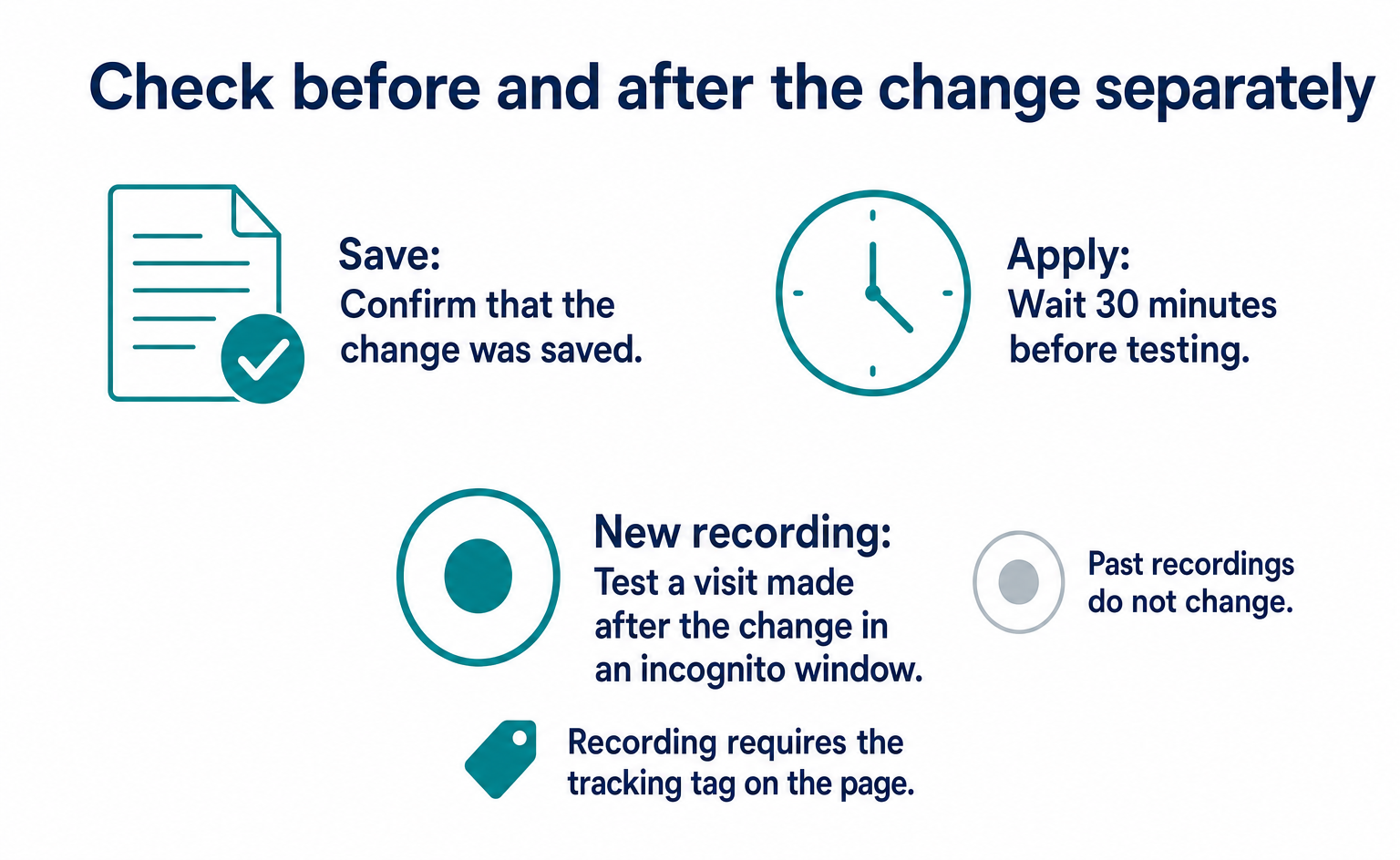
It may take up to 30 minutes before recording begins with the new settings. If you still see the old settings immediately after saving, do not keep changing them. Wait for the update, then make a new recording.
Information is masked in the visitor's browser when it is recorded. Check a visit made after the tracking tag t.js has loaded the new settings.
Making the settings stricter does not automatically rewrite older recordings. Treat checking new recordings and reviewing past recordings as separate tasks.
| Symptom | Cause | What to do |
|---|---|---|
| Recordings still use old settings after saving | Tracking tag settings cache: up to 30 minutes | Wait 30 minutes, then reopen the site in an incognito window |
| Some elements remain unmasked after the update | The selector does not match the HTML | Check the actual class name or ID with developer tools and correct the selector |
| Past recordings do not use the new settings | Masking is fixed at the time of recording | Past recordings do not change. Delete them if needed |
| Page text disappeared after switching to Strict | This is expected behavior | If you need some page text to remain visible, switch to Balanced plus additional masks |
| The settings screen is read-only | You have Read only permission | Ask for Read and write permission for Settings under Settings (設定) → Team (チーム) |
See Install the tracking tag for where to place the tag and how to check visits with new settings. Changing recording settings does not start tracking on pages without the tag.
7. Test a recording with dummy information
Enter test information and check that it is hidden in a new recording. You do not need to use real personal information. Note the time of your test and the page URL.
- Save the settings and wait 30 minutes.
- Open your site in an incognito window and enter “Test” into a contact form or similar form. You do not have to submit it.
- Also open pages with additional masks or blocks, such as order confirmation and personal account pages.
- In AgentSignal, go to Web Recordings & Improvement (Web録画 & 改善) → Web Recordings (Web録画) (/recordings) and play the session you just created.
- Check that input values are masked, elements covered by additional masks are hidden, and blocked elements do not appear.
Record the results for each target, such as “Input text was hidden” or “The specified name field was hidden.” Reviewing the recording together also helps you explain the results clearly to colleagues.
If you have many additional masks, separate checked areas from unchecked ones. A successful test on one page does not prove that untested pages are also hidden.
8. Login methods and password settings
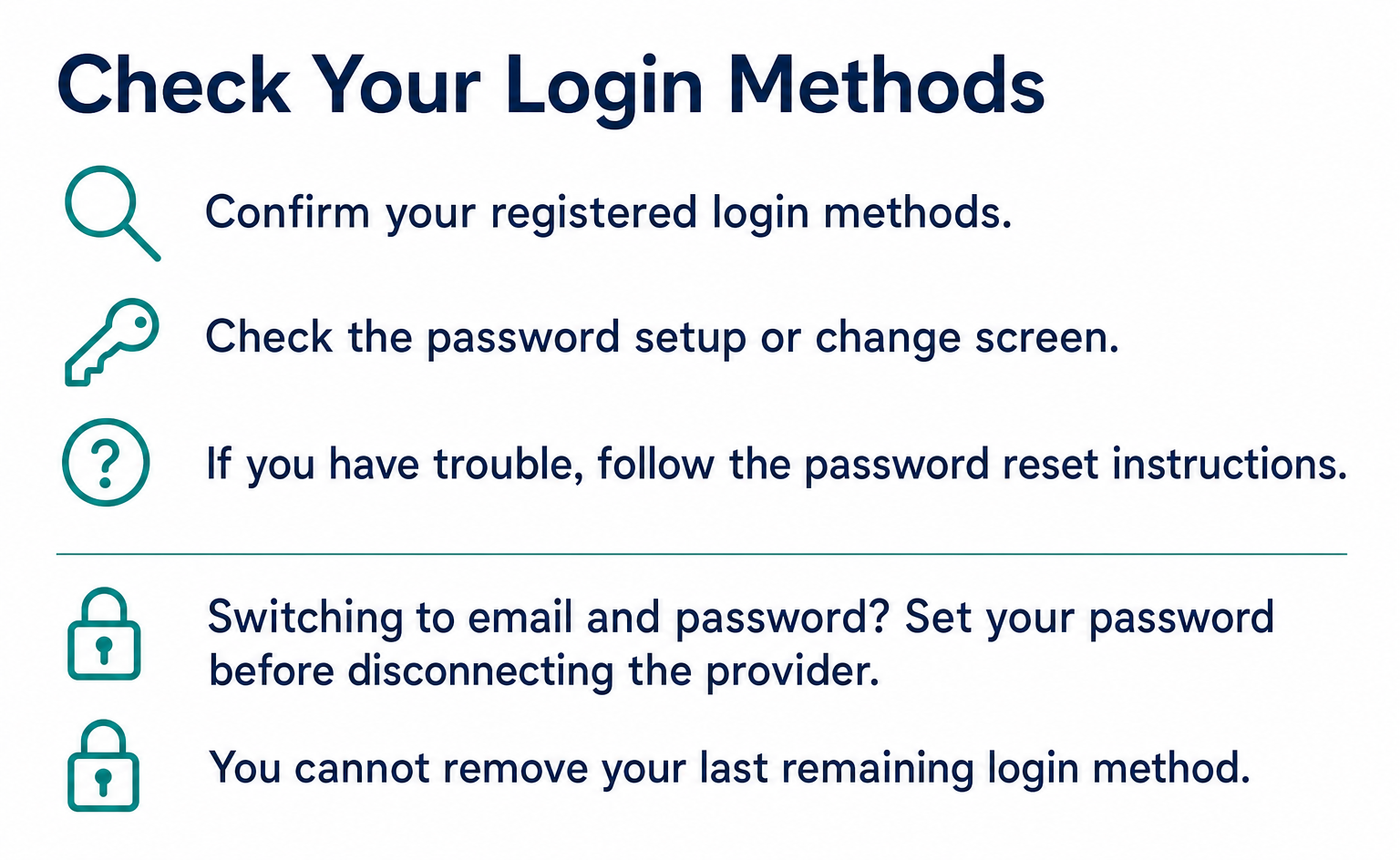
Manage your own login methods under Settings (設定) → Account (アカウント) (/settings/account). You can check connections to Google, Microsoft, and Apple, as well as email-and-password login. These are separate from the team's recording settings.
| Item | What you can do | Notes |
|---|---|---|
| Connected logins | Connect (連携する) or Disconnect (連携を解除) Google / Microsoft / Apple | If the email address is the same, signing in through another provider links to the same account |
| Password | Change it by entering your current password and setting a new one, or set one for the first time if you use OAuth login | Use this when you also want to log in with an email address and password |
| Last remaining login method | Cannot be disconnected | Set a password before disconnecting the provider |
| Profile | Check your email address and name | Invitation emails are sent to this email address |
| Sidebar display order | Reorder AI Optimization (AI 最適化), Web Recordings & Improvement (Web録画 & 改善), and Customer Service (接客) | Move frequently used features to the top |
Before changing login methods, prepare the method you will use next. For example, if you want to disconnect Google and use email and password, set your password first. You cannot remove your last remaining login method.
If you expect to lose access to your company account, consult the relevant person while you still have access. Separately check your team permissions and the process for removing access when you leave the company.
9. Change the display language
Under Settings (設定) → Display language (表示言語), you can switch between Japanese (日本語) and English. This changes only your own display. It does not affect other members of the same team.
Members who want to use English should select English themselves. In addition to the dashboard, guide and blog pages switch when an English version is available. This does not mean that content without an English version is automatically translated.
10. Sample explanations for colleagues
Share both the settings and the test results in your internal explanation. Use the following answers as a starting point. Adapt them to your pages, permissions, and retention period.
| Question | Answer template |
|---|---|
| What is recorded? | We record visitors' on-screen actions: page navigation, clicks, scrolling, and whether they entered information. Input values are masked by default, and passwords are never retained in plain text under any setting |
| Is personal information recorded? | Input fields are masked. We hide displayed names and similar information with additional masks under Settings (設定) → Privacy (プライバシー), or use Strict to mask all page text |
| What about card numbers? | If visitors enter them on our own screen, we specify that element under Full block (完全ブロック) so it is not recorded at all |
| What about medical and treatment details? | We use Strict to mask page text as well. We can choose not to record pages that display personal information requiring special care |
| Who can view recordings? | Only members invited to the team. We can assign Read only (閲覧のみ) or Read and write (閲覧・書き込み) permission separately for each menu |
| When are recordings deleted? | They are automatically deleted after 30–365 days, depending on the plan |
| What about bots and crawlers? | They are not recorded. Only humans and AI agents acting on behalf of humans are recorded |
| Who can change settings? | Only the owner or members with Read and write permission for Settings (設定). Members with Read only permission cannot edit them |
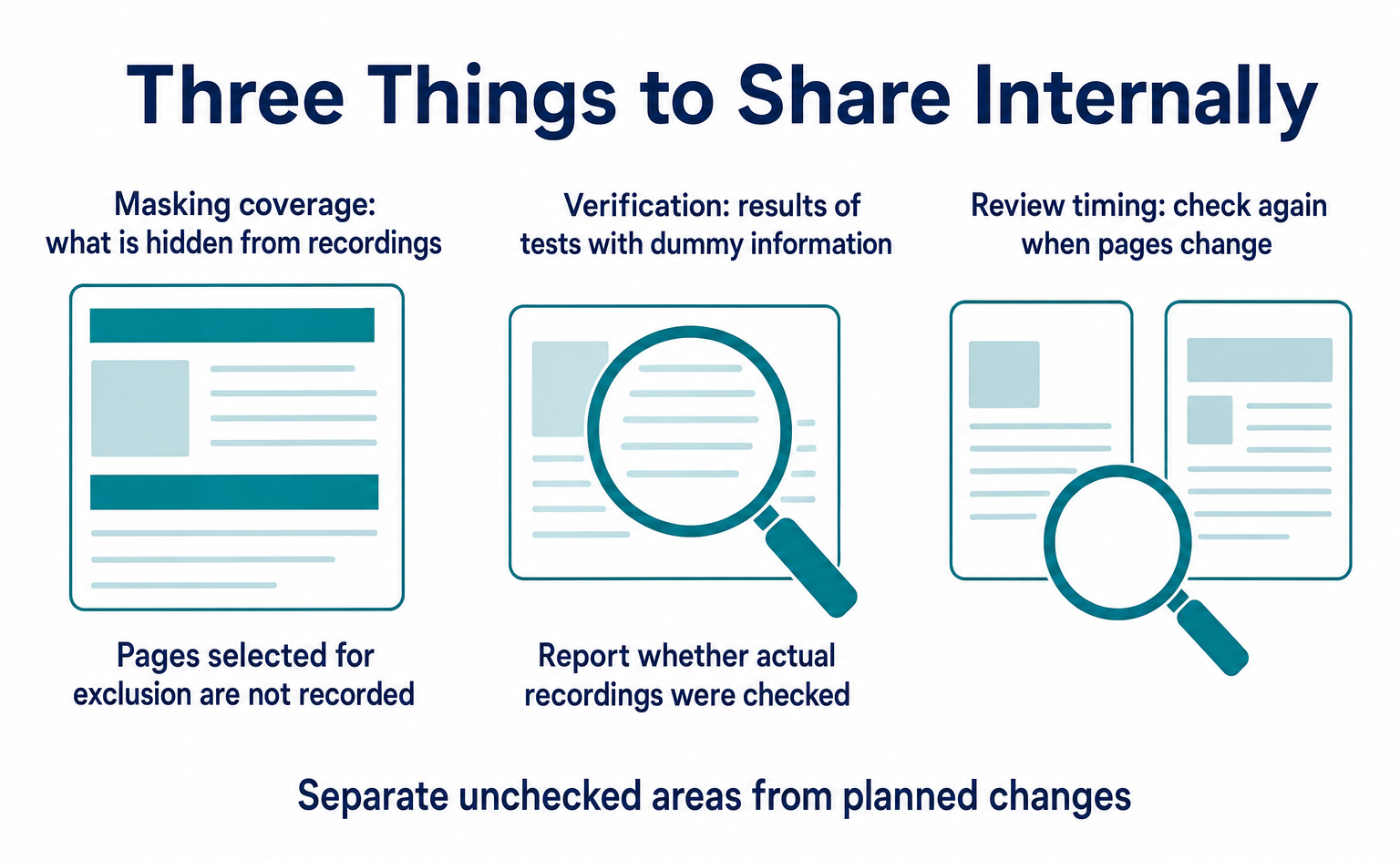
This table is a starting template for the discussion. State not only what you configured but also whether you checked actual recordings. Clearly separate unchecked areas from planned changes so you can decide who should check them next.
11. When information is not hidden or settings cannot be saved
If information is not hidden, check the settings and targets. If too much is hidden, identify what you need to retain. Review the displayed information before relaxing settings simply to make recordings easier to read.
| Problem | Check in this order |
|---|---|
| Input values are visible in recordings | ① Is the preset set to Basic? ② Have 30 minutes passed since saving? ③ Is the element implemented as a div or something other than input / textarea? If so, specify it with an additional mask |
| Names and addresses are visible in display areas | ① Did you enter a selector under Additional text masks? ② Does it match the actual class name in the HTML? ③ Did you wait 30 minutes? |
| The card number input block appears in recordings | Did you enter its selector in the Full block field, rather than the mask field? |
| No text is visible | Is Strict selected? To see page text, use Balanced plus additional masks |
| Settings cannot be saved | You have Read only permission. Ask for Read and write permission for Settings under Settings (設定) → Team (チーム) |
| Google cannot be disconnected | It is your last login method. Set a password first |
If these checks do not resolve the problem, contact support through Ask AI (AI に質問) in the header. Provide the site URL, selected settings, added selectors, and the date and time you checked. You do not need to send the personal information that remained visible. Explain which area was not hidden.
12. What to check after setup
First identify the target pages, configure the settings, and then review a new recording. If you want to complete setup and internal review in one day, use the following work times as a guide. The time required varies with the number of pages and the people you need to consult.
- Complete the pre-launch checklist in Section 4 (15 minutes). Identifying the URLs of pages that display personal information takes the most time.
- Under Settings (設定) → Privacy (プライバシー), select a preset, enter selectors for additional masks / blocks, and save (10 minutes). Verify the actual selectors with developer tools first.
- Wait 30 minutes, test inputs in an incognito window, and play the session in Web Recordings (Web録画) to check it (15 minutes).
- Take the Q&A from Section 10 and the playback screen to your legal and IT teams for review.
- Under Settings (設定) → Account (アカウント), check that everyone responsible has set a password, to prevent lockouts when they leave or transfer roles.
- Under Settings (設定) → Team (チーム), keep the number of members who can view recordings and their permissions to the minimum needed.
Summary
Check both input fields and the areas that display the entered information. After setup, verify the results in a new recording made with test information.
- Choose masking through the 3 presets under Settings (設定) → Privacy (プライバシー). Basic (ベーシック) = passwords only; Balanced (バランス) = all input fields, recommended; Strict (ストリクト) = input fields plus page text. Passwords are never retained in plain text under any setting.
- Choose based on whether the text displayed on screen is itself personal information. Use Balanced for e-commerce and B2B; use Strict or additional masks for healthcare, finance, professional services, and member pages.
- Use CSS selectors for anything the preset does not cover. Choose Additional text masks (追加のテキストマスク) to hide contents, or Full block (完全ブロック) to avoid recording the area at all. A data-attribute approach such as
[data-private]is easy to manage. - Changes can take up to 30 minutes to apply. The reliable way to check is to enter test information yourself and play it back in Web Recordings (Web録画). Changes do not apply retroactively to past recordings.
- Manage Google / Microsoft / Apple connections and your password under Settings (設定) → Account (アカウント). You cannot disconnect your last login method, so set a password before removing the connection.
- Use the Q&A in Section 10 as written when explaining the setup to your legal and IT teams.
FAQ
- Q. Are passwords retained in recordings with the default settings?
- No. Passwords are never recorded in readable form under any setting. The default Balanced (バランス) setting also hides text entered in other input fields.
- Q. Should I choose Balanced or Strict?
- If personal information appears outside input fields, consider Strict (ストリクト) or excluding specific areas from recording. Member pages that display names or addresses as page text are one example. Even if you choose Balanced (バランス), check the actual screens to see what is hidden.
- Q. What is the difference between Additional text masks and Full block?
- Text masking hides text while retaining the layout. Full block excludes the area from recordings. Choose based on whether you want to hide only the displayed content or avoid recording the entire area.
- Q. I changed the settings, but recordings have not updated. What should I do?
- Changes can take up to 30 minutes to apply. Wait, then open the site in an incognito window and check a new recording. Visits that began before the change may still use the old settings.
- Q. Will changing settings also hide information in past recordings?
- No. Information is masked at the time of recording. If past recordings contain information you do not want to retain, consider deleting those recordings.
- Q. Who can change privacy settings?
- The owner or members with Read and write (閲覧・書き込み) permission for Settings (設定). Check permissions on the Team (チーム) screen. Members with Read only (閲覧のみ) permission cannot save changes.
- Q. I sign in with Google. Can I also sign in with an email address and password?
- Yes. Add a password through Set password (パスワードを設定) under Settings (設定) → Account (アカウント). You can also manage Google / Microsoft / Apple connections there. Verify your email address before making changes. You cannot disconnect your last login method.
- Q. If I change the display language to English, does it change for the whole team?
- No. Only your own screen changes to English. Display language is a per-user setting and does not change other members' screens.
Sources
- [1] AgentSignal 使い方ガイド (設定・プライバシー) (AgentSignal) — accessed 2026-09
- [2] 個人情報の保護に関する法律についてのガイドライン (通則編) (個人情報保護委員会) — accessed 2026-09
- [3] 要配慮個人情報 (個人情報保護法 第 2 条第 3 項) の解説ページ (個人情報保護委員会) — accessed 2026-09
- [4] PCI DSS (Payment Card Industry Data Security Standard) Document Library (PCI Security Standards Council) — accessed 2026-09
- [5] rrweb guide — Privacy (maskAllInputs / blockClass / maskTextSelector) (rrweb (GitHub)) — accessed 2026-09
- [6] AgentSignal 使い方ガイド (計測タグの設置) (AgentSignal) — accessed 2026-09
About the author
Shogo MizushimaCEO of kairos Inc. / AgentSignal Developer
Develops AgentSignal, a tool for measuring AI crawler visits and AI-referred traffic, and diagnosing AIO readiness. Writes about measurement and practical improvements for AI search using observed data.
Related articles
Measurement and site improvement
What Are AI Crawlers? Why Blocking GPTBot Doesn’t Remove You from ChatGPT Search
AI crawlers are programs AI companies use to read public web pages. Learn how GPTBot differs from OAI-SearchBot, how Google-Extended works, why visits can continue after a robots.txt block and how to choose settings by purpose.
Published

AIO and AI search
What Is AIO? Its Two Meanings and Where to Start with AI Optimization
AIO has two meanings: work to get your company featured in AI answers, and Google Search’s AI Overviews. Learn how it relates to SEO, what to confirm in a proposal, what Search Console and Bing reports show, and your first tasks.
Published

AIO and AI search
What Is LLMO? How It Differs from SEO and Why Some Say It Is Pointless
LLMO is the work of helping answers from ChatGPT and other AI find and accurately describe your company. Learn how it differs from SEO, why some call it pointless, how E-E-A-T relates, how to measure results and what to do in the first month.
Published