What Is Meta Muse? What the AI Agent Can Do and Whether It's Available in Japan

Meta Muse is Meta's personal AI agent that shops, books, and creates documents when you ask in its app or WhatsApp.
This information is current as of September 28, 2026.
Meta Muse is Meta's personal AI agent: ask it in its app or on WhatsApp, and it carries out tasks such as shopping, booking, and creating documents for you.
However, the only region where Meta has stated that Muse is available is the United States. Availability in Japan is undecided for now.
“I've heard the name, but how is it different from a regular AI chatbot?” “Can I use it?” We'll answer those questions in order. Once you know what you can hand off, where you check the work yourself, and where things stand in Japan, you can decide whether to try it or hold off.
What Is Meta Muse? An AI Agent That Does the Work for You
Muse is an AI that carries out the tasks you give it on its own. Beyond answering questions, it handles the actual work: opening websites to compare options, filling in forms, and sending emails.
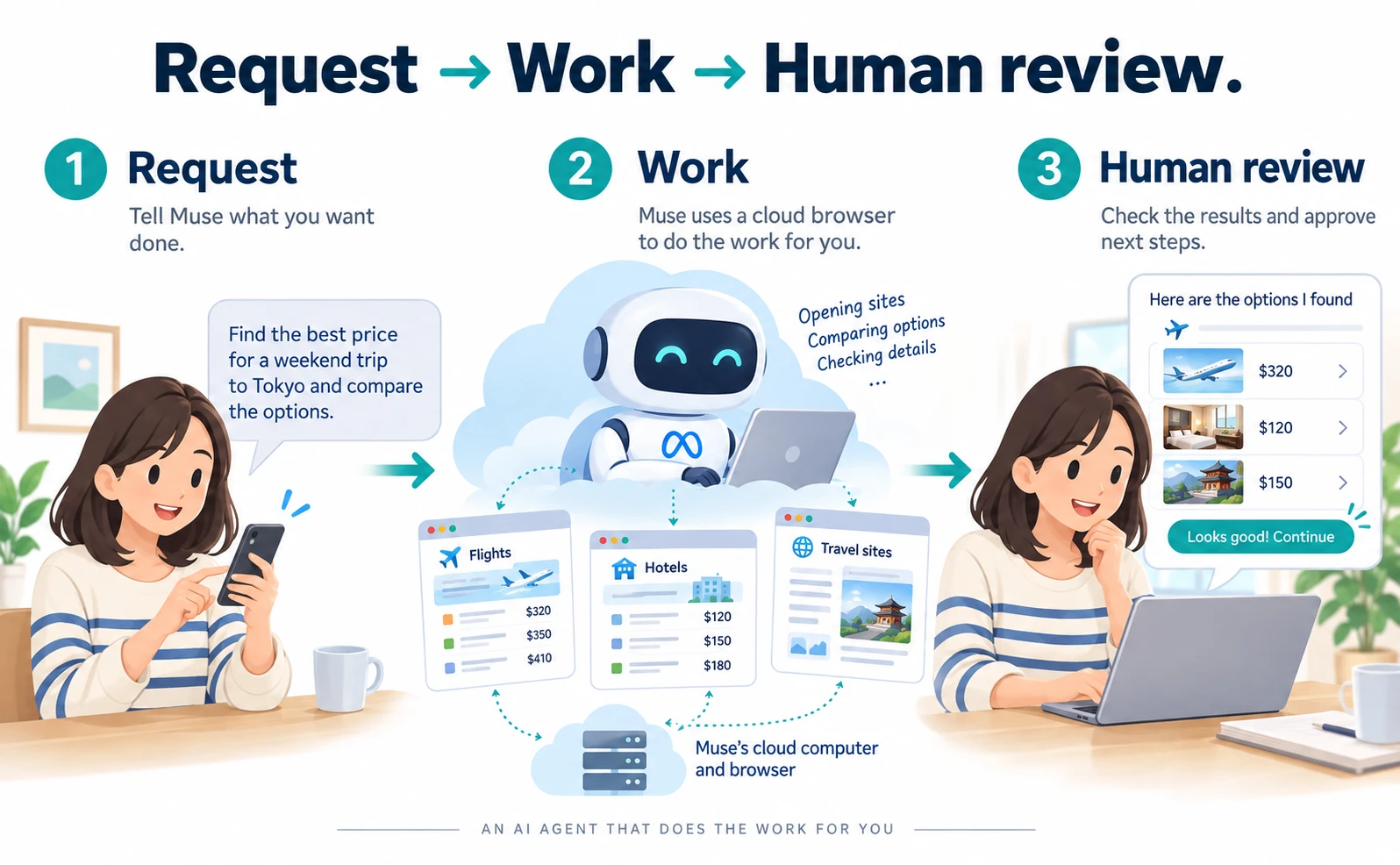
Illustrative diagram. Screens and amounts are examples, not actual results.
An AI agent is an AI that carries out a task someone asks for, including the steps along the way.
The typical way to use an AI chatbot is to ask something like “Which store is cheapest?” and get an answer back. With an agent, you can hand off the work itself, such as opening store pages, comparing them, and getting everything ready right up to the order. That's an easy way to picture the difference. Muse isn't the only AI service that handles this kind of work.
According to Meta's Japanese-language announcement, “Introducing Muse”, Muse is a personal AI agent you can ask through its app or WhatsApp. It operates browsers and forms, sends emails, books travel, negotiates, and shops. The announcement says the work continues even after you close the app, and that Muse checks with you before important actions.
Meta also explains where Muse does its work. The official page describing Muse's design says Muse works on its own dedicated cloud computer and browser (How We Designed Muse).
“The cloud” means computers on the other side of the internet. Picture a computer set aside for Muse, somewhere other than your phone, opening web pages and moving the work forward.
Meta has also announced that the Mac desktop app can operate apps on your Mac if you give it permission (Meta's Connect 2026 announcements (Japanese)).
One thing to know up front is where Muse is offered. Meta states that Muse is available through iOS and Android apps in the United States and at muse.ai, and that availability in Japan is undecided for now (Meta's Japanese-language announcement, “Introducing Muse”). We cover this in detail in the section “Can You Use Muse in Japan?”
The Muse App, Muse Spark, and Muse Code: What's the Difference?
What you use as a regular user is “Muse.” Muse Spark is the AI model behind Muse, and Muse Code is a tool for developers. Each plays a different role.
Several names include “Muse,” so let's sort them out first.
| Name | What it is | Main users |
|---|---|---|
| Muse | AI agent that does tasks | Regular users |
| Muse Spark | Foundation model behind Muse | Users needn't think about it |
| Muse Code | Tool for developers | Developers |
The Muse that users interact with comes as a smartphone app, as muse.ai on the web, and as a Mac desktop app (Meta's Japanese-language announcement, “Introducing Muse”, Meta's Connect 2026 announcements (Japanese)).
A foundation model is the core part of an AI that reads and reasons about text. If Muse is the car, Muse Spark is the engine. Meta describes Muse Spark as Muse's foundation model.
Muse Spark is also offered to developers. Meta's research blog describes ways developers can use it through Muse Code and the Meta Model API (Introducing Muse Spark 1.3). An API is a doorway that lets programs call an AI.
Regular users don't need to set up Muse Code or an API. Also, the information about developer access doesn't tell you what the Muse app costs. We cover pricing in the section “Can You Use Muse in Japan?”
What Muse Can Do: From Shopping to Creating Documents
Meta lists uses for Muse such as shopping, booking travel, email, creating documents, ongoing monitoring tasks, and working on a Mac.
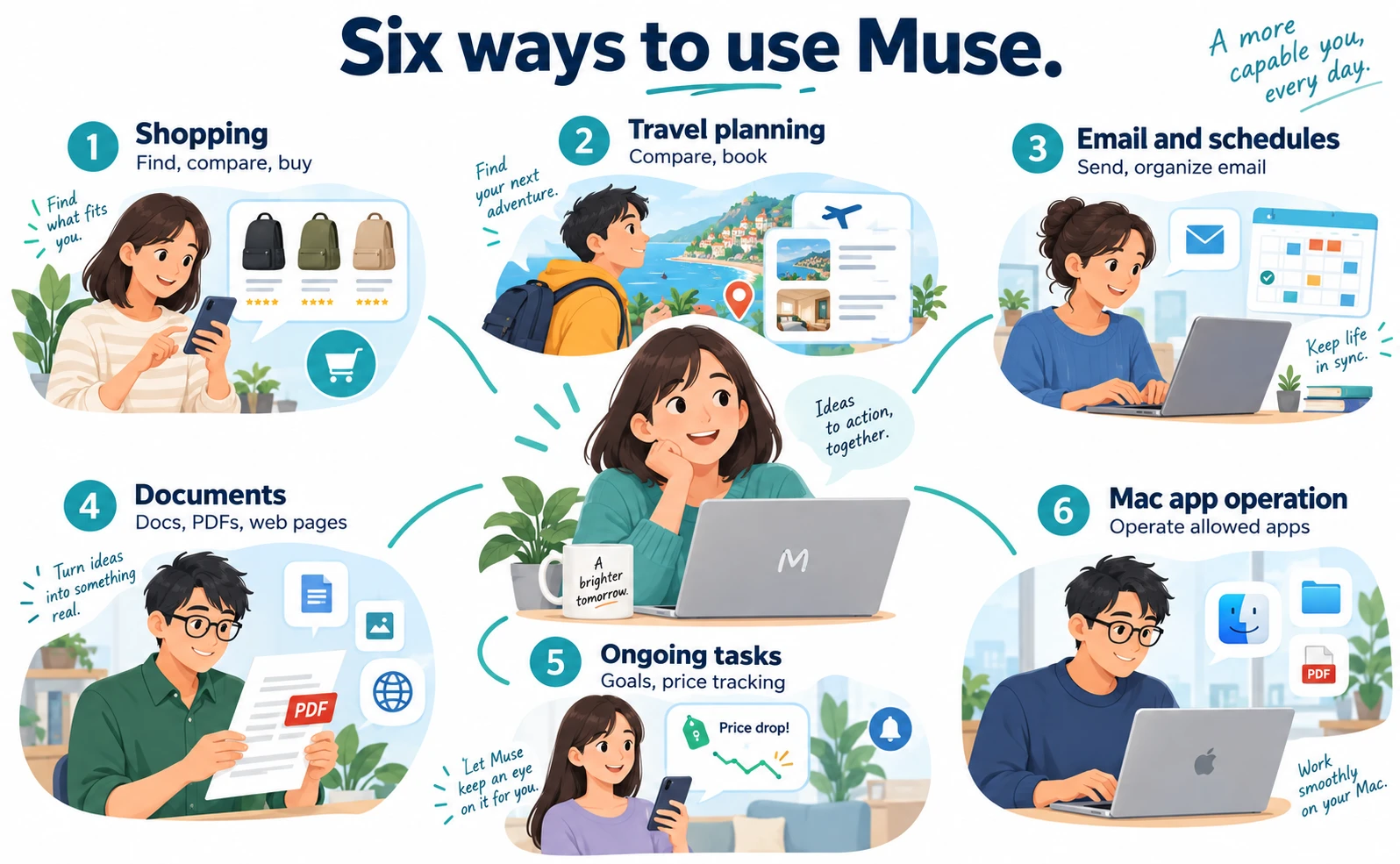
Illustrative diagram. Screens and amounts are examples, not actual results.
The uses in this section are all based on product descriptions from Meta and its partners. Our editorial team did not operate Muse to confirm them. For each item, we separate features described as available now from plans for the future.
First, here's where each of the six uses stands.
| Use | What you can ask | Status |
|---|---|---|
| Shopping | Find, compare, buy | Described |
| Travel | Compare, book | Expedia link coming soon |
| Email and schedules | Send, organize email | Own address planned |
| Documents | Docs, PDFs, web pages | Described |
| Ongoing tasks | Goals, price tracking | Described |
| Mac | Operate allowed apps | Listed as released |
The sample requests and sample outputs below were written for illustration. They are not results Muse actually returned, and there's no guarantee you'd get the same results. They're written in plain English to show the approach, and the parts in [brackets] are what you replace with your own details.
The basic structure of a request is the same for every use: what the task is for, the conditions you want followed, the points where you want Muse to stop, and the format you want to receive. With these four pieces, it's clear how far Muse can go and what you need to check.
Shopping: Search, Compare, Confirm the Total, Then Buy
Muse is described as finding and comparing products, then buying only after you approve the transaction total right before the purchase.
Meta lists shopping among the tasks Muse can do (Meta's Japanese-language announcement, “Introducing Muse”). The U.S. App Store listing also mentions price comparison and approval before purchase (the U.S. App Store listing).
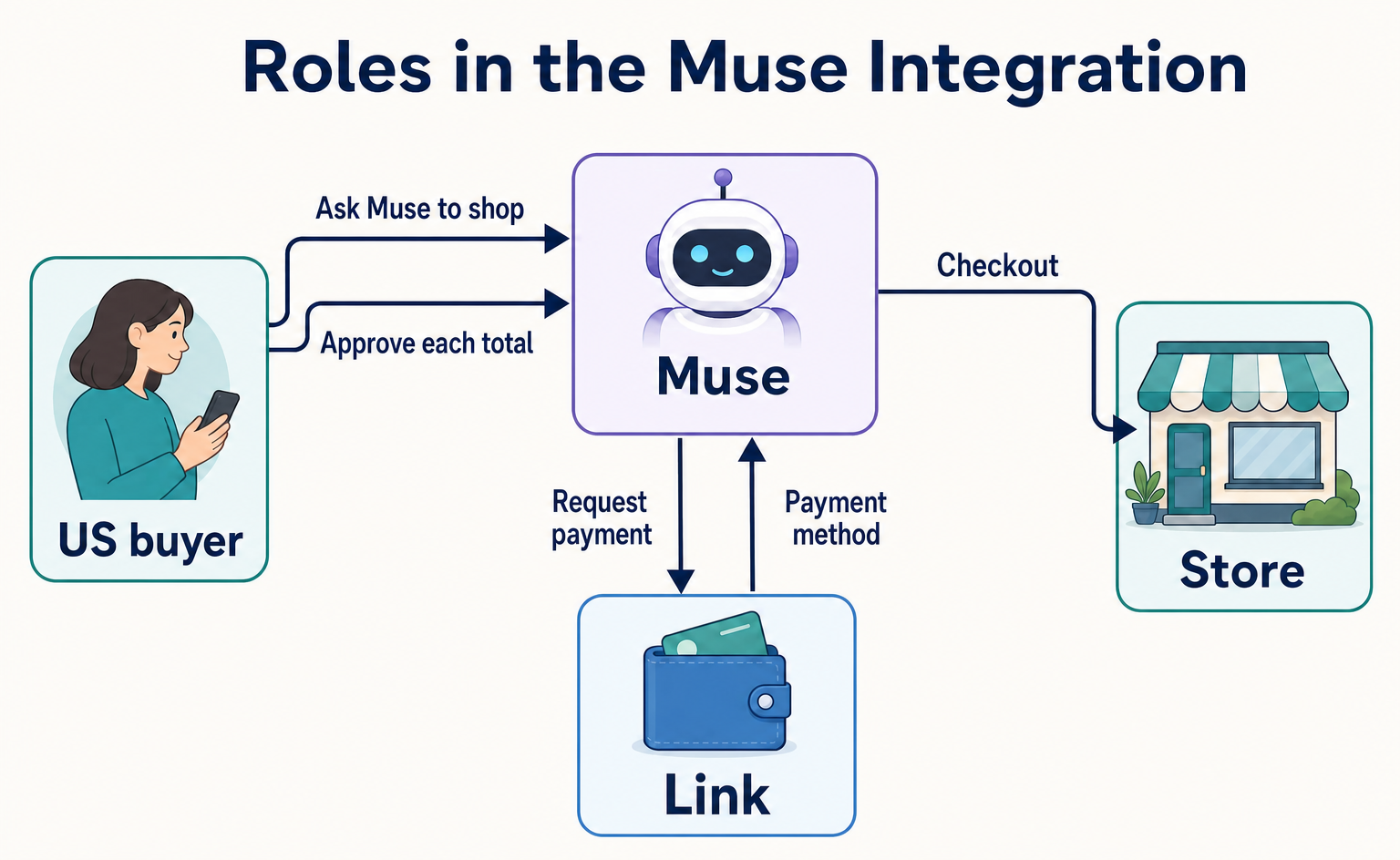
The payment mechanism was announced by the payments company Stripe. U.S. users connect Stripe's payment service, Link, to Muse and approve the transaction total in the chat for each purchase. At stores that support Link, Muse uses your saved payment method. At other stores, it uses a single-use card number created only for the purchase you approved. Stripe says Muse doesn't see your original payment details (Stripe's announcement of the Muse integration).
That said, nothing states that Muse can always complete a purchase on every site. How far it can go may depend on what each store supports. If you'd like more detail on payments and Link, see our explainer on how Muse shops with Stripe Link.
Sample request
Please find a backpack for my commute.
Requirements: fits a 14-inch laptop, weighs 1 kg or less, budget up to [your maximum].
Narrow it down to 3 options and make a table of price, weight, and return policy.
Don't buy anything yet. I'll choose first, then we'll proceed.
The requirements are written as numbers because with just “a light backpack,” Muse would decide what counts as light. Naming the items to compare lets you look at the options side by side on the same scale.
The last line tells Muse where to stop. Approval is described as happening right before a purchase, but if you only want options for now, saying so in the request keeps things moving smoothly.
What you want back is a table listing the three options by product name, price, weight, return policy, and a link to the product page. With links, you can check any option that catches your eye yourself.
What to check yourself before approving:
- Is the transaction total within your budget?
- Does the order, including color and size, match the product you chose?
- Can you return it, and under what conditions?
Travel: Compare Destinations and Book
Meta lists booking travel and negotiating among the tasks Muse can do. A good approach is to have it compare destinations and places to stay, then check things yourself just before booking.
Booking travel and negotiating appear as examples of Muse's tasks in Meta's Japanese-language announcement (Meta's Japanese-language announcement, “Introducing Muse”). The announcement doesn't explain in detail what kinds of negotiation Muse handles or how far it can go.
Meanwhile, the integration with the travel booking site Expedia is listed as “coming soon” in the Connect 2026 roundup (The Biggest News From Connect 2026). Think of it separately from today's travel booking features, and treat the Expedia integration as still planned.
Sample request
I want to plan a one-night weekend trip in November for 2 adults.
We're leaving from [your nearest station or airport].
Suggest 3 destinations within 3 hours each way, with 2 places to stay for each.
Keep lodging at [your maximum] per night or less. Include the free-cancellation deadline.
Don't book anything yet. Only for the place I choose, take it up to just before booking.
Travel involves many conditions, and leaving out just one can change the options a lot. You list the number of people, nights, travel time, and budget first because correcting it later (“Actually, there are 3 of us”) means comparing everything again.
You ask for cancellation terms because your plans might change after you book. If you choose on price alone, you might pick an option with a cancellation fee without noticing.
What you want back is a list showing each destination, travel time, lodging name, nightly rate, and free-cancellation deadline. Asking for a short note on why each destination made the list makes them easier to compare.
What to check yourself before approving a booking:
- Are the dates and number of people correct?
- What's the total, and when do cancellation fees start?
- Are the spelling of the guest's name and the contact details right?
Email and Schedules: Sort Incoming Messages
Muse is described as able to send email. Organizing incoming messages into a schedule is an example shared by one of Muse's own developers.
Sending email is listed as one of Muse's tasks in Meta's Japanese-language announcement (Meta's Japanese-language announcement, “Introducing Muse”).
The official page describing Muse's design shares a story in which a developer used it to organize emails from school onto a calendar and get ready to buy the supplies needed (How We Designed Muse). This is the developer's own story, not our editorial team's experience.
A Muse-specific email address has also been announced as a future plan (The Biggest News From Connect 2026, Meta's Connect 2026 announcements (Japanese)).
We haven't been able to confirm which email or calendar services Muse can connect to. So that you can try it before deciding what to connect, here's an example where you paste in the text of the notices and ask Muse to organize it.
Sample request
From the 3 school notices pasted below, pull out the events with dates and the items to bring.
Make a table with the columns “Date, Event, Items to bring, Deadline.”
Don't guess any dates that aren't clearly stated. Write “Needs checking” instead.
[Paste the text of the notices here]
You say “don't guess” because a misread date turns directly into a wrong entry on your schedule. If Muse writes “Needs checking,” you can see right away which parts to recheck in the original notice.
When you have Muse send an email, add a step where you review the draft before it goes out.
Sample request
Please draft a reply to my child's homeroom teacher.
The message: “We'll turn in the field trip permission form by Friday.”
Don't send it. Show me the draft.
What you want back is the table of events and the draft before it's sent.
What to check yourself: whether the dates in the table match the original notices, and whether the draft's recipient and content are right. Since you can't always take back an email once it's sent, check the recipient with your own eyes before it goes out.
Documents: Create Docs, PDFs, and Web Pages
Muse is described as able to create documents, PDFs, web pages, and interactive outputs you can use on screen.
The official page describing Muse's design lists documents, PDFs, web pages, and interactive outputs as things Muse can produce (How We Designed Muse).
Here, “creating documents” means Muse producing documents or PDFs as its output. Whether you can, for example, give it your own PDFs to use as material for a document isn't clear from the sources we reviewed.
As an everyday example, Meta's Japanese-language announcement describes making a shopping list from a recipe on Instagram (Meta's Japanese-language announcement, “Introducing Muse”). We follow that example as a single request in detail in the next section.
Sample request
Please make a checklist to prepare for our move next month.
Moving day is [date], and our household is 2 adults and 1 child.
Split the tasks into “4 weeks before,” “2 weeks before,” “Day before,” and “Moving day,” and add a column for who's responsible.
I want to put it on the fridge, so make it a one-page, letter-size PDF.
You state the purpose and format because even the same checklist works best in different forms depending on whether you'll print it and post it or look at it on your phone. Asking for “one page” means you can expect a list that isn't crammed with items.
If you'd rather look at it with your family on your phones, you could ask, “Make it a web page where we can check off items.” However, whether the result will actually be a web page with checkboxes isn't clear from the sources we reviewed.
What to check yourself: whether any tasks are missing and whether the dates are correct. For anything with official rules, such as deadlines for government paperwork, confirm it yourself with the official guidance.
Ongoing Tasks: Goals and Price Tracking
For work that doesn't finish in one go, there's a way to hand it off as a goal and have Muse keep working according to a plan. The plan is described as viewable in the Goals tab.
Meta's Japanese-language announcement says Muse makes a plan based on your goal and keeps working on it (Meta's Japanese-language announcement, “Introducing Muse”).
According to the official page describing Muse's design, these ongoing tasks are triggered by your schedule or related events. The plans Muse creates can be viewed in the Goals tab (How We Designed Muse).
For price tracking, the U.S. App Store listing describes a feature that follows price drops and notifies you (the U.S. App Store listing).
Sample request
Please keep an eye on the price of [product name and product page link].
Let me know if it drops to [your target price] or lower.
Keep watching through the end of the year.
Don't buy it until I approve.
With ongoing tasks, it's important to set an end point. Without a deadline, Muse may keep watching something you no longer need.
You write “let me know” and “don't buy” separately so that the price-drop alert and the decision to buy stay separate. Even if the price drops, you want to decide for yourself whether you really need it at that point.
What you want back is the plan shown in the Goals tab and an alert when the conditions are met.
What to check yourself: whether the plan in the Goals tab matches what you asked for (the product, price, and deadline). Before you start, also find out how to stop the goal once you no longer need it.
Mac Tasks: Operate the Apps You Allow
Meta's official Japanese-language announcement lists the Mac desktop app as released. It's described as able to operate apps on your Mac if you give it permission.
According to Meta's Japanese-language announcement, the Mac desktop app can be used to manage messages, search past files, and help with work (Meta's Connect 2026 announcements (Japanese)).
The supported macOS versions, where to download it, what the screens actually look like, and which regions it's offered in aren't clear from the primary sources we reviewed. Also keep in mind that a Japanese-language announcement doesn't mean it can be used in Japan.
Sample request
In my “Documents” folder, find the PDF quotes I received last year.
If you can tell the file name, date, and amount, put them in a list.
Don't move, delete, or rename any files.
You specify where to look because it's easier to check the results when the search is narrowed down than when Muse searches your whole computer. You write “don't move, delete, or rename” so a search-only task doesn't turn into reorganizing your files.
What you want back is a list of the files found and where each one is saved.
What to check yourself: which apps you've allowed Muse to operate. Don't grant permission to any app you don't want it to touch in the first place.
How Does a Request to Muse Play Out? From Recipe to Shopping
A single request goes in this order: you ask → Muse works → you check the records along the way → you approve before purchase → you get the results.
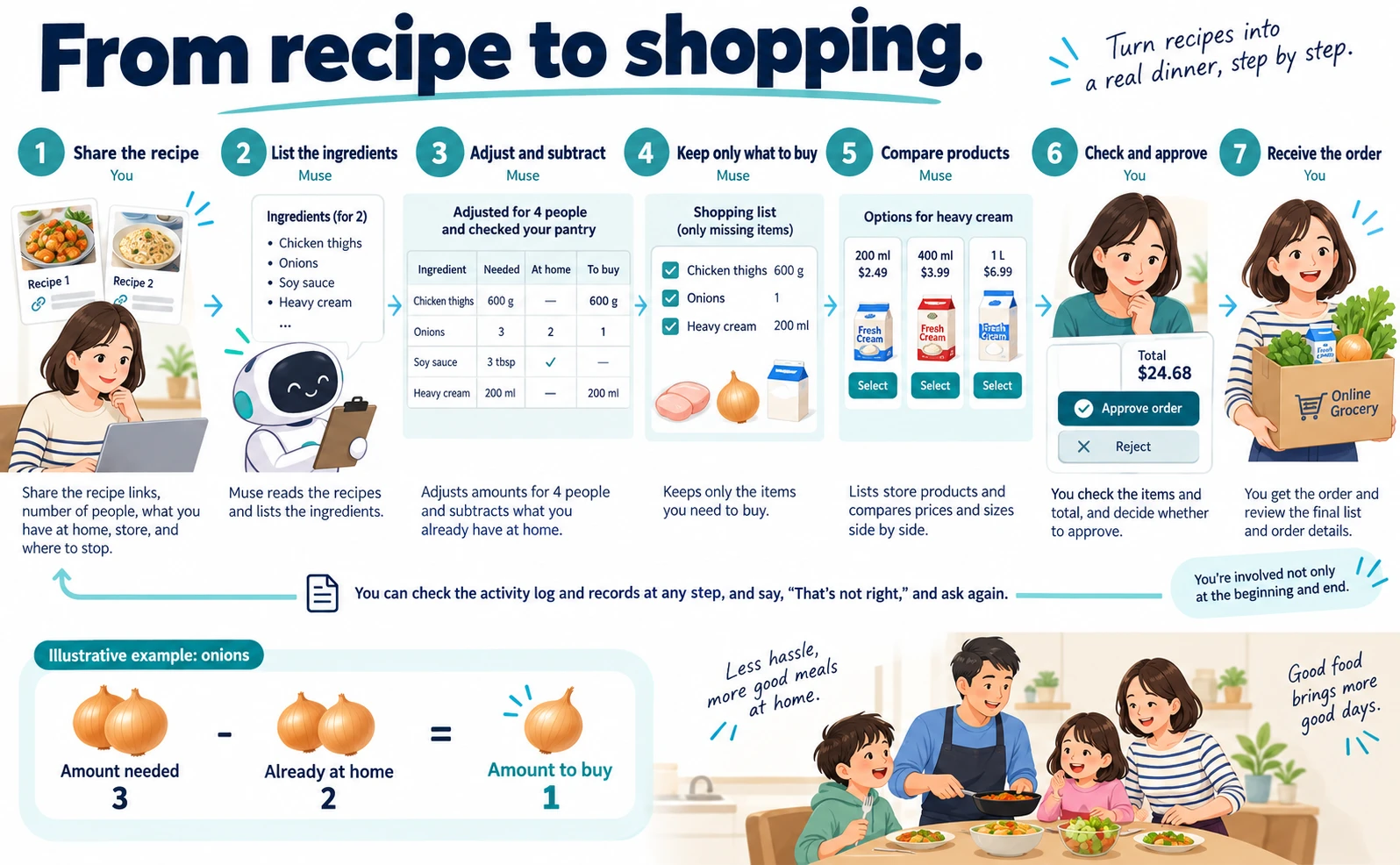
Illustrative diagram. Screens and amounts are examples, not actual results.
Here, based on Meta's example of making a shopping list from a recipe (Meta's Japanese-language announcement, “Introducing Muse”), we follow one illustrative request from start to finish.
This isn't our editorial team's own experience. All ingredients and quantities are placeholder values, and this isn't a result of Muse actually running this way. We don't cover how long it takes or how much money it saves, because we haven't been able to confirm either.
Here's the overall flow.
| Step | Who mainly acts | What happens |
|---|---|---|
| 1. Recipe | You | Share the links |
| 2. Ingredients | Muse | Lists ingredients |
| 3. Servings and pantry | Muse | Adjusts amounts, subtracts what you have |
| 4. What's missing | Muse | Keeps only what to buy |
| 5. Compare options | Muse | Lists store products |
| 6. Approval | You | Check the total and decide |
| 7. Check results | You | Review the list and order |
The key point is that you're not only involved at the beginning and end. At any step along the way, you can check the records and say, “That's not right,” and ask again.
A Sample Request and the Records You See While Muse Works
When you ask, give the recipes, number of people, what you already have at home, where to buy, and where you want Muse to stop, all at once. While Muse works, tapping its avatar is described as showing the activity log and permissions.
Sample request
I want to make these 2 recipes for dinner this week.
[Link to recipe 1]
[Link to recipe 2]
- Adjust the amounts for a family of 4 (2 adults, 2 children).
- What we have at home: 2 onions, soy sauce, rice. No need to buy what we already have.
- List the ingredients and make a shopping list of only what's missing.
- Look for options for the missing items at [the online grocery store you use].
- If there are several options for the same ingredient, list their prices and sizes side by side.
- Don't finalize the order until I've checked the list.
Let's go line by line and look at why each piece is there.
You include the number of people because many recipes are written for 2 servings or so, which won't be enough as is. If you don't say how many people, Muse may count ingredients at the recipe's original amounts.
You include what you have at home so unnecessary items don't end up on the shopping list. If you don't mention your pantry, a bottle of soy sauce could land on the list even though you already have one.
You name where to buy because stores carry different products at different prices. Naming the store you usually use also saves you from rethinking things like delivery addresses.
Where to stop is the last line. Approval is described as happening before a purchase, but in the request itself you're saying you want to look over the list once before moving on to the order.
For the steps from listing ingredients through finding what's missing, this is the kind of table you want back.
| Ingredient | Amount needed | At home | Amount to buy |
|---|---|---|---|
| Chicken thighs | 600 g | None | 600 g |
| Onions | 3 | 2 | 1 |
| Soy sauce | 3 tbsp | Yes | None |
| Heavy cream | 200 ml | None | 200 ml |
All values in the table are placeholders for illustration.
Use the “Amount needed” column to check that the servings were adjusted correctly, and the “At home” column to check that your pantry was taken into account. Only the final “Amount to buy” column becomes your actual shopping list.
While Muse is working, you can check how far it has gotten. The official page describing Muse's design says that tapping the avatar shows the activity log, which is a record of the work, and the status of permissions (How We Designed Muse).
In the activity log, you want to see that Muse opened the online store you specified and hasn't gone to pages you didn't ask about. If something looks off, correct it right then.
If the amounts or what you have at home didn't come through correctly, point out specifically what's wrong and ask again.
Sample follow-up requests
This should be for 4 people, but the amounts are still for 2.
Double all the ingredient amounts and redo the table.
We have 2 onions at home, so make the amount to buy 1.
We already have soy sauce, so take it off the shopping list.
Rather than just saying “That's wrong,” writing “which row, what, and how to fix it” makes sure the part you want corrected comes through.
Approval Before Purchase, and What You Get
Before actions that can't be undone, such as a purchase, you're described as choosing “accept” or “reject” on an approval card. What you end up with is the shopping list and the order details.
Once the missing items are settled, the next step is comparing options. Because the request said, “If there are several options for the same ingredient, list their prices and sizes side by side,” you can expect heavy cream, for example, to show options in different sizes and prices.
When you look at the options, check the size, not just the price. If the recipe only uses 200 ml and you pick the large size because it's a better deal, you may not use it all.
Once you've chosen and the order is ready, you move to the approval step.
According to the official page describing Muse's design, by default, browsing web pages is allowed, and Muse checks with you before irreversible actions. You can change this setting, and on the approval card you choose accept or reject (How We Designed Muse).
Stripe explains that when purchasing, you approve the transaction total in the chat (Stripe's announcement of the Muse integration).
Before you tap approve, compare the following:
- Do the items and quantities in the order match your final shopping list?
- Is the transaction total within the range you had in mind?
- Is the order going to the online store you specified?
If even one of these is off, choose reject, explain why, and have Muse fix it.
Sample follow-up request
For heavy cream, make it 1 carton of 200 ml, not 400 ml.
If the total goes over [your maximum], show me alternatives first, then let me review it again.
Rejecting isn't a failure. The approval card is a step built in for a person to make the call, so fix things until you're satisfied, then approve.
After you approve, you're left with the final shopping list and the order details. If all goes well, you end up with just the missing ingredients for this week's two dishes.
Once the order is placed, review what was done in the activity log and compare it with the store's own order record. With that checked, the request is complete.
This example is meant to help you understand the flow. It doesn't guarantee that ordering will work the same way at every store.
Can You Use Muse in Japan? Regions, Age, and Pricing
As of September 28, 2026, availability of Muse in Japan is undecided. What Meta has stated is available: the iOS and Android apps in the United States, and muse.ai.
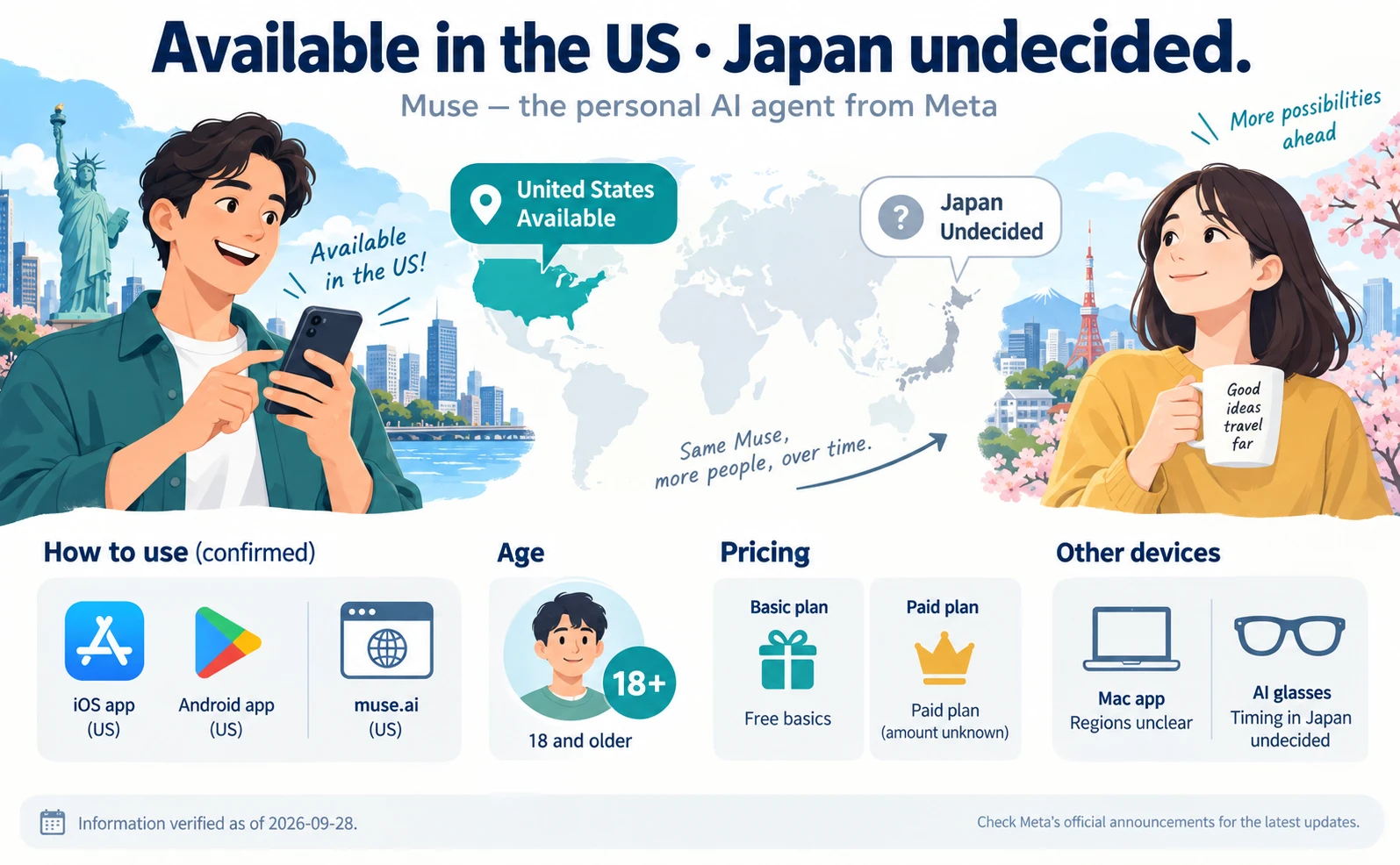
Illustrative diagram. Screens and amounts are examples, not actual results.
Here's a summary of what we could confirm. The date we checked was September 28, 2026.
| Item | Details | Status |
|---|---|---|
| Regions offered | U.S. apps and muse.ai | Confirmed |
| Availability in Japan | Undecided for now | Confirmed |
| Mac app regions | Unclear in primary sources | Not confirmed |
| AI glasses in Japan | Timing undecided | Confirmed |
| Age | 18 and older | Official description |
| Pricing | Free basics plus paid plan | Amount unknown |
The regions offered and the situation in Japan are stated explicitly in Meta's Japanese-language announcement (Meta's Japanese-language announcement, “Introducing Muse”).
The Mac desktop app is listed as released, but we couldn't confirm in primary sources which regions it's available in. Muse on AI glasses is planned within the next few months, and the timing for Japan is undecided (Meta's Connect 2026 announcements (Japanese)).
One thing to watch out for: having information in Japanese and being able to use it in Japan are two different things. Even if Meta has Japanese-language pages or demos, that doesn't mean service has started in Japan. Likewise, the fact that the entry screen appeared in Japanese when our editorial team opened muse.ai is not evidence that service has launched there.
On age, Meta's research blog says Muse is for people 18 and older (Bringing Your Muse to Life). The U.S. App Store listing also shows an 18+ rating (the U.S. App Store listing).
For pricing, the basic features are described as free, with a paid plan also available. The announcement doesn't state the price of the paid plan, so we won't guess here (Meta's Japanese-language announcement, “Introducing Muse”).
What people in Japan can do for now is watch Meta's official announcements for news of availability. If you get a feel for how to use it from this article, you'll be able to decide quickly what to try first once it launches.
Muse News From Connect 2026: What's Available and What's Coming
Of the announcements at Connect 2026 on September 23, the Mac desktop app is the one listed as released. Voice mode and new connectors are at the announcement stage, while the Expedia integration, AI glasses, and a Muse-specific email address are future plans.

Illustrative diagram. Screens and amounts are examples, not actual results.
Connect is Meta's announcement event. In 2026, it was held on September 23, and the official roundup was published the next day, September 24.
Here are the announcements, grouped into three categories by status.
| Category | Item | Notes |
|---|---|---|
| Listed as released | Mac desktop app | Regions not confirmed |
| Announced | Voice mode | Works while you talk |
| Announced | New connectors | Details not confirmed |
| Announced | Shop Pay and PayPal support | More payment options |
| Planned | Expedia integration | Coming soon |
| Planned | AI glasses | Next few months |
| Planned | Muse-specific email address | No timing given |
The Mac desktop app is listed as released in Meta's official Japanese-language announcement (Meta's Connect 2026 announcements (Japanese)). We couldn't confirm the regions where it's offered.
Voice mode is introduced as a feature that lets Muse carry out work in the background while you talk with it. New connectors and support for Shop Pay and PayPal as payment methods were also announced (The Biggest News From Connect 2026). Connectors are outside services that Muse can link to and work with.
These are announcements, and we couldn't confirm whether they're immediately available on every account. Keep “it was announced” and “I can use it on my account” separate.
As future plans, the Expedia integration is coming soon, AI glasses are coming in the next few months, and a Muse-specific email address was announced as something users will be able to have. The timing for AI glasses in Japan is undecided (The Biggest News From Connect 2026, Meta's Connect 2026 announcements (Japanese)).
Connect also featured technology for conversational avatars that speak in sync with a voice. Meta's research blog explains that not all of the avatars shown in the demos are available in the Muse app (Bringing Your Muse to Life). What you see in a demo isn't necessarily in the app as is. The demo videos on the research blog showcase conversational avatar technology. They don't show a Muse feature for making videos.
Before You Start Using Muse: Entry Points, Permissions, and Approval Settings
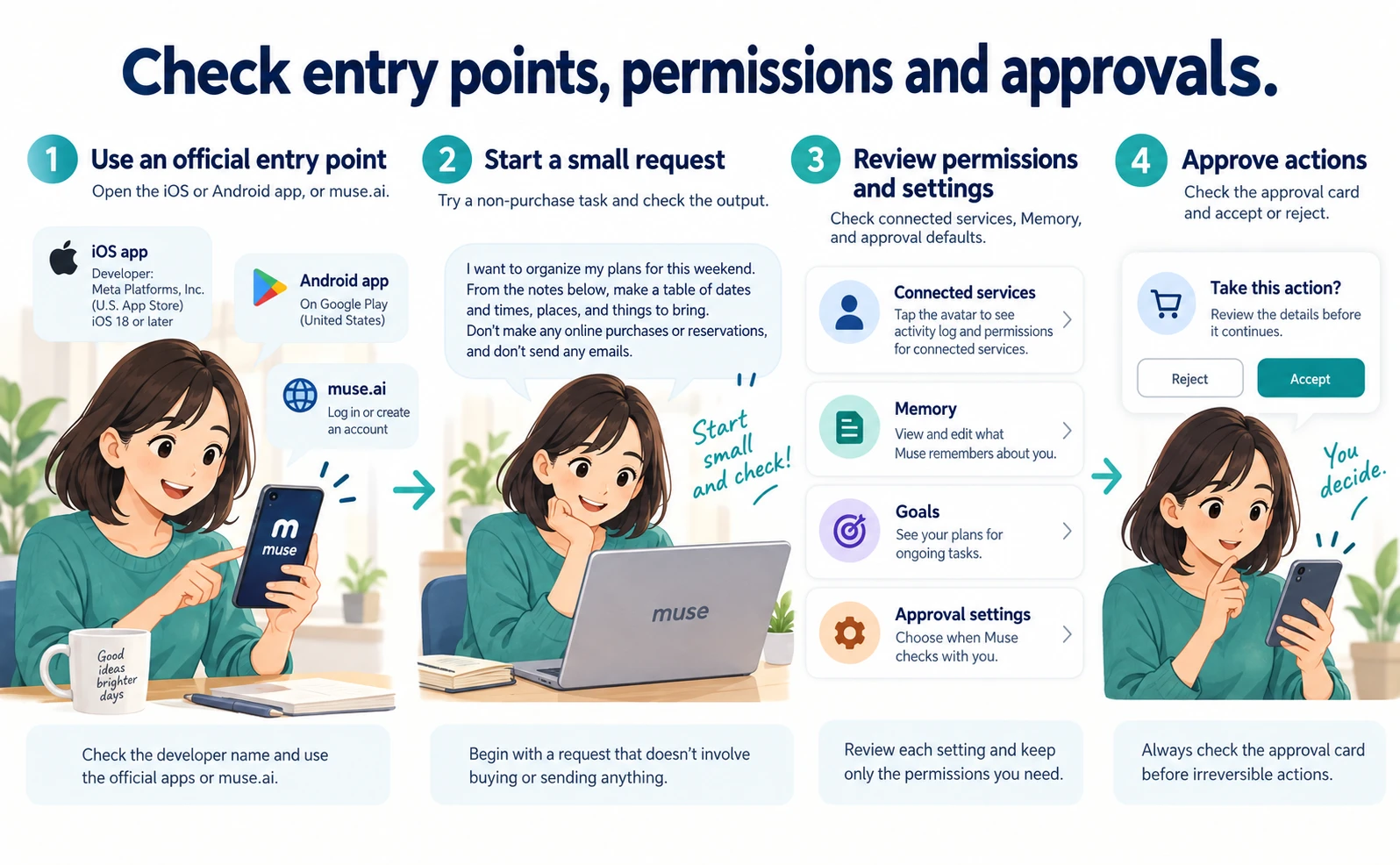
This section is for people with an account in a region where Muse is offered (as of September 28, 2026, the only region stated is the United States). The basic flow is to confirm the official entry point, start with a small request, and review your permission and approval settings.
Illustrative diagram. Screens and amounts are examples, not actual results.
We don't cover ways to use Muse from Japan. If you're in Japan, read this as preparation for when it becomes available.
For how stores are handling AI-driven purchases like Muse's, see our article on Amazon, Shopify, and Muse.
Entry Points and Your First Request
The official entry points are the iOS and Android apps and muse.ai. Start with a small request that doesn't involve buying or sending anything, and check the output.
As covered in the previous section, both are offered for the United States.
On the U.S. App Store listing, you can confirm that the developer is Meta Platforms, Inc., and that the iPhone app requires iOS 18 or later (the U.S. App Store listing). To avoid mixing it up with apps that have similar names, check the developer before you download.
The Mac desktop app has also been announced, but we couldn't confirm where to get it or which macOS versions it supports in primary sources (Meta's Connect 2026 announcements (Japanese)).
For the web entry point, our editorial team opened muse.ai on September 28, 2026, and checked what appeared. We saw a Japanese-language “Log in or create an account” screen, with an input field for a mobile phone number or email address and a “Next” button.
We did not log in or sign up. So the descriptions of screens beyond this point are based on official guidance, not on the actual screens. This screen also doesn't mean service has started in Japan.
For your first request, pick something that won't cause problems if it goes wrong.
Sample request
I want to organize my plans for this weekend.
From the notes below, make a table of dates and times, places, and things to bring.
Don't make any online purchases or reservations, and don't send any emails.
[Paste your notes here]
With a request that doesn't involve buying or sending, you reduce the risk of a hard-to-undo action even if the result isn't what you expected. Comparing the table you get back with your original notes also shows you how accurately Muse reads things.
Once you're comfortable, move on to requests that involve approval, like the shopping example in the previous section.
Connected-Service Permissions, Memory, and Approval Settings
There are three things to check: permissions for the services you connect, what Muse remembers about you (Memory), and the default approval settings.
Here are the actions described on the official page about Muse's design, organized by purpose (How We Designed Muse). Check the exact button locations and the order of taps on the actual screens.
| Purpose | Action | What you can check |
|---|---|---|
| See records and permissions | Tap the avatar | Activity log and permissions |
| See plans | Open the Goals tab | Plans for ongoing tasks |
| Fix what it remembers | Open Memory | View and edit the file |
| See approval defaults | Settings | When it checks with you |
| Respond to an action | Approval card | Accept or reject |
The first is permissions for connected services. Tap the avatar to open the permission status and see which services are connected. If permission is still granted to a service you don't plan to use, reconsider it.
The second is Memory. Memory is what Muse remembers about you, and it's described as something you can view and edit as a file. For example, if your household size or disliked ingredients are out of date, the amounts or options on your shopping list may be off. If anything is wrong, fix it here.
The third is the default approval setting. Check that it's set so Muse checks with you before irreversible actions, as described in the previous section. You can change this setting. While you're getting started, leaving it set to check with you makes it easier to understand how Muse works.
If you allow the Mac desktop app to operate apps, Muse is also described as working within the scope you permit (Meta's Connect 2026 announcements (Japanese)).
On the technical side, Meta describes a design that separates the area where Muse works from credentials such as passwords and from protected processes. Network traffic and permissions for connected services are said to be managed by a system called Sentinel (How We Built Safety Into Muse).
Even with this design, you are the one who decides what to allow and which actions to approve. Grant only the permissions you need, and check the approval card every time. Keep doing both, and you can use Muse while choosing for yourself how much to hand off.
FAQ
- Q. Is Muse free to use?
- Meta's announcement says the basic features are free and that a paid plan is also available. The announcement doesn't state the price of the paid plan, so it's unknown as of September 28, 2026. You can't infer the Muse app's pricing from information about developer offerings such as Muse Code.
- Q. Can I use Muse from Japan?
- As of September 28, 2026, the only availability Meta has stated is the U.S. iOS and Android apps and muse.ai, and availability in Japan is undecided for now. Official Japanese-language pages or a Japanese-language login screen don't mean service has started in Japan.
- Q. What's the difference between Muse, Muse Spark, and Muse Code?
- Muse is what users use, available as a smartphone app, muse.ai, and a Mac desktop app. Muse Spark is the foundation model (the core of the AI) behind Muse. Muse Code is a tool for developers, and regular users don't need to set it up.
- Q. Can Muse go shopping on its own without asking?
- According to Meta, by default Muse checks with you before irreversible actions, and you choose accept or reject on an approval card. Stripe also says you approve the transaction total for each purchase. This setting can be changed, so while you're getting started, leaving it set to check with you makes it easier to understand how Muse works.
- Q. Can Muse see my passwords or card numbers?
- Stripe says that when Muse makes purchases through Link, Muse doesn't see your original payment details. At stores that don't support Link, it uses a single-use card number created only for the purchase you approved. Meta also describes a design that separates Muse's work area from credentials, but that isn't a guarantee of safety.
- Q. Can I use voice mode or AI glasses yet?
- Voice mode was announced at Connect on September 23, 2026, and we couldn't confirm whether it's immediately available on every account. Muse on AI glasses is planned within the next few months, and the timing for Japan is undecided. As of the announcement, the Mac desktop app is the one listed as released.
Sources
- [1] Meta official (Japanese): Introducing Muse — accessed 2026-09-29
- [2] How We Designed Muse — accessed 2026-09-29
- [3] Stripe: Muse and Link integration — accessed 2026-09-29
- [4] The Biggest News From Connect 2026 — accessed 2026-09-29
- [5] Bringing Your Muse to Life — accessed 2026-09-29
- [6] Introducing Muse Spark 1.3 — accessed 2026-09-29
- [7] How We Built Safety Into Muse — accessed 2026-09-29
- [8] Meta Connect 2026: Everything announced (Japanese official) — accessed 2026-09-29
- [9] Muse from Meta (U.S. App Store) — accessed 2026-09-29
- [10] muse.ai (official entry point) — accessed 2026-09-29
About the author
Shogo MizushimaCEO of kairos Inc. / AgentSignal Developer
Develops AgentSignal, a tool for measuring AI crawler visits and AI-referred traffic, and diagnosing AIO readiness. Writes about measurement and practical improvements for AI search using observed data.
Related articles
AI shopping and booking
Meta’s Muse AI and Link: What Changes for Your Store’s Payments?
What Meta’s Muse and Stripe’s Link integration means for ecommerce managers in Japan: US buyer eligibility, two payment routes for stores, and why payments are separate from product listings. Learn how the Muse announcement differs from the public Link CLI documentation.
Published

AI shopping and booking
Same AI, different doors: why Amazon blocked Muse while Shopify offers a connection
Amazon has reportedly blocked Meta's AI agent, Muse. Meanwhile, Shop's official help lists Muse as an example of a supported AI platform.
Published

AI shopping and booking
51% of US consumers use AI shopping tools. How much has product selection changed?
That does not mean AI placed 51% of orders. It is the share of US consumers who reported using at least one AI-powered shopping tool during the past month.
Published