Merchant Center Misrepresentation: How to Check Business Details and Sales Terms
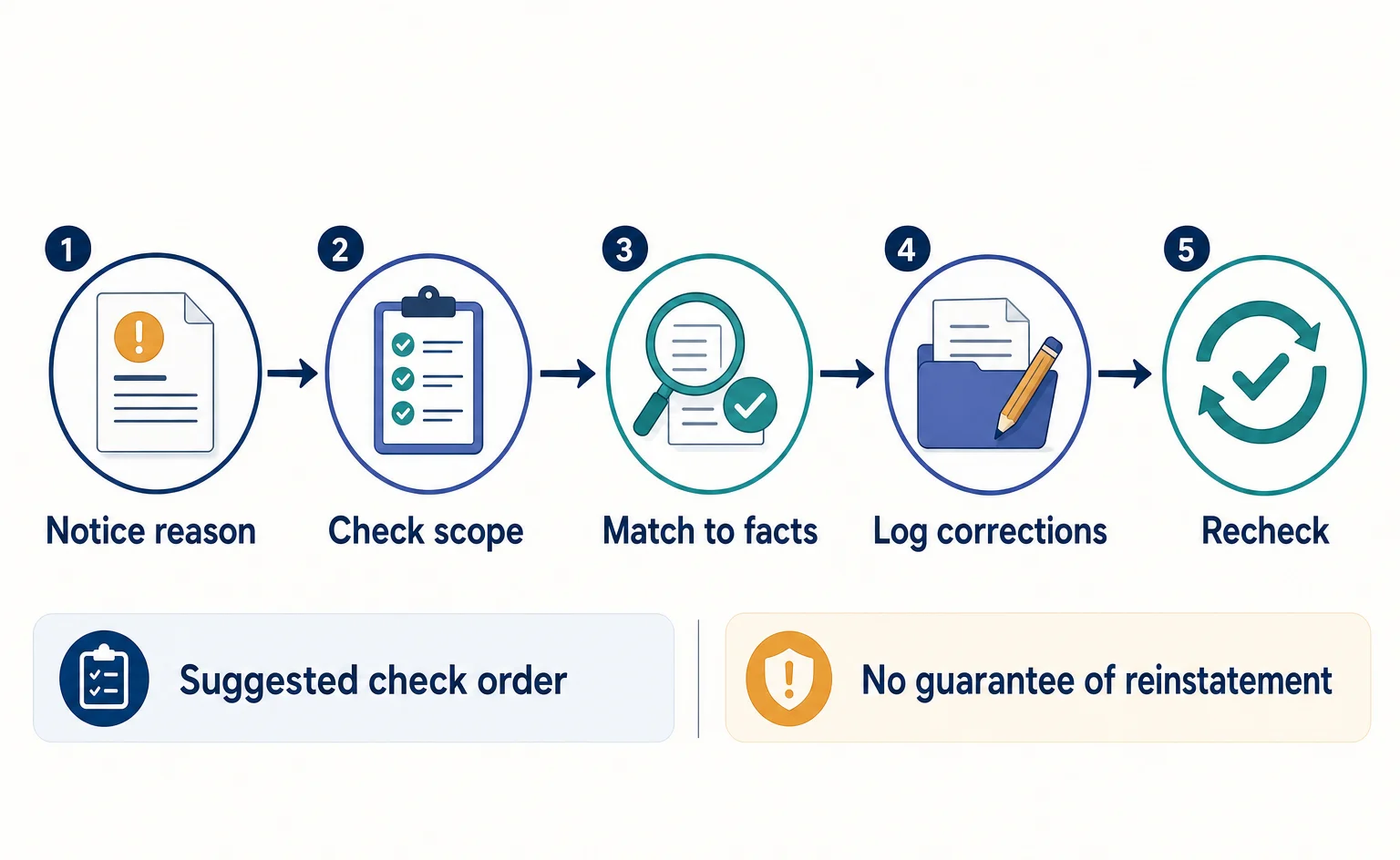
Learn how to read a Merchant Center misrepresentation notice, check business details and sales terms, and record corrections before requesting a review. Includes original sample worksheets. This is not a checklist that guarantees an issue will be lifted.
Merchant Center is a service for managing product information displayed on Google. If a “Misrepresentation” issue appears, check the reason and scope of the notice before making unfocused changes to your company information. This article helps ecommerce managers compare their business information with what customers see, and organize corrections and supporting information for a review.
References checked: September 15, 2026. The checking process below is based on Google's official help documentation. The worksheets and before-and-after examples are original editorial suggestions, not Google-required formats or actual cases in which an issue was lifted.
1. “Misrepresentation” means more than missing company information
The policy referenced here applies to free listings, which display products without advertising fees. It covers inaccurate seller information, misleading descriptions, missing costs or sales terms, and offers for unavailable products, among other issues. Shopping ads have separate policy guidance.[1]
Google assesses information from products, websites, accounts, third parties, and other sources together. Misrepresentation violations are considered serious and may lead to suspension without prior warning. Google provides instructions for appealing a decision you believe is incorrect, but reinstatement requires a valid reason.[1]
Rather than assuming a cause—for example, “Adding a phone number will lift the suspension”—compare how your business actually operates with the explanations provided to shoppers. These worksheets help you decide the order in which to investigate. Completing every field does not prove compliance with Google's review requirements or with the law.
2. First, keep an exact record of the reason and scope in the notice
Start by establishing which issue you need to explain and what needs explaining. Open the notification email and check the store, products, or account involved, along with the links and instructions in the notice. Make sure you are not looking at a different store or an older notice. Then sign in to Merchant Center with a Google Account that has access to the relevant store, and check the guidance corresponding to the notice.
The official help section on submitting appeals in bulk describes the path Products → Needs attention → the relevant issue → View fix. The same section also describes a route through Review and fix in the product details. These paths appear in instructions for bulk appeals; they are not necessarily a universal way to check every misrepresentation issue, including account suspensions. The items displayed and the review methods available vary by issue and setup.[1]
If you cannot find the relevant item, check the instructions in the notice and the “What you can do” section of the official help page. If you list products through a platform, such as an external ecommerce service, ask that service which review methods are available.[1]
Do not rush to submit anything at this stage. Read the issue name, explanation, and scope shown in the notice or on screen. The following examples are for your own working notes, not for entry into Merchant Center. Replace the sample wording with the actual wording of the notice your business received.
| What to record | Illustrative entry | What this helps you determine |
|---|---|---|
| Issue name | Misrepresentation | Whether you are investigating the right policy |
| Detailed reason | Copy the full explanation from the notice without shortening it | What you are being asked to check |
| Scope | Check the notice or screen to see whether the issue is at product or account level | How much you need to investigate |
| Notice date and deadline | Dates stated in the notice; if none are given, write “Not stated” | Whether a response schedule is specified |
| Current status | Record the status exactly as displayed | Whether you can compare changes in status later |
“Scope” means the extent of the issue shown in this case. Do not guess when filling in a field you cannot confirm; mark it “Not checked.” Seeing a product-level status alone does not mean an account-wide issue has been resolved.
Next, open Google's misrepresentation policy and read the explanations relevant to the notice. Use its discussion of business information, costs, returns, and other topics to choose what to check in your own business. If no detailed reason is given, use the tables in the following sections to record confirmed facts separately from unknowns.
3. Check the business name and contact details against the actual operator
The following are editorial suggestions for checking your own website. Open your company information and contact pages, and compare them with the latest business information maintained internally. Before simply making the wording on different pages match, establish which information reflects the current facts.
For example, if the store name differs from the legal company name, do not automatically make both names identical. Instead, check whether the site explains who operates the store. For contact details, check not only what is written but also whether a department currently handles inquiries through that contact channel.
The table below uses a fictional household goods store, “Komorebi Store.” The store name, company name, and situations are all illustrative. They do not describe a real company's issues or the results of any corrections.
| What to check | Example of current wording | Fact to confirm internally | Example of a correction decision |
|---|---|---|---|
| Store name and operating company | Only “Komorebi Store” is displayed | The operating company is Komorebi Co., Ltd. | Add an explanation of the relationship between the store and operating company |
| Company information | Address from before a relocation | Current business location | Also look for other pages that still show the old address |
| Contact details | Email address for an old contact channel | The contact channel currently handling inquiries | Replace it with the confirmed current contact |
| Product description | Described as a “manufacturer's official store” | Whether an agreement supports describing the store as official | Reconsider the public wording until its basis is confirmed |
The “Example of a correction decision” column does not establish that the wording caused the current misrepresentation issue. If you find an old address, for example, first record it as information that needs correcting. Finding something to correct does not establish a causal link to lifting the issue or suspension.
Business information may appear not only on the company information page but also on contact pages and checkout instructions. Paste the actual URL of each page you check into your working notes. A URL is a page's web address; copy it from the live page on your own website.
4. Choose one product and compare its sales terms across pages
When checking sales terms, ask whether you can explain the amount a shopper will pay and what happens after an order is placed. Google lists unclear total costs and unclear shipping or return terms among its prohibited examples. It also recommends providing a description of the business and up-to-date contact details.[1]
The following original checking method uses a storage basket sold by the same fictional store. Choose one product page on your own website, then compare it with your shipping information, returns information, and the order review screen before the order is placed. You do not need to place an order to perform this check.
If you cannot reach the order review screen, stop there and record “Not checked.” If you are not authorized to carry out purchase steps, ask the person responsible for the ordering process to check the displayed amounts and terms. This article does not assume that an actual purchase or successful payment has taken place.
Record the amounts together with the conditions that apply
The following table contains fictional data for illustration. The tax-inclusive price, shipping charge, dispatch timing, and return terms are examples, not recommended prices or Google-required sales terms. Replace them with your own actual operating conditions.
| What shoppers want to know | Illustrative entry | Where to compare |
|---|---|---|
| How much is the product? | One storage basket, ¥3,000 including tax | Product page and order review screen |
| What is the total including shipping? | For delivery to Tokyo, shipping is ¥600, bringing the total to ¥3,600 | Shipping information and order review screen |
| Are there any additional charges? | No fee for the selected payment method | Payment information and order review screen |
| When will it be dispatched? | Dispatched within 3 business days after payment is confirmed | Product page and shipping information |
| How do customers request a return? | For change-of-mind returns, only unused items are eligible. Contact the designated team within 7 days of arrival. The shopper pays return shipping | Returns information and contact details |
Even for the same product, the conditions change if the delivery destination or payment method changes. Record the conditions selected for this check, and do not imply that every order totals ¥3,600. “Dispatch” means sending the product out from the store, so checking dispatch timing does not mean you have confirmed its arrival date.
Do not treat the single returns row as a check of every return condition. If your business handles defective items differently or excludes certain products, record those conditions separately. If actual practice differs from the explanation, confirm the handling with the order-processing staff rather than simply changing the wording to something convenient.
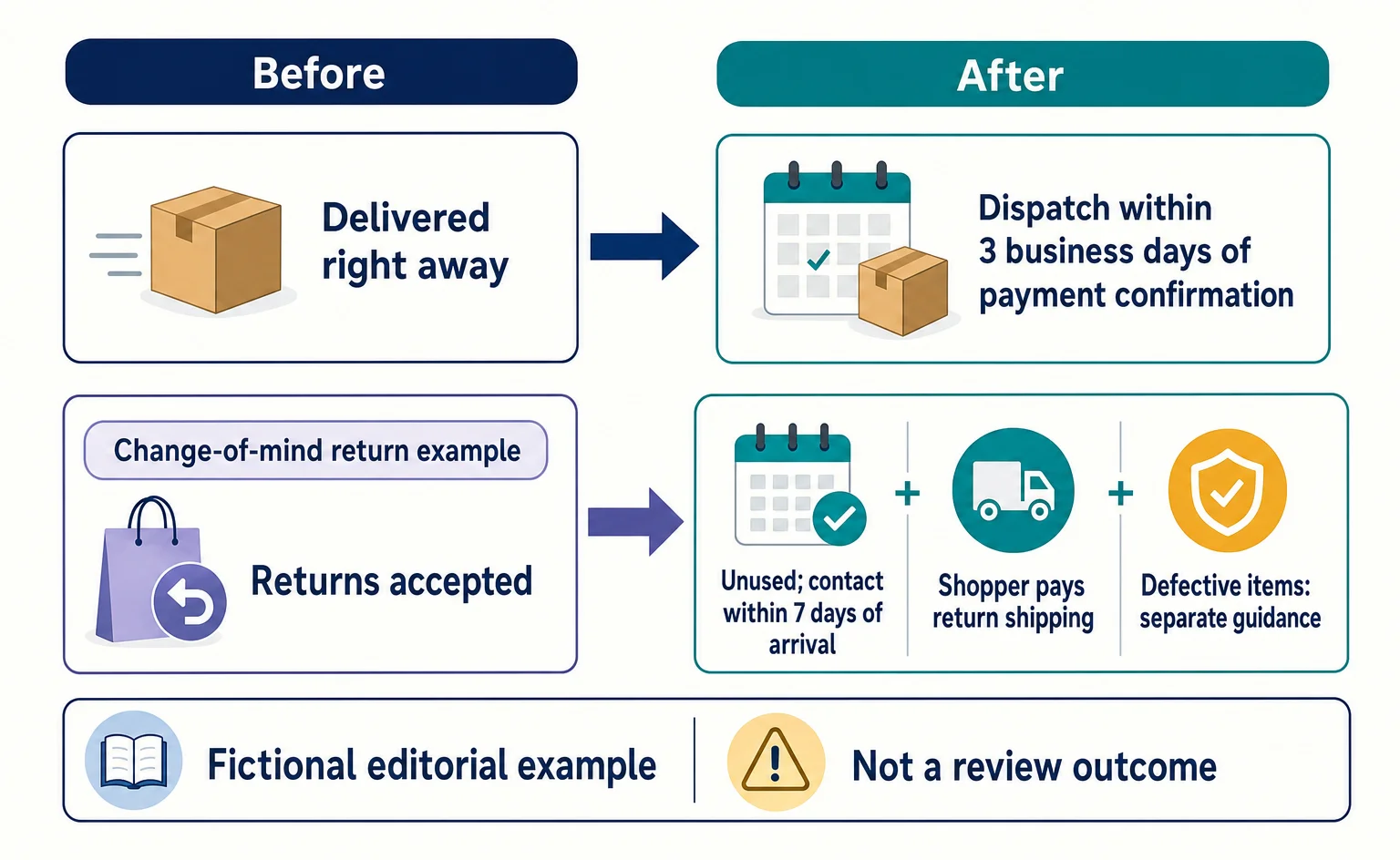
Record before-and-after examples as changes to the explanation
The following before-and-after examples were also created specifically for illustration. “After” shows how information can be made more specific; it is not wording that has passed a review.
| Before: example | After: example |
|---|---|
| Storage basket: ¥3,000. Shipping extra | One storage basket: ¥3,000 including tax. Shipping to Tokyo is ¥600, bringing the total to ¥3,600. See our shipping information for other destinations |
| Delivered right away | We dispatch within 3 business days after payment is confirmed. Arrival dates vary by destination |
| Returns accepted | Change-of-mind returns are accepted for unused items. Please contact the designated team within 7 days of arrival. The shopper pays return shipping. Defective items are covered in a separate section |
These changes clarify the conditions needed to make a decision, rather than emphasizing low prices or speed. Do not copy terms your business cannot honor. If you add wording that directs shoppers to shipping information or another page, also check that they can actually reach the relevant explanation.
5. Keep “changed” and “checked” separate in your correction history
Record saving a text change separately from confirming that the change appears on the page shoppers see. This lets another team member track what was corrected and what remains unchecked if responsibility changes hands. The following is an original example of a working log, not a mandatory format for submission to Google.
| Location corrected | Change made | Check after going live | Remaining work |
|---|---|---|---|
| Company information | Added the relationship between the store name and operating company | Checked the wording on the live page | Check the contact page |
| Storage basket product page | Added a link to shipping charges by destination | Checked the linked page | Check the same information for other products |
| Shipping information | Made dispatch timing more specific | Awaiting confirmation from the person responsible for updates | Recheck the live page |
In your actual log, add the change date, person responsible, and URL of your own page to each row. Use “Awaiting confirmation” to mean incomplete, and do not group it with completed corrections. If you discover the same wording is used for other products, add those to the scope of the check.
Recording why you did not change something can also help you prepare an explanation for a review. For example, if you confirm that an agreement supports describing your store as official, record the name of the document checked and the date. Do not treat unsupported assumptions or actions not yet taken as completed work.
6. Before requesting a review, separate explanations of fixes from grounds for an appeal
The official help page provides guidance on requesting a review after fixing an issue and on appealing a decision you disagree with. You may be asked for reasons or documents. When an issue is resolved, its notice disappears from Merchant Center.[1]
Open the relevant issue in Merchant Center again and read the instructions currently displayed. The items shown and the review methods available vary by issue and setup. If you cannot find relevant guidance, use the notice and the “What you can do” section of the official help page to find the instructions for that issue. If you list products through an external platform, ask that service which review methods are available.[1]
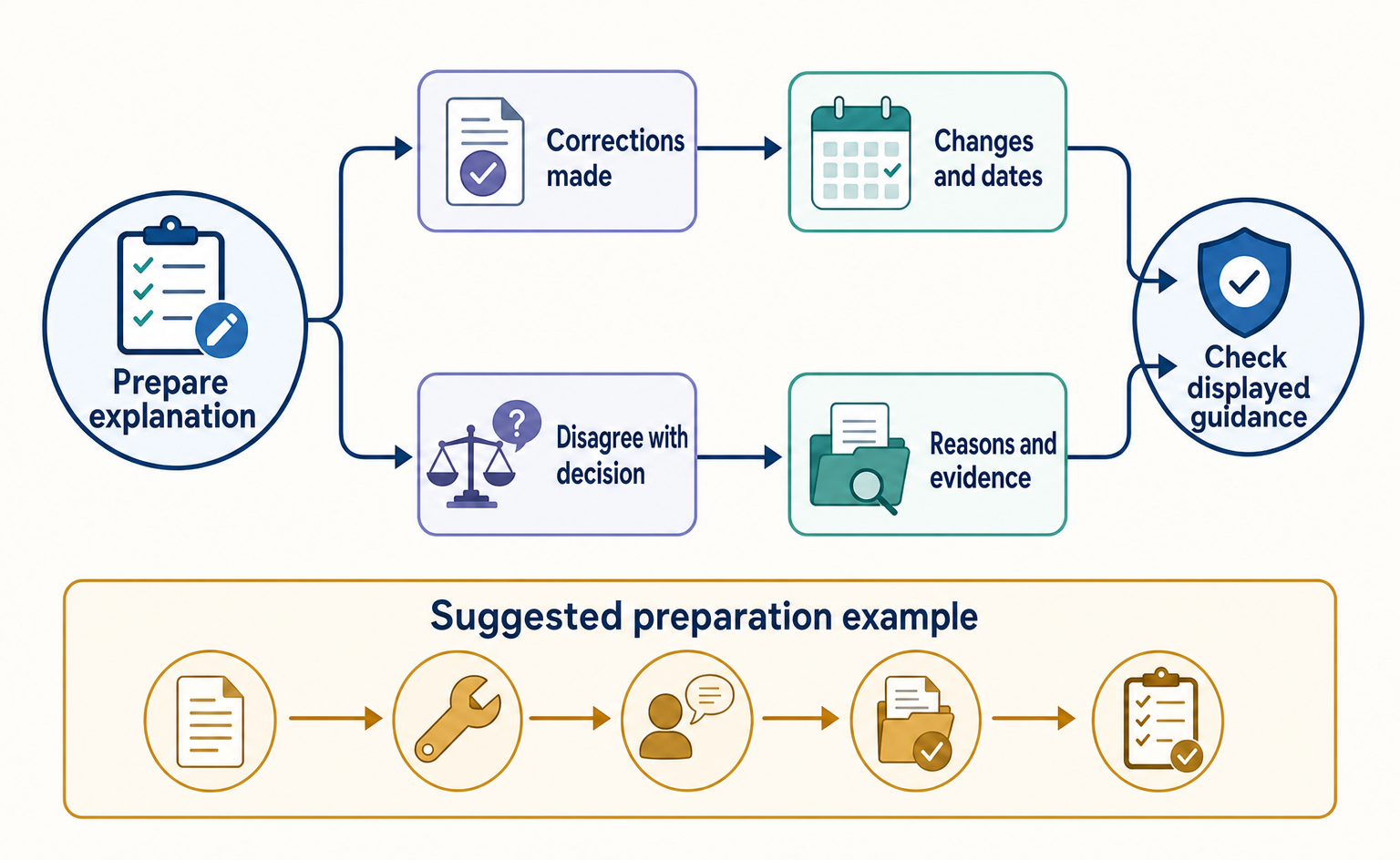
The following order can help you organize the facts in a draft before submission. This is an original editorial suggestion. If you are actually asked to provide reasons or supporting documents, adapt the information to the required format.
- State the relevant issue name and the situation your business has confirmed.
- If you made corrections, state what changed, the change dates, and the URLs of the live pages.
- If you disagree with the decision, state which facts you believe differ from the basis of that decision.
- Check the documents supporting your explanation and prepare those requested.
- Reread the draft to make sure unchecked items or actions not yet taken are not presented as completed work.
The first step is to keep the wording of the notice and decide which business details and sales terms to investigate. After making corrections, reread the live pages and check the issue status at that time. Keeping the facts of your corrections separate from Google's review decision helps you avoid reporting an issue as “addressed” while work remains unfinished.
Official guides for your own checks
For store-wide checks, Merchant Center’s guidelines also cover contact information and return and refund terms.[2] If the issue concerns Shopping ads, consult the ads misrepresentation policy.[3] Check which destination the notice identifies before choosing the policy to review.
FAQ
- Q. Will correcting my company information lift a misrepresentation issue?
- There is no guarantee. Google assesses information from products, websites, accounts, third parties, and other sources together. Do not assume business information is the only cause; also check the reason in the notice and your sales terms.[1]
- Q. Can I apply this reference directly to Shopping ads?
- The referenced policy is for free listings. Shopping ads have separate policy guidance, so check which type of listing is affected by the issue.[1]
- Q. Where should I start checking the issue?
- First, check the affected store, products, or account and the instructions in the notification email. The official help path Products → Needs attention → the relevant issue → View fix appears in the instructions for bulk appeals; it is not necessarily a universal way to check every misrepresentation issue. If the relevant item is missing, check the instructions in the notice and the “What you can do” section of the official help page. If you list products through an external platform, ask that service which review methods are available.[1]
- Q. Can I use the same explanation for corrections and for disagreeing with a decision?
- Prepare them separately. For corrections, explain the facts of what changed. If you disagree with the decision, explain why you believe it is incorrect and the evidence supporting that view. You may be asked for additional reasons or documents.[1]
Sources
- [1] 不実表示 - Google Merchant Center ヘルプ (Google) — accessed 2026-09-15
- [2] Follow Merchant Center guidelines to keep your account approved - Google Merchant Center Help (Google) — accessed 2026-09-15
- [3] Misrepresentation - Google Merchant Center Help (Google) — accessed 2026-09-15
About the author
Shogo MizushimaCEO of kairos Inc. / AgentSignal Developer
Develops AgentSignal, a tool for measuring AI crawler visits and AI-referred traffic, and diagnosing AIO readiness. Writes about measurement and practical improvements for AI search using observed data.
Related articles
AIO and AI search
What Is Organization Structured Data? Aligning Company Details and Official Links
Mistaken for a same-name company, or your site name and authors don’t show correctly? Align your company overview and official links, then describe them with Organization, WebSite and author structured data, and check the results after publishing.
Published
AI shopping and booking
Google Shows the Wrong Price: 3 Places to Check After a Price Cut
If Google still shows an old price after you lower it on your product page, compare the page, the product data sent to Google, and the sale conditions. A fictional example explains where to make corrections and how to check approval status afterward.
Published

AI shopping and booking
51% of US consumers use AI shopping tools. How much has product selection changed?
That does not mean AI placed 51% of orders. It is the share of US consumers who reported using at least one AI-powered shopping tool during the past month.
Published