Claude and HeyGen: set up MCP to create avatar explainers
Connect Claude and HeyGen through MCP, authenticate, prepare a script and create an avatar explainer. Includes voice, caption and MP4 checks.
Want an explanation video without arranging a person to speak on camera each time? Claude can work with HeyGen’s avatar-video service.
Claude helps prepare the script, while HeyGen generates the presenter footage. This guide covers registering the connection, requesting a short video and checking the finished file.
It follows official documentation checked September 27, 2026. The script and prompts are proposed exercises, not measurements from a production test conducted by this site.
HeyGen avatar video versus HyperFrames
HeyGen’s avatar workflow puts a speaker at the center of the explanation. HyperFrames animates text, graphics and other assets with code. They share a provider but have different production roles.
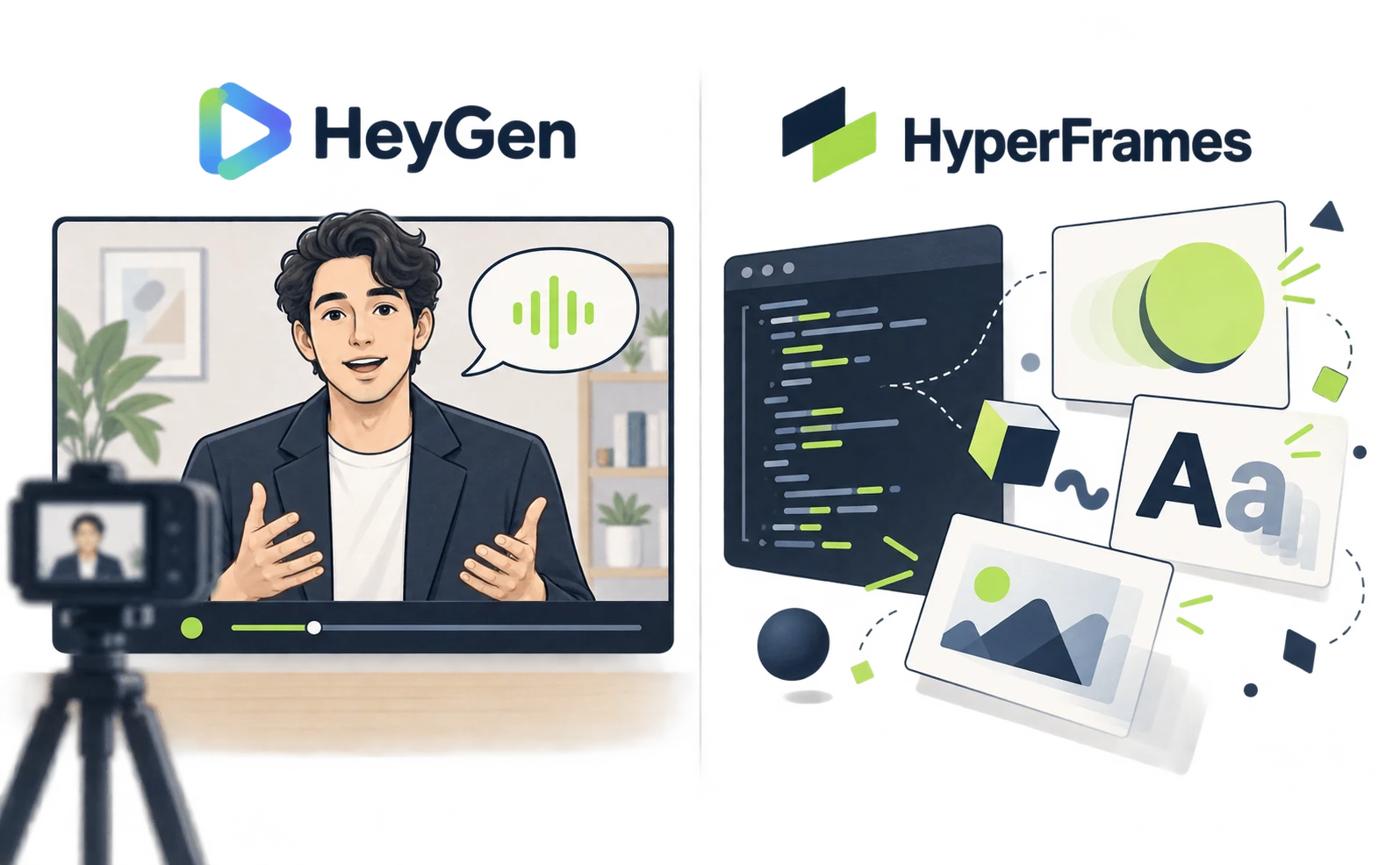
A presenter with captions could suit three weekly announcements. Animated diagrams could suit an explanation of three changing numbers. Choose according to what the viewer needs to see.
This setup uses Remote MCP authenticated with a HeyGen account. Claude can access the avatars and voices available in that account. Official MCP overview
Prepare a Claude plan that supports custom connectors and a HeyGen account. For the Claude Code route, also prepare Claude Code and Node.js. Check your HeyGen generation allowance before starting.
Connect Claude to HeyGen MCP
In browser-based Claude, register HeyGen as a custom connector and authenticate with your HeyGen account. You do not paste an API key into the chat.
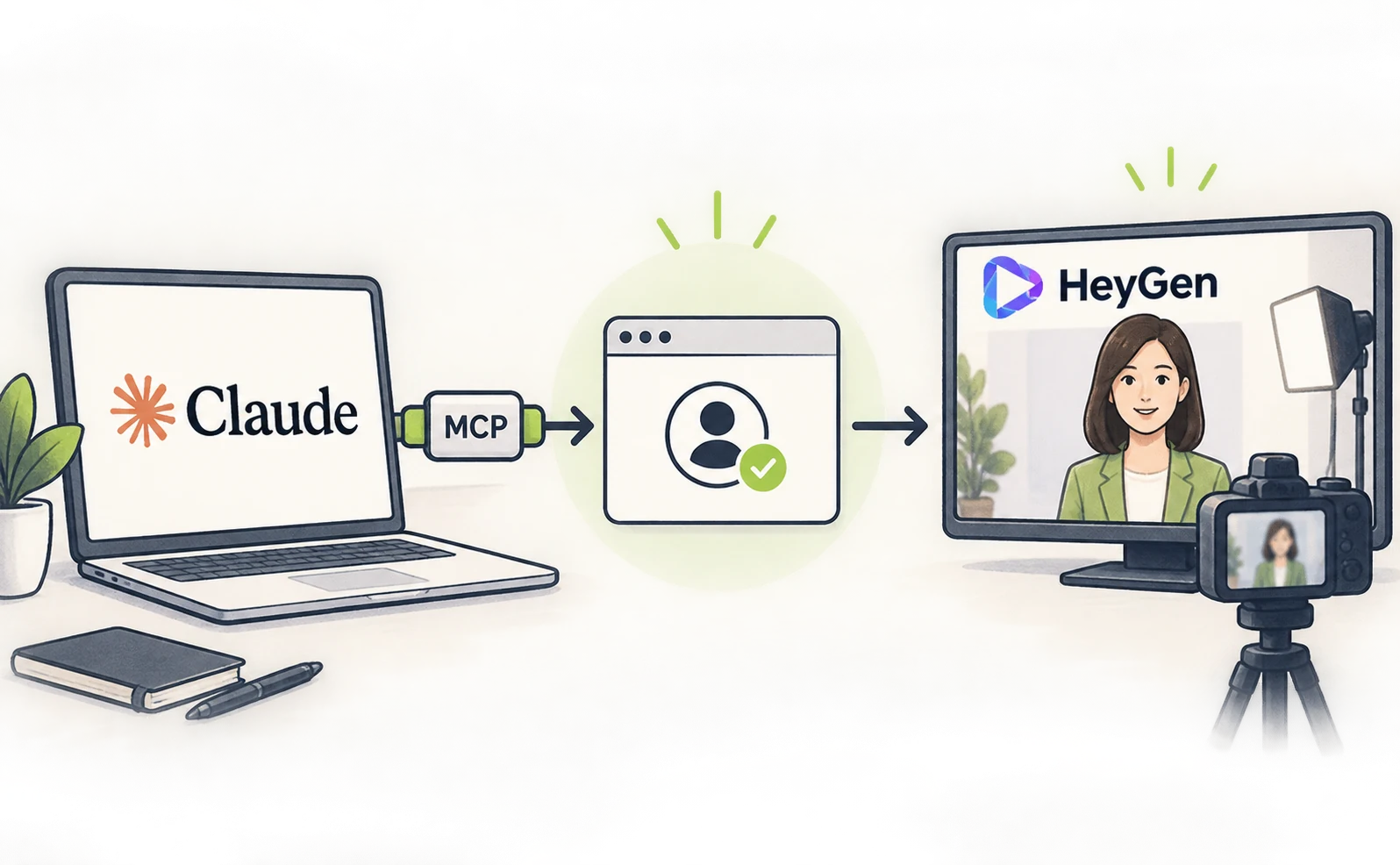
From Claude’s plus menu, go through Connector → Manage Connector → Add custom connector. Use HeyGen as the name and the following Remote MCP server URL. Official Claude Web setup
https://mcp.heygen.com/mcp/v1/
Save, choose Connect and review the account and permissions in HeyGen’s authorization screen. Back in Claude, start a new chat and ask for available avatars and voices without generating a video yet.
For Claude Code, run the following in a terminal in your project folder. You do not also need the browser-based setup. Official Claude Code instructions
claude mcp add --transport http heygen https://mcp.heygen.com/mcp/v1/
claude
Inside Claude Code, open /mcp and complete HeyGen’s browser authentication. Check that heygen shows a connected state. Sending a natural-language request before authentication does not make the tools available.
Generate an avatar video and check voice and captions
Begin with one short script and inspect both narration and captions. Settling the wording first makes revisions easier than handing over an entire long article.
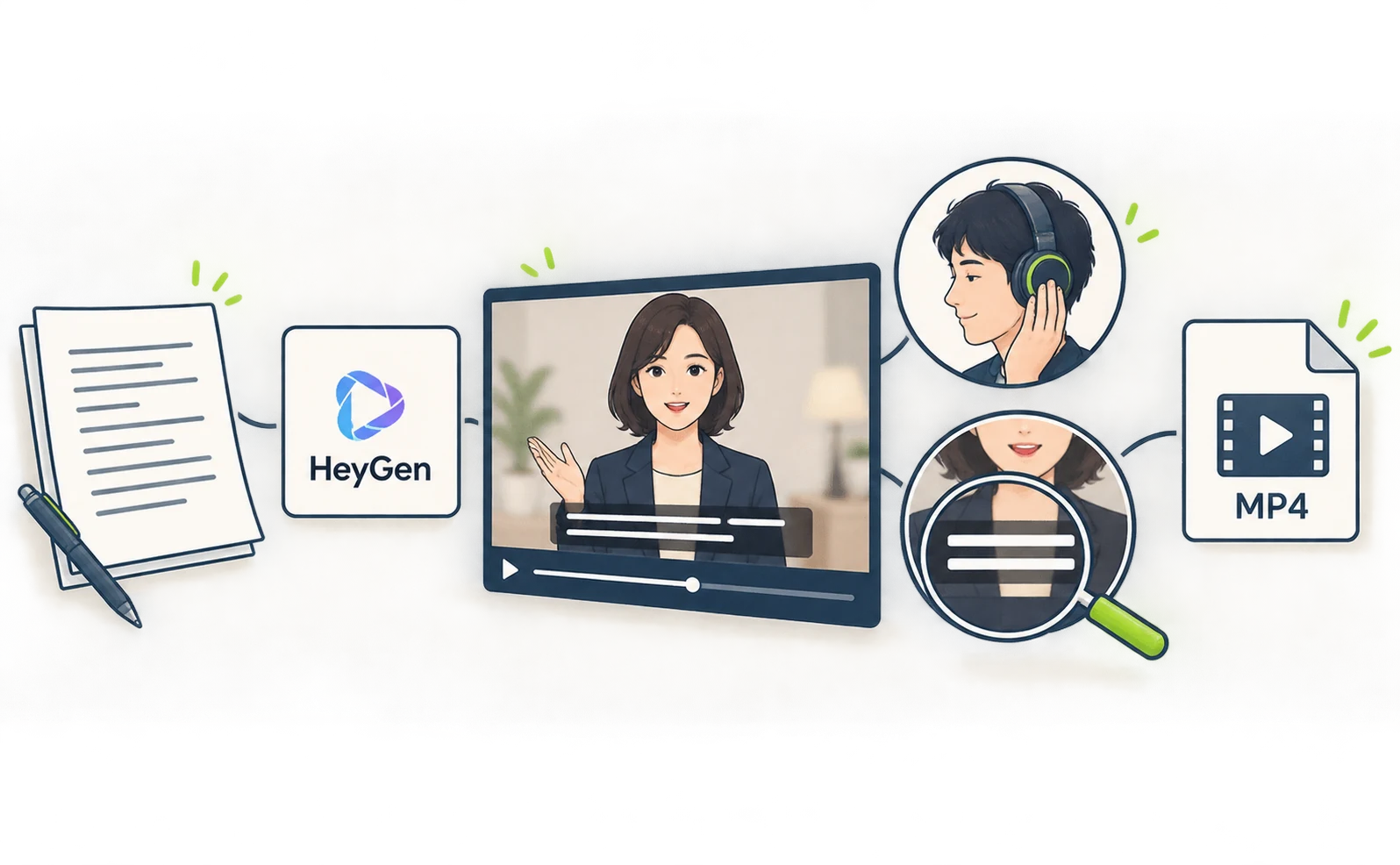
This proposed exercise introduces a fictional study session. Choose the avatar and voice from the options retrieved after connection.
Create one HeyGen announcement for a
fictional study session.
Landscape 16:9, English, calm delivery
and a simple background.
Use the avatar and voice I selected.
Script:
“Today, we will practice organizing our
notes.
 First, write down your ideas and group
them into three themes.
 Finally, choose one thing to work on
today.”
Add captions. Do not add claims,
achievements or extra statements.
Before generating, show the script,
estimated duration,
settings and usage conditions. After
confirmation, generate once.
Keep the generation ID and return the
completed video link.
Review the script before allowing generation. The result can be checked from the returned link and HeyGen Projects. Listen without looking first, paying attention to names and numbers.
Then inspect the captions. Check not only their wording, but their timing, line breaks and readability.
Make revision requests specific rather than asking only for the whole video to feel more natural:
Add a short pause after “organizing our
notes.”
Break captions at meaningful phrases and
make them slightly larger.
First tell me whether these changes can
be edited
or require another generation.
Open the completed project and download its MP4. Do not stop at a chat preview: play the saved file. Check your plan’s download, resolution and watermark conditions.
HeyGen allowances and adapting the workflow for news
HeyGen MCP uses credits from the existing HeyGen plan. It does not require separate API billing for the connection, but it is not unlimited generation. Official allowance explanation

| Symptom | First check |
|---|---|
| Cannot add a connector | Claude plan and organization settings |
| HeyGen will not connect | Account authentication and /mcp status |
| Generation does not start | HeyGen allowance and tool permissions |
| No returned video | The same generation ID and Projects list |
| Mispronunciation | Script spelling, selected voice and pronunciation guidance |
For news, prepare one sentence each for what changed, who it affects and what readers should check. This gives a clearer starting script than reading a long article unchanged. Verify facts in the script before generation; a natural-looking avatar does not establish accuracy.
Consider an ending that names the source and date so viewers can trace the information. First complete one short video through download, then carry the working settings into the next project.
If text and diagrams should lead instead, see the Claude and HyperFrames setup.
Sources
- [1] Official MCP overview — accessed 2026-09-27
- [2] Official Claude Web setup — accessed 2026-09-27
- [3] Official Claude Code instructions — accessed 2026-09-27
About the author
Shogo MizushimaCEO of kairos Inc. / AgentSignal Developer
Develops AgentSignal, a tool for measuring AI crawler visits and AI-referred traffic, and diagnosing AIO readiness. Writes about measurement and practical improvements for AI search using observed data.
Related articles

Case studies and research
Claude video generation: seven Opus 5.5 workflows compared
Compare seven Claude video workflows. Start with motion graphics written by Claude Code alone, with no external video generation or MCP, then find setup guides for HyperFrames, Remotion, image animation, Higgsfield, HeyGen and ElevenLabs.
Published
Case studies and research
Claude Code and HyperFrames: make a video and add Lyria music
Set up Claude Code and HyperFrames, add Lyria music, preview a composition and export an MP4 with commands and a 15-second starter prompt.
Published
Case studies and research
Claude and Remotion: make visuals and sound with code
Install the Remotion plugin for Claude Code, build a text-and-shapes video, add a Node.js sound cue and render an MP4. Includes paths and troubleshooting.
Published