Your Site Is Missing from AI Search: What to Check First | Google
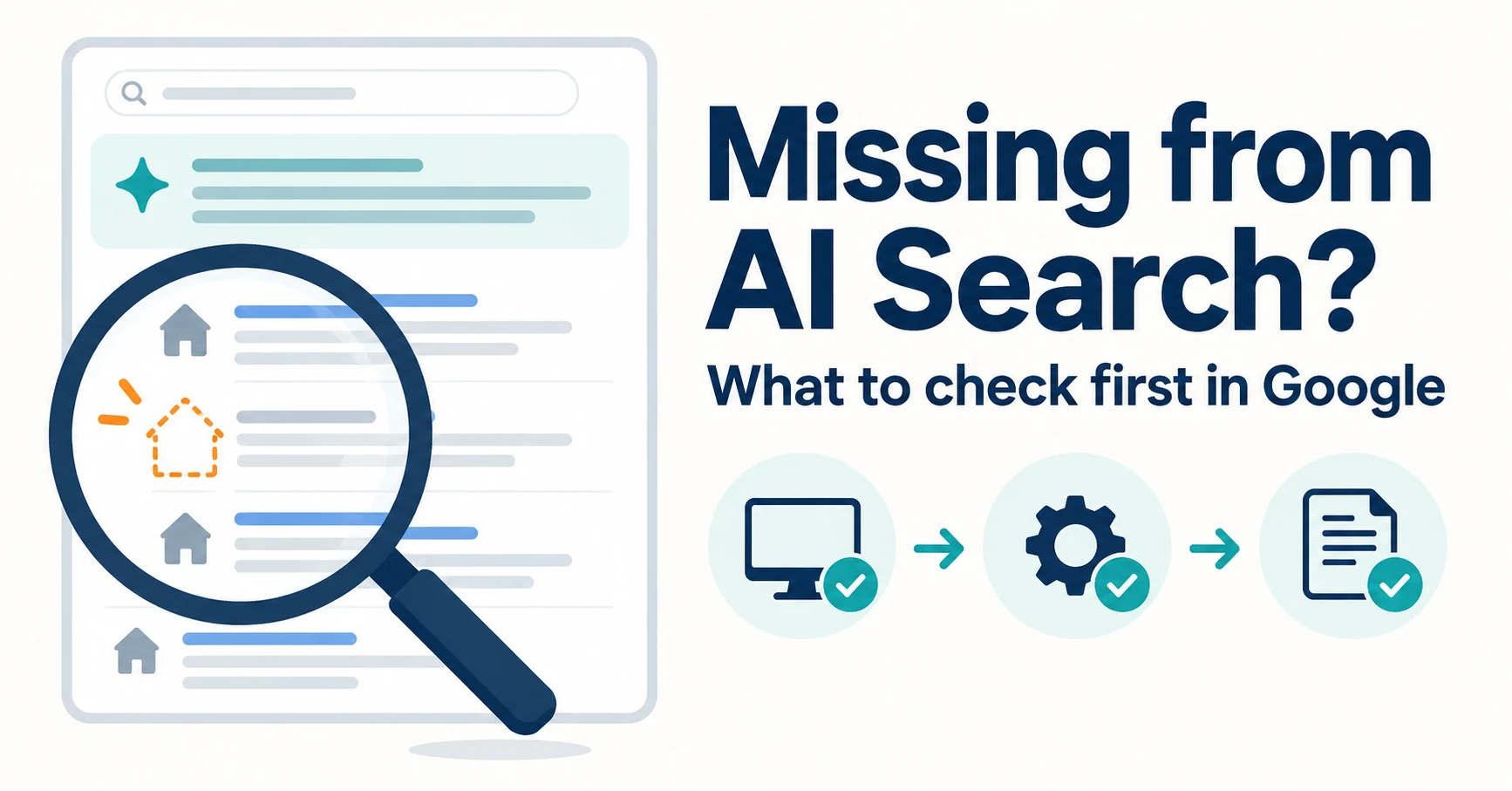
Steps to take when your site does not appear in Google’s AI Overviews or AI Mode: check the live results, confirm indexing and generative AI impressions in Search Console, and understand robots.txt vs. noindex.
“Our product page never appears in Google’s AI Overviews.” Before adding more product copy, there are a few things to check.
This article covers Google Search’s AI Overviews and AI Mode. It narrows down the cause in this order: the live results, Search Console, your settings and your page content. The water bottle product page used as an example is fictional.
Confirm the Symptom When Your Site Is Missing from AI Search
First, search Google with a question a customer might ask, and separate “no AI Overview appears at all” from “an AI Overview appears but your site is not in it.”
- Open Google Search.
- Enter a question such as “What is a lightweight, easy-to-clean water bottle for commuting?”
- If an AI Overview appears, check whether its links include your page.
AI Overviews appear only when Google judges they add value beyond classic Search, and they often do not appear.[1] If none appears, record “No AI Overview appeared” rather than concluding that only your site was left out.
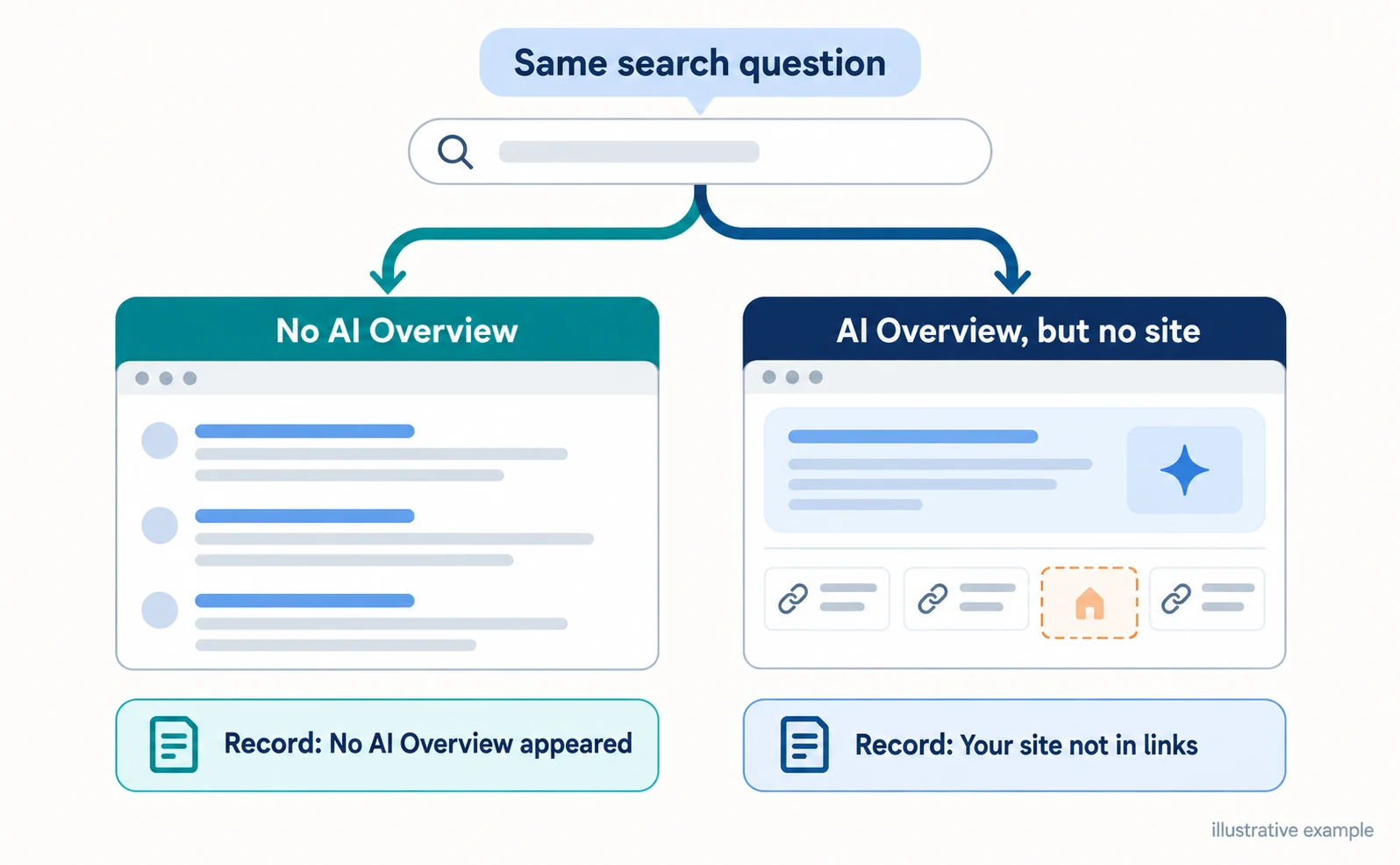
AI Mode and AI Overviews may use different models and techniques, so their answers and links vary.[1] If you check both, record the results separately.
Google says there are no additional technical requirements for AI features, and meeting the requirements does not guarantee inclusion.[1] Do not draw conclusions from one search; repeat the same question on different days.
Check Google Indexing and Generative AI Visibility in Search Console
Next, use Search Console to check whether the page is indexed by Google and whether it has a record of appearing in Google’s AI features. To be shown as a link in AI Overviews or AI Mode, a page must be indexed and eligible to appear in search results with a snippet.[1]
Search Console is Google’s free tool for checking how your site is doing in Google Search. Open Search Console, select your site and enter the product page URL into URL Inspection at the top.
URL Inspection shows the indexing status and also the HTML (the code describing the page’s content and settings) that Google received.[5] If the page is not indexed, copy the reason shown.
Then open the generative AI performance report and switch to the page view. It shows, page by page, how often links to your pages appeared in AI Overviews and AI Mode.[2][3]
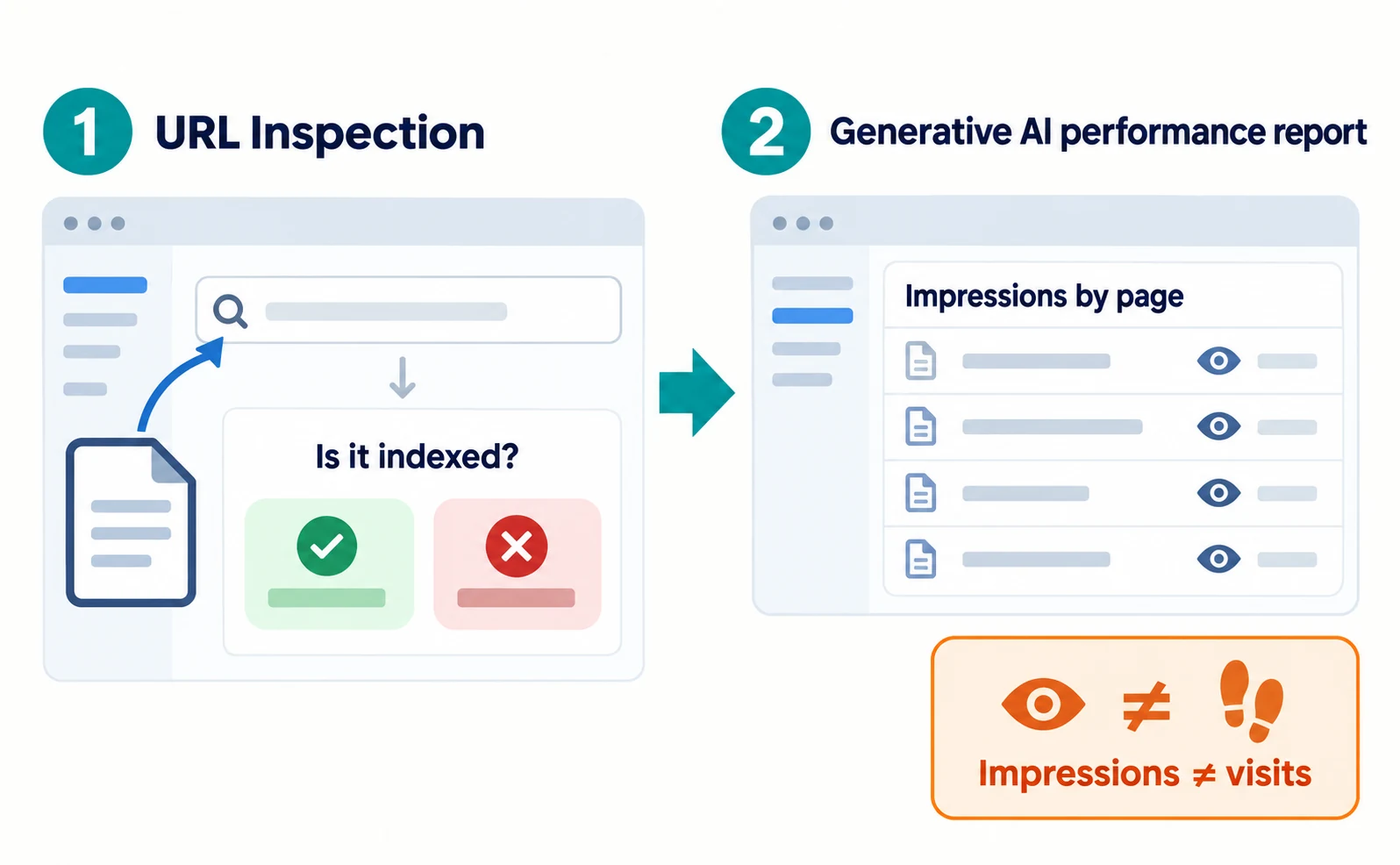
Impressions are not visits. Sites with few impressions may not see the report at all.[3] Do not conclude that a page has never appeared just because it is missing from the table.
robots.txt vs. noindex: Blocking Reading vs. Blocking Display
robots.txt controls whether a page may be read; noindex controls whether it may appear in search results. The two are often confused, but they stop different things.
robots.txt is a settings file on your site. It tells search engine crawlers (programs that read pages) where they may read. Google says it is not a way to keep a page out of Google.[4]
noindex is an instruction not to show a page in search results, placed in the page code (a meta tag) or in the server response (X-Robots-Tag).[5]
| Point | robots.txt | noindex |
|---|---|---|
| What it stops | Reading the page | Appearing in search results |
| Where it goes | A settings file on the site | The page code or the server response |
| What happens | The URL alone may appear without a description if other pages link to it[4] | Once Google reads it, the page is dropped from results[5] |
| Effect on AI features | Hard to meet the snippet condition | Not indexed, so not eligible |
Be careful when you use both. If robots.txt stops Google from reading a page, Google cannot see the noindex inside it. As a result, the page can keep appearing in results if other pages link to it.[5]
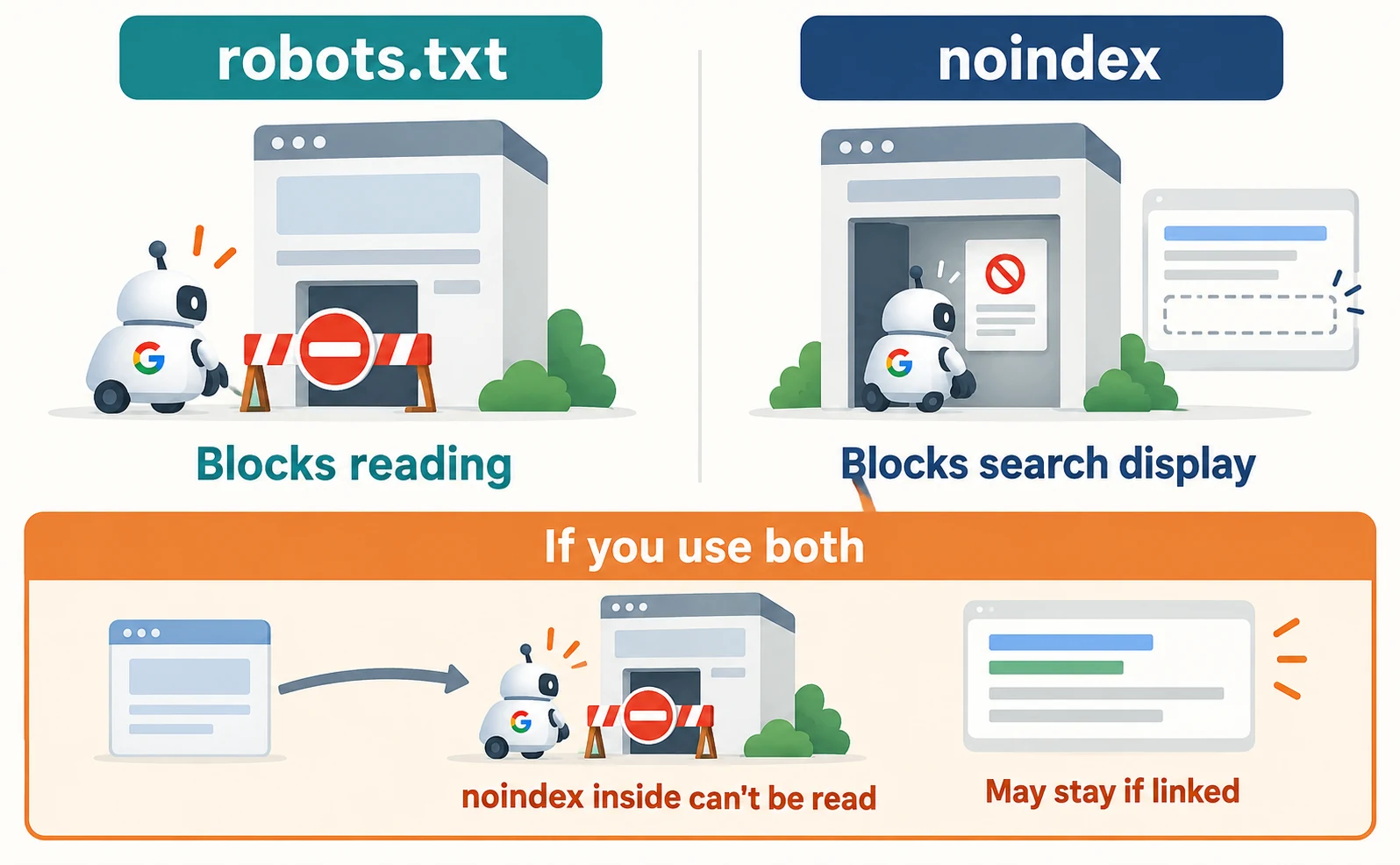
For pages you want in search, confirm both are removed. The Page Indexing report shows pages where Google found a noindex rule.[5]
How This Differs from Search Crawlers for ChatGPT and Other AI
To appear in ChatGPT search, check separately from Googlebot that robots.txt allows OAI-SearchBot, OpenAI’s search crawler. Sites that block OAI-SearchBot are not shown in ChatGPT search answers, though they can still appear as navigational links.[6]
It is independent of GPTBot, which is used for training, so you can block GPTBot while allowing the search crawler. ChatGPT-User visits pages because of user actions and is not used to decide search inclusion.[6] See How AI Crawlers Differ for details.
Review Snippet Restrictions and the Answers in Your Content
If your settings look fine, review any rules that restrict the search result description and check whether your content answers the question. A snippet is the short description shown below a page title in search results.
Google lists nosnippet (no description), data-nosnippet (exclude specified text), max-snippet (character limit) and noindex as ways to limit the information shown.[1] Look in the HTML from URL Inspection for rules you did not intend.
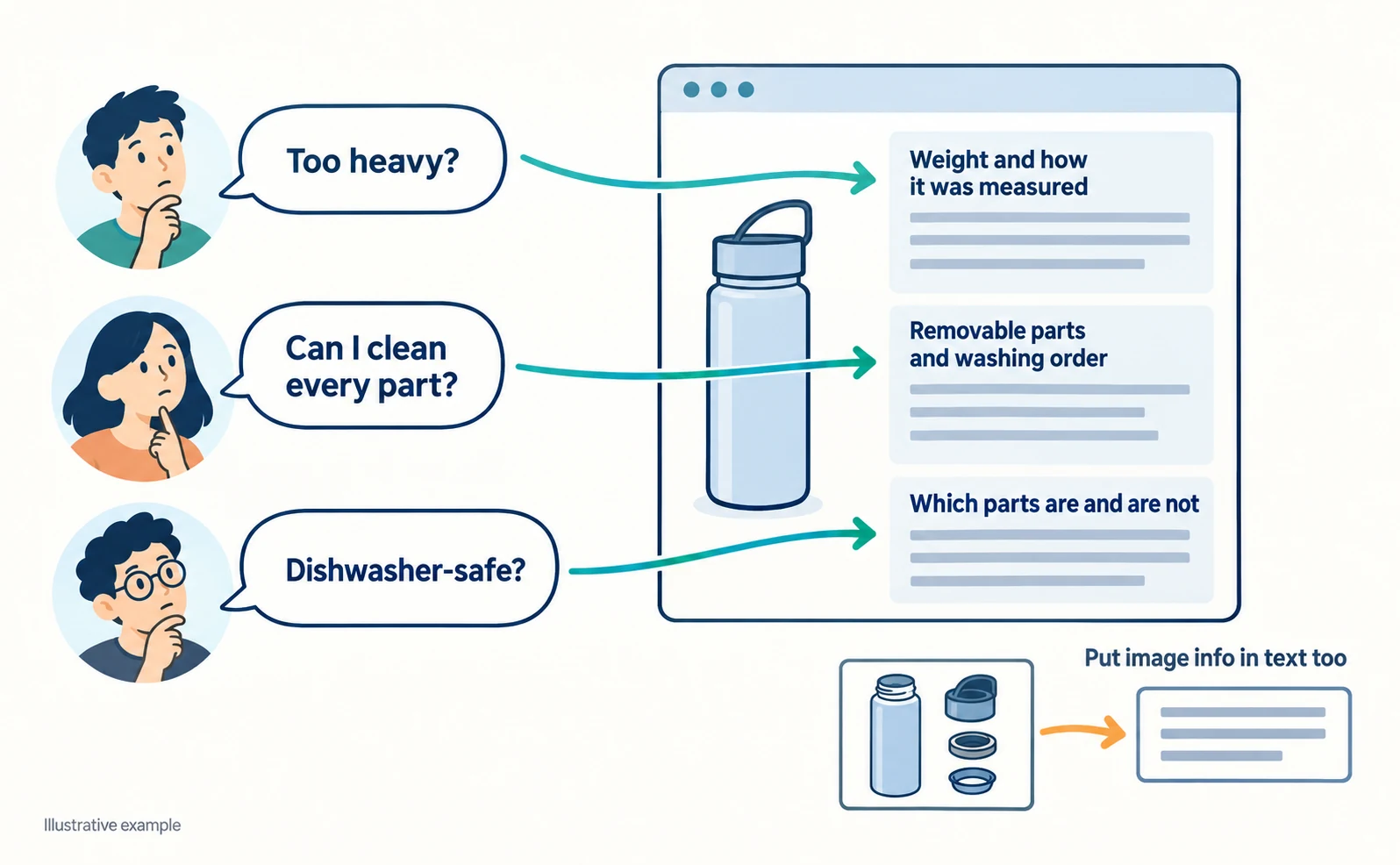
Next, the content. For the fictional water bottle page, check whether the page alone answers “Is it light and easy to clean?”
| What customers want to know | What to write on the page |
|---|---|
| Is it too heavy to carry daily? | The bottle’s weight and how it was measured, such as with the lid |
| Can I clean every part? | Removable parts and the washing order |
| Is it dishwasher-safe? | Which parts are and are not |
Google recommends putting important content in text and making it easy to find through internal links.[1] If cleaning instructions appear only in an image, add the same information as text.
If you use structured data (a set format that tells search engines what information such as product name and price means), make it match what visitors can see. Do not put information in structured data that is not shown on the page.[7]
You do not need special structured data or new AI files for AI features.[1] For one such file, see Do You Need llms.txt?.
Recheck After Fixing
After fixing, record the date you changed your site separately from the date you could confirm the change in Google.
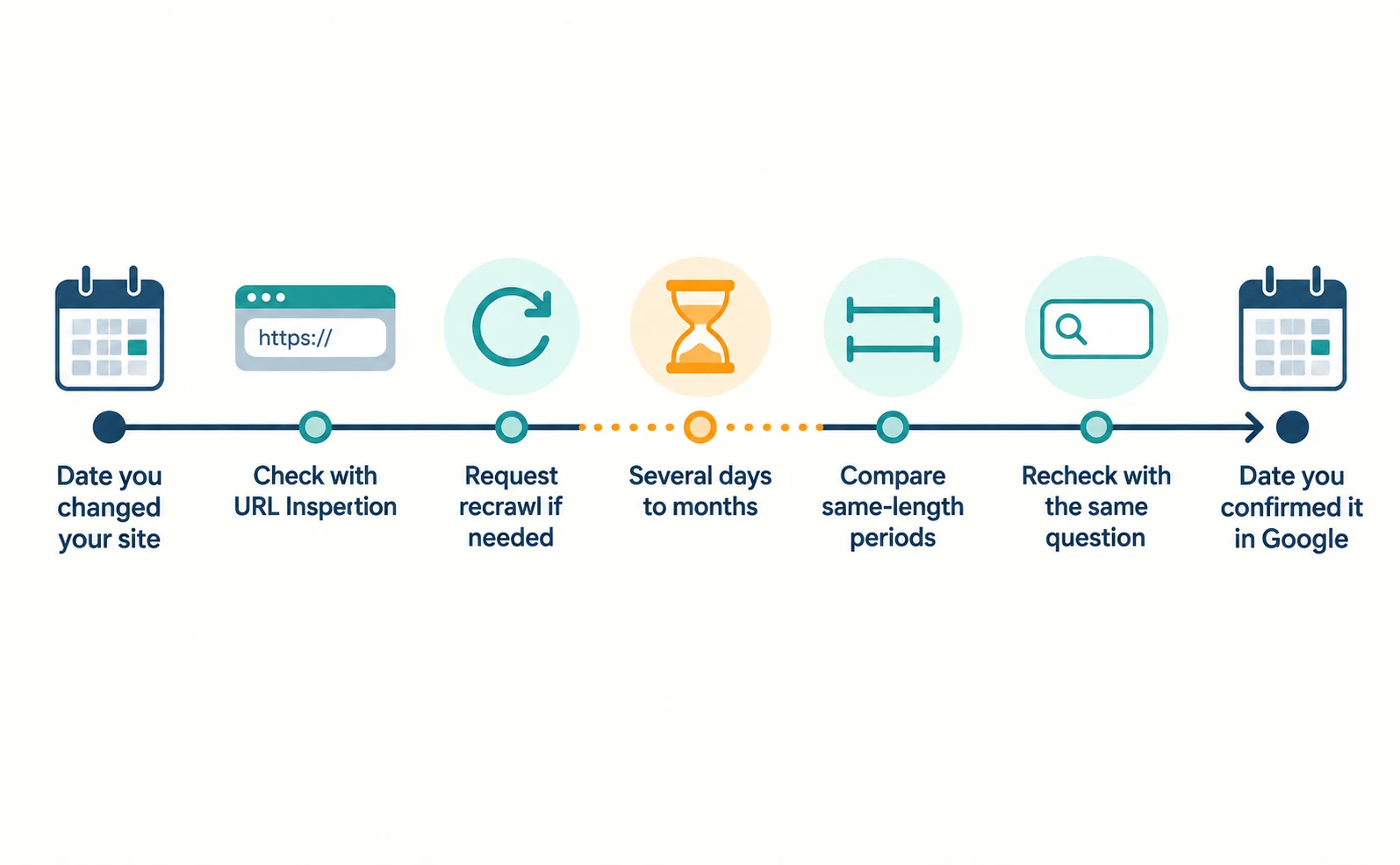
- Use URL Inspection in Search Console to check that Google can see the corrected settings.[1]
- If needed, ask Google to read the page again (recrawl) from URL Inspection.[5]
- Recrawling can take anywhere from several days to several months.[1]
- In the generative AI report, compare the page’s impressions over a period of the same length as before the fix.
- Search Google with the original question and check the live results.
The newest figures in the generative AI report can be preliminary and change later.[3] Seasonality and other activities also play a part, so a rise alone does not prove the fix worked.
FAQ
- Q. Do I need AI-specific files or structured data?
- Google says no new AI files or special structured data are needed to appear in AI Overviews or AI Mode. First check that the page can be read, that nothing keeps it out of search and that the content answers the question.
- Q. If the generative AI report shows nothing, has my page never appeared?
- Not necessarily. Sites with few impressions may not see the report at all. Do not conclude from the table alone; check the live search results too.
- Q. Will blocking a page in robots.txt remove it from search?
- Not always. If other pages link to it, the URL alone may appear without a description. To keep a page out of search, use noindex and do not block it in robots.txt.
Sources
- [1] AI features and your website (Google Search Central) — accessed 2026-09-23
- [2] Introducing Search Generative AI performance reports in Search Console (Google Search Central Blog) — accessed 2026-09-23
- [3] Generative AI performance report (Search) (Google Search Console Help) — accessed 2026-09-23
- [4] Introduction to robots.txt (Google Search Central) — accessed 2026-09-23
- [5] Block Search indexing with noindex (Google Search Central) — accessed 2026-09-23
- [6] Overview of OpenAI crawlers (OpenAI) — accessed 2026-09-23
- [7] Introduction to structured data markup in Google Search (Google Search Central) — accessed 2026-09-23
About the author
Shogo MizushimaCEO of kairos Inc. / AgentSignal Developer
Develops AgentSignal, a tool for measuring AI crawler visits and AI-referred traffic, and diagnosing AIO readiness. Writes about measurement and practical improvements for AI search using observed data.
Related articles
Measurement and site improvement
What Are AI Crawlers? Why Blocking GPTBot Doesn’t Remove You from ChatGPT Search
AI crawlers are programs AI companies use to read public web pages. Learn how GPTBot differs from OAI-SearchBot, how Google-Extended works, why visits can continue after a robots.txt block and how to choose settings by purpose.
Published
AIO and AI search
Do You Need llms.txt? What It Can Do and What to Check Before Adding It
llms.txt is a list of links to public pages you want AI to read. Learn whether AI search requires it, how it differs from robots.txt, when it helps, how to write it, and how to set it up and check it in WordPress and other platforms.
Published
AIO and AI search
What Are AI Overviews? How to Review Your Former SGE Work
AI Overviews are AI-generated summaries shown in Google Search. Learn how they relate to the former SGE trial, how they differ from AI Mode, why no extra requirements apply, how to review earlier work and how to check the Search Console generative AI report.
Published