How to Check Structured Data: Testing Tools and Fixing Errors
Learn how to check structured data with the Rich Results Test, the Schema Markup Validator and Search Console. Includes how to respond to errors and warnings, and how to check values that testing tools cannot verify.
Checking structured data means confirming that the markup on a page can be read in the expected format, and that Google can detect it as a supported type.
Structured data is markup that adds page information, such as product names, prices or company names, in a form search services can read easily.[1]
For example, if you add price information to a product page but leave out one closing bracket, the markup can no longer be read. Using the right tools before and after publishing helps you catch problems like this early.
This article explains how to choose between three tools, how to fix errors, and how to monitor pages after publishing. Information was checked on September 23, 2026.
What structured data checks can and cannot tell you
Tests tell you whether the markup is malformed and whether Google detected a supported type. They do not tell you whether the values are correct or whether a result will actually appear in search.
Testing tools read the markup mechanically. If it says the price is 3,300 yen, the tool does not know whether that is today’s selling price.
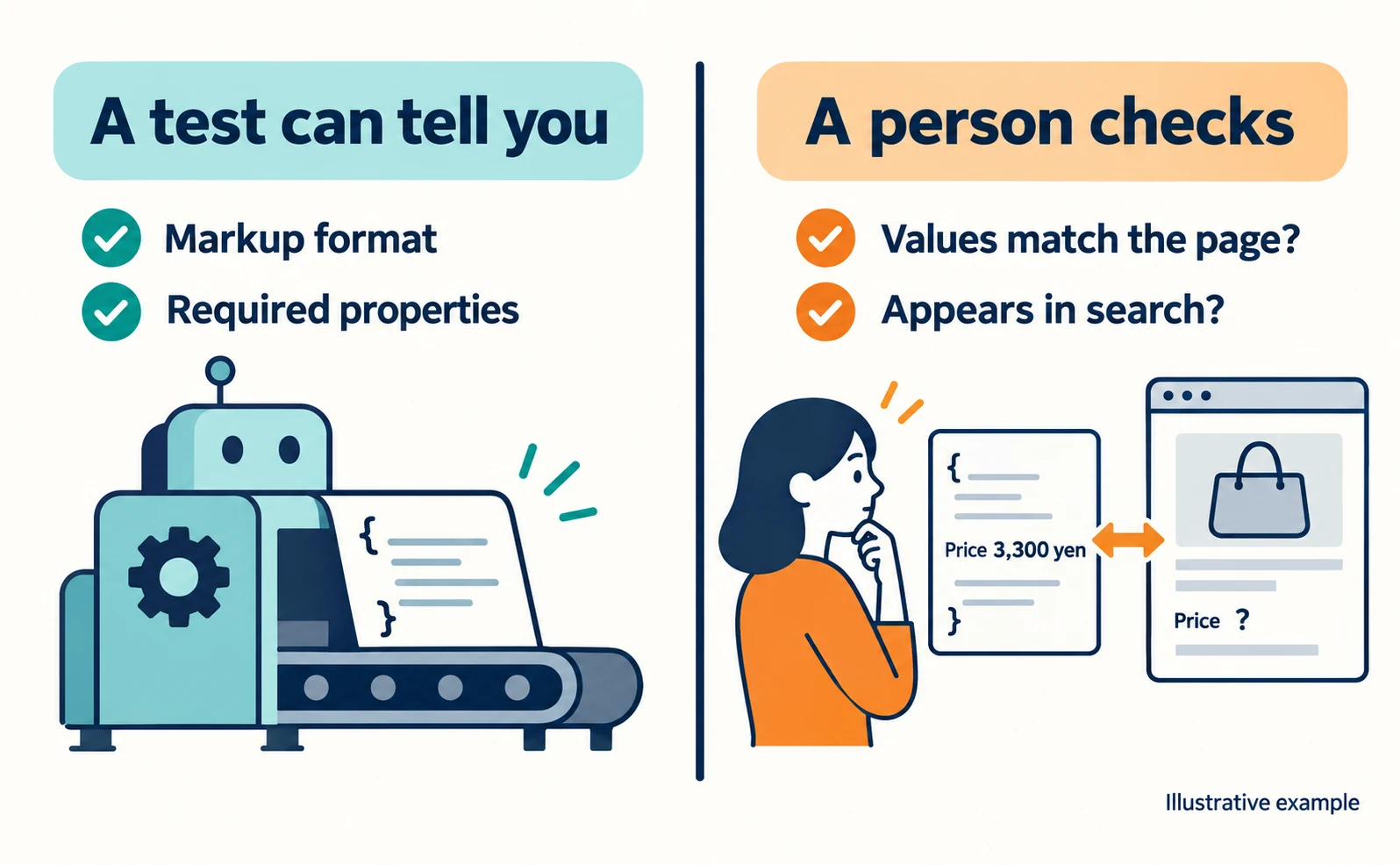
Google asks site owners not to mark up information that is not visible to users on the page.[1] A person needs to compare the values with what the page shows.
| What you want to know | Can a test tell you? | How to check instead |
|---|---|---|
| Is the markup intact? | Yes | Testing tool results |
| Are required properties present? | Yes | Whether critical issues appear |
| Do values match the page? | No | Compare with the page manually |
| Will it appear in search results? | No | Search results and Search Console after publishing |
This table is our way of separating the tasks. Even after a test passes, check the last two rows separately.
The same applies to AI search. Google says no special structured data is needed for AI Overviews or AI Mode. It also lists making structured data match the visible text as a basic practice.[5]
If you want to get search basics right before thinking about AI answers, see our explanation of AIO.
How structured data testing tools differ
Use the Rich Results Test to check eligibility for Google Search features, the Schema Markup Validator to check Schema.org markup generally, and Search Console to monitor the whole site after publishing.
Rich results are search results that go beyond a standard blue link, such as results with images or ratings.[2]
| Tool | Where to open it | Main use | When to use it |
|---|---|---|---|
| Rich Results Test | Rich Results Test | Whether Google detects a supported type | During development and right after publishing |
| Schema Markup Validator | validator.schema.org | Whether markup follows the Schema.org vocabulary | When you also want to check types Google does not support |
| Search Console | Search Console | Trends in valid and invalid items across the site | Ongoing checks after publishing |
Google recommends the Rich Results Test during development and the rich result status reports after deployment.[1]
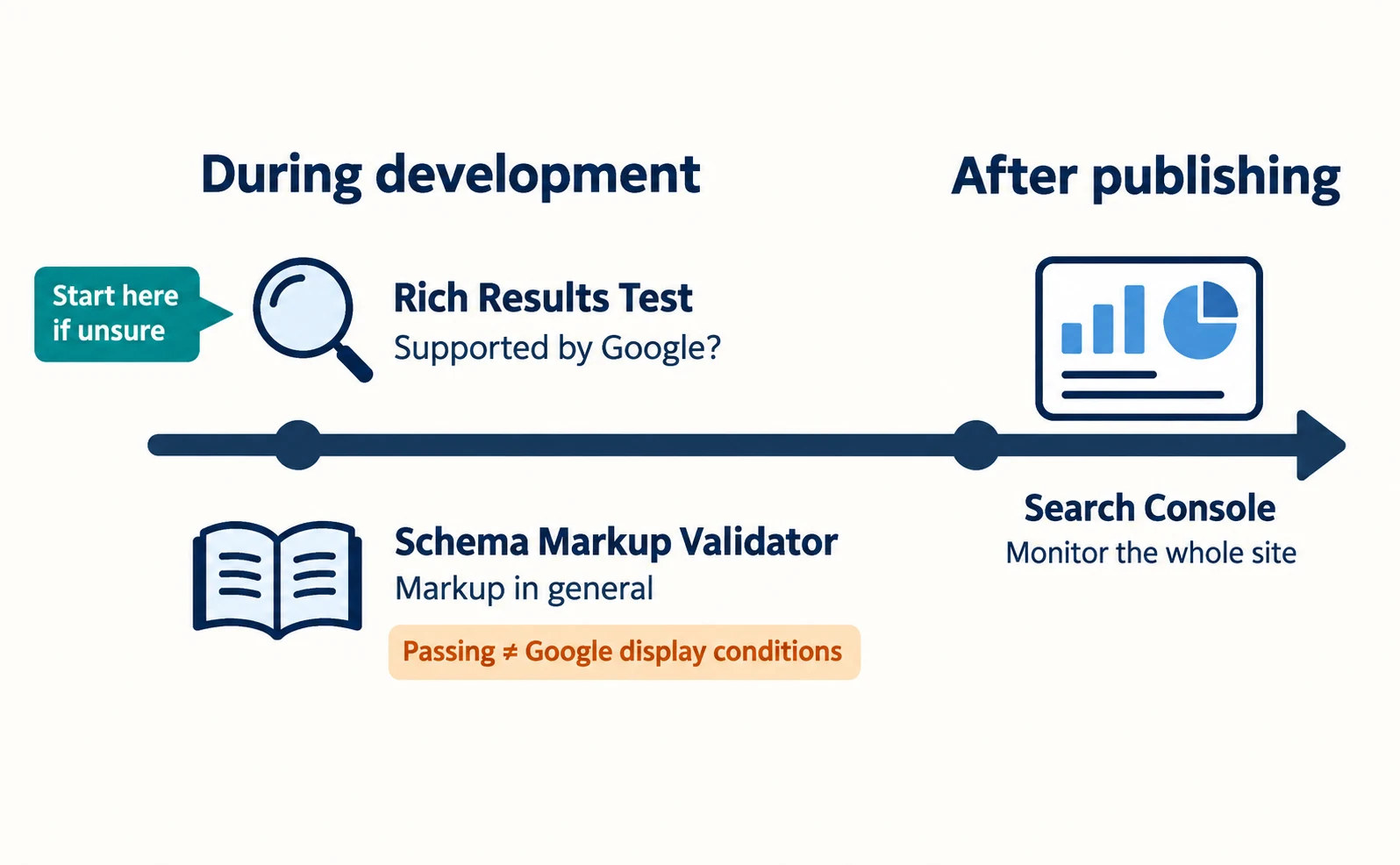
The Schema Markup Validator is provided by Schema.org.[3] Schema.org defines many properties that Google Search does not require.[1] Passing the validator does not mean you meet Google’s display conditions.
If you are unsure, start with the Rich Results Test.
How to use the Rich Results Test
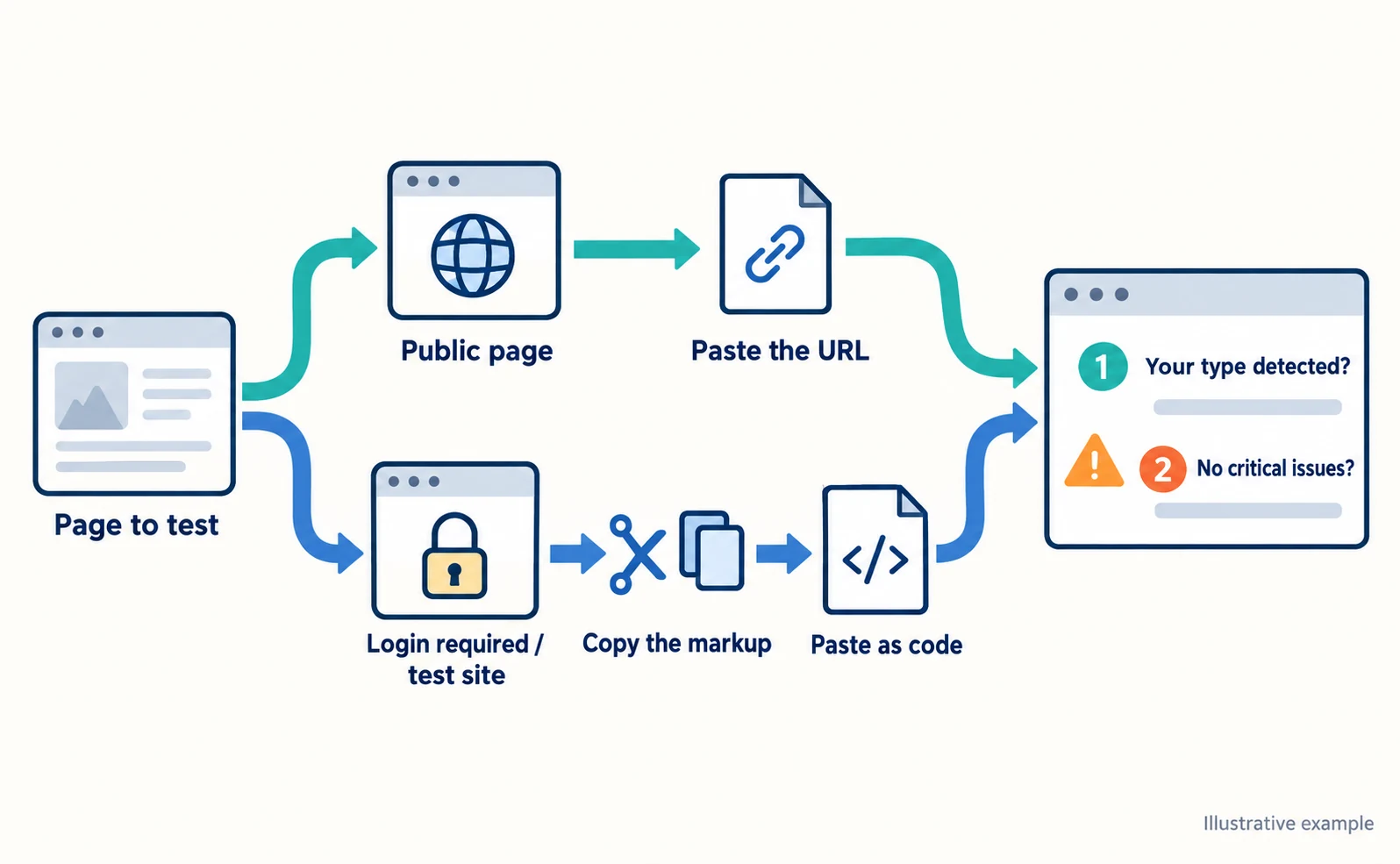
Enter a URL for a published page, or paste code for a page that is not yet public. In the results, look at the detected types and whether critical issues appear.
Follow these steps.
- Open the Rich Results Test.
- Choose URL or code on the screen.[2]
- If you chose URL, paste the address of your own page.
- If needed, choose smartphone or desktop as the testing agent.[2]
- Run the test and wait for the results.
URL testing works for publicly accessible pages.[2] Pages that require a login or internal test environments may not be readable by URL. In that case, copy the structured data from the page source and paste it into the code option.
Below is a short illustrative example using a fictional product. It is not meant to be copied onto your site.
<script type="application/ld+json">
{
  "@context": "https://schema.org/",
  "@type": "Product",
  "name": "White mug",
  "offers": {
    "@type": "Offer",
    "price": 3300,
    "priceCurrency": "JPY"
  }
}
</script>
In the results, first check whether the type you wrote, a product in this example, was detected. Then check whether any critical issues appear.
Structured data errors and warnings, and how to respond
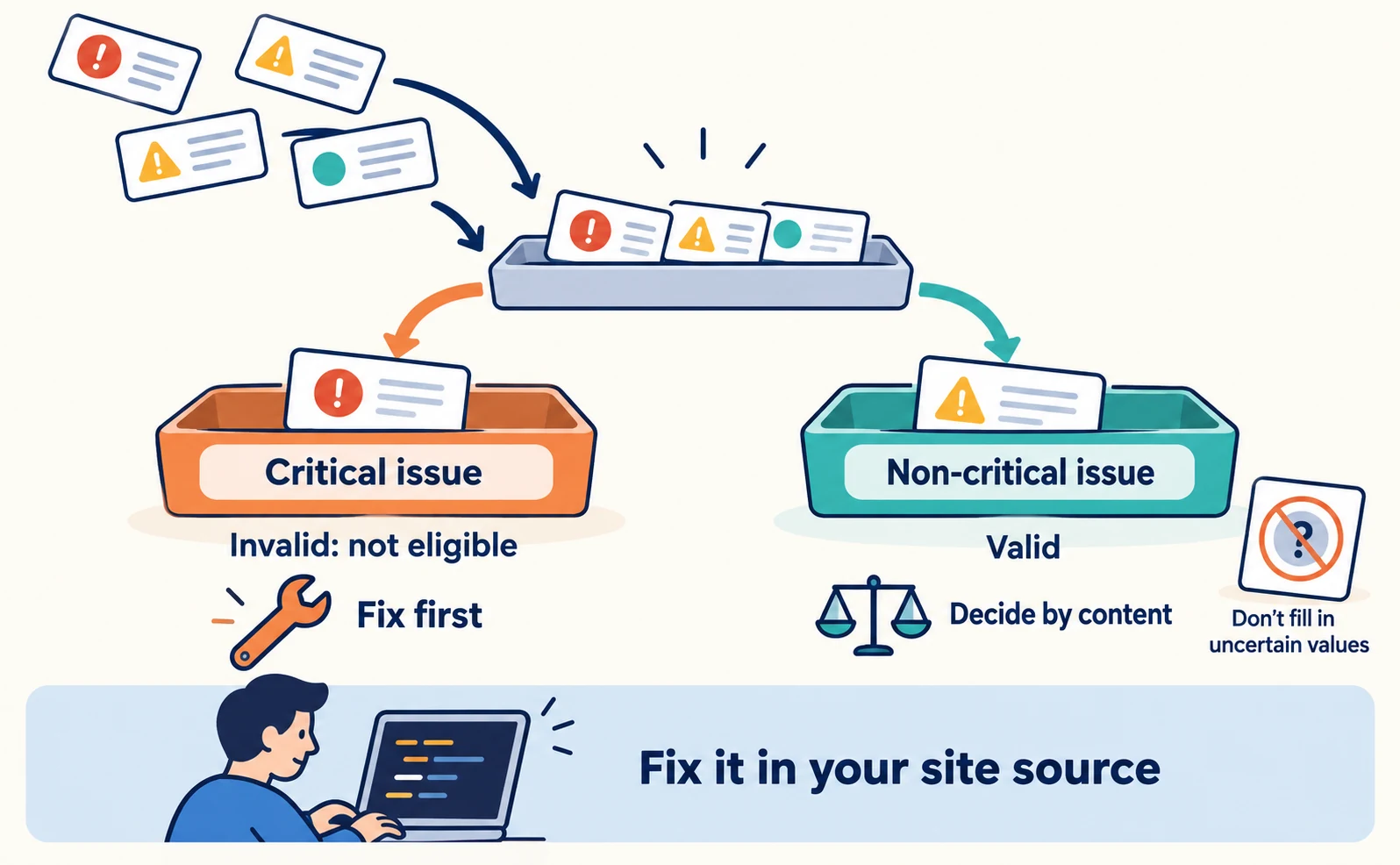
Critical issues prevent an item from being eligible for rich results, so fix them first. Non-critical issues point to room for better appearance, so decide based on their content.[4]
Search Console help describes items with a critical issue as invalid and items without one as valid.[4] Sorting test findings into these two groups makes decisions easier.
The table below is our own guide for choosing the next task by symptom. It does not reproduce on-screen wording.
| Symptom | Possible cause | Next task |
|---|---|---|
| The type you wrote is not detected | Bracket or quote errors, or a type Google does not support | Fix the format. Check Google’s documentation to see whether the type is supported |
| A required property is reported missing | A property required for that type is absent | Check the required properties in Google’s documentation for that type and add them[1] |
| The public URL cannot be loaded | Login required or access restricted | Test with code input and check access separately |
| The same issue on many pages | A template error | Fix the template rather than individual pages[1] |
| No issues, but values are wrong | Outdated product data or settings | Fix the source data and update both the page and the markup |
Including all required properties is a condition for eligibility.[1] But adding uncertain values just to fill fields backfires. Google says it is more important to supply fewer but complete and accurate recommended properties.[1]
Fixes are made in your site’s source. Search Console has no button that fixes issues for you.[4]
Monitor in Search Console after publishing
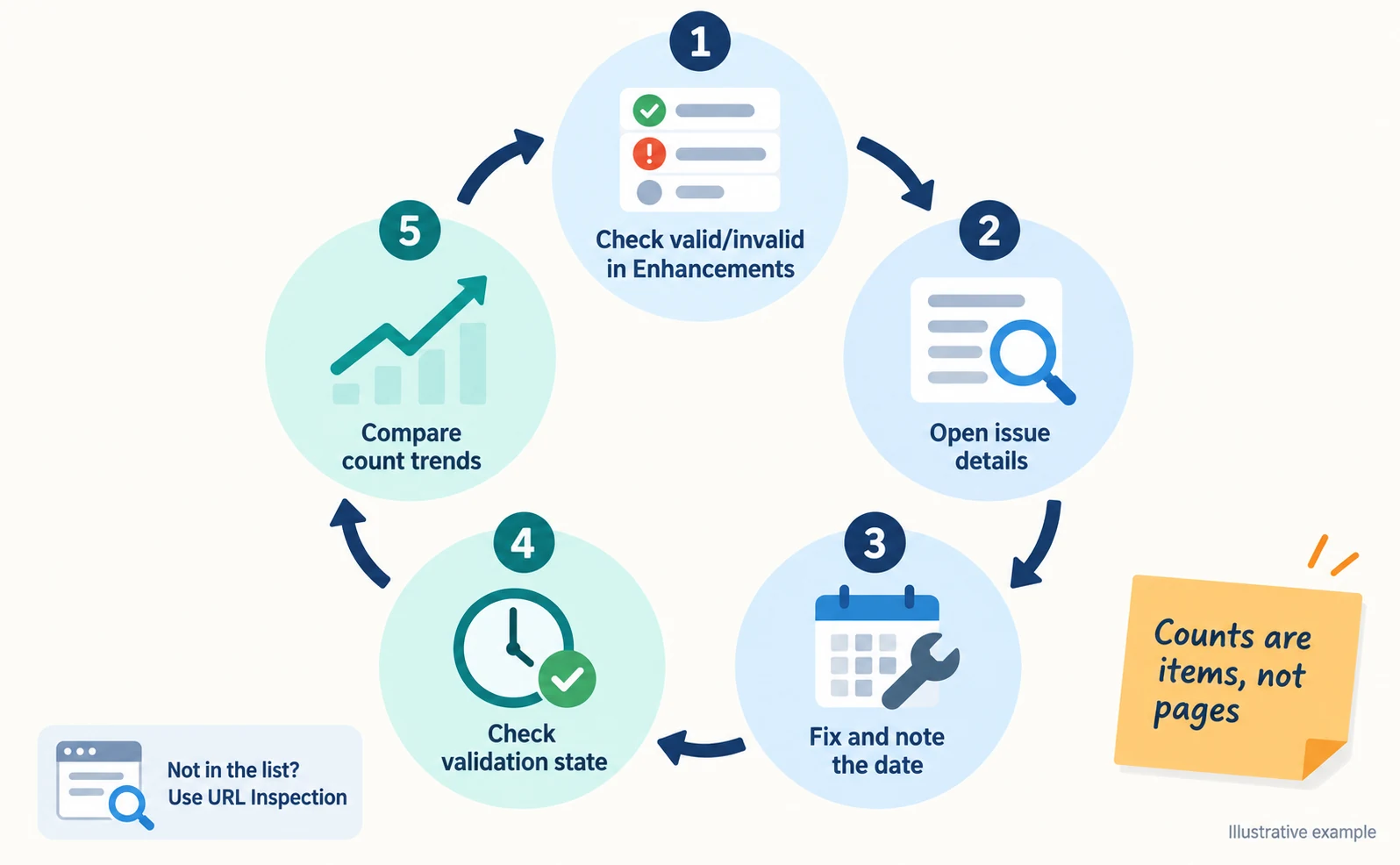
After publishing, watch the trend of valid and invalid items in the Enhancements reports in Search Console. After a fix, check the validation state on the issue details page.
Search Console is Google’s free interface for checking how your site performs in Google Search. Open it with an account that has access to your site.
The reports are under Enhancements in the navigation. Product-related reports are under Shopping.[4] A report appears only for types where Google found valid markup.[4]
Keep three points in mind.
- Counts are items, not pages. One page can contain several items.[4]
- The list is a sample, not every item.[4]
- For pages not in the list, use URL Inspection individually.[4]
Selecting an issue row opens details such as when the issue was first detected, affected examples and validation state.[4] Noting the date of your fix makes it easier to compare counts later.
If you want to align company information markup, also see how to align company details and official links.
As a first step, choose one important page and test it in the Rich Results Test. Recording the detected types, any critical issues and whether values match the page gives you a basis for the next fix.
FAQ
- Q. Can I ignore warnings from the test?
- Non-critical issues point to room for improvement and do not immediately make an item ineligible. Read them, and consider adding properties where you can supply accurate values. Avoid filling fields with uncertain values.
- Q. Can I test local or non-public pages?
- URL testing in the Rich Results Test is for public pages. For non-public pages, copy the structured data and use code input.
- Q. If the test passes, will my page appear with rich results?
- Display is not guaranteed. Tests only cover format and detection. A person should confirm values match the page, and Search Console should be checked after publishing.
Sources
- [1] Introduction to structured data markup in Google Search (Google Search Central) — accessed 2026-09-23
- [2] Rich Results Test (Google) — accessed 2026-09-23
- [3] Schema Markup Validator (Schema.org) — accessed 2026-09-23
- [4] Rich result report overview (Google Search Console Help) — accessed 2026-09-23
- [5] AI features and your website (Google Search Central) — accessed 2026-09-23
About the author
Shogo MizushimaCEO of kairos Inc. / AgentSignal Developer
Develops AgentSignal, a tool for measuring AI crawler visits and AI-referred traffic, and diagnosing AIO readiness. Writes about measurement and practical improvements for AI search using observed data.
Related articles

AIO and AI search
What Is Organization Structured Data? Aligning Company Details and Official Links
Mistaken for a same-name company, or your site name and authors don’t show correctly? Align your company overview and official links, then describe them with Organization, WebSite and author structured data, and check the results after publishing.
Published

AIO and AI search
What Is AIO? Its Two Meanings and Where to Start with AI Optimization
AIO has two meanings: work to get your company featured in AI answers, and Google Search’s AI Overviews. Learn how it relates to SEO, what to confirm in a proposal, what Search Console and Bing reports show, and your first tasks.
Published
Measurement and site improvement
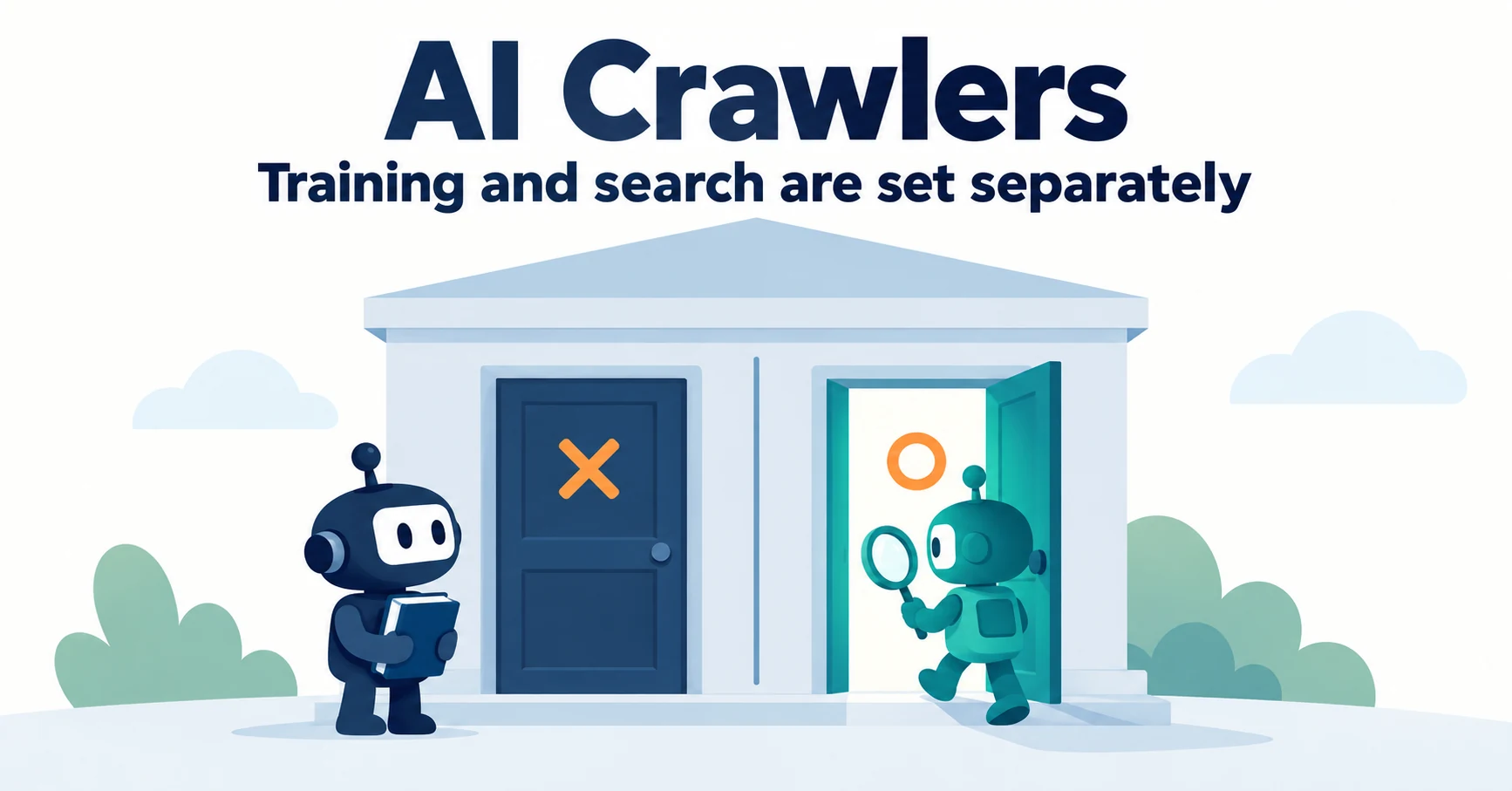
What Are AI Crawlers? Why Blocking GPTBot Doesn’t Remove You from ChatGPT Search
AI crawlers are programs AI companies use to read public web pages. Learn how GPTBot differs from OAI-SearchBot, how Google-Extended works, why visits can continue after a robots.txt block and how to choose settings by purpose.
Published