How to Read Search Console’s Generative AI Report: What Impressions Tell You
Learn how to use Search Console’s Generative AI performance report to see how often your pages appeared in Google’s AI features, what impressions do and do not tell you, and how it relates to the standard Search results report.
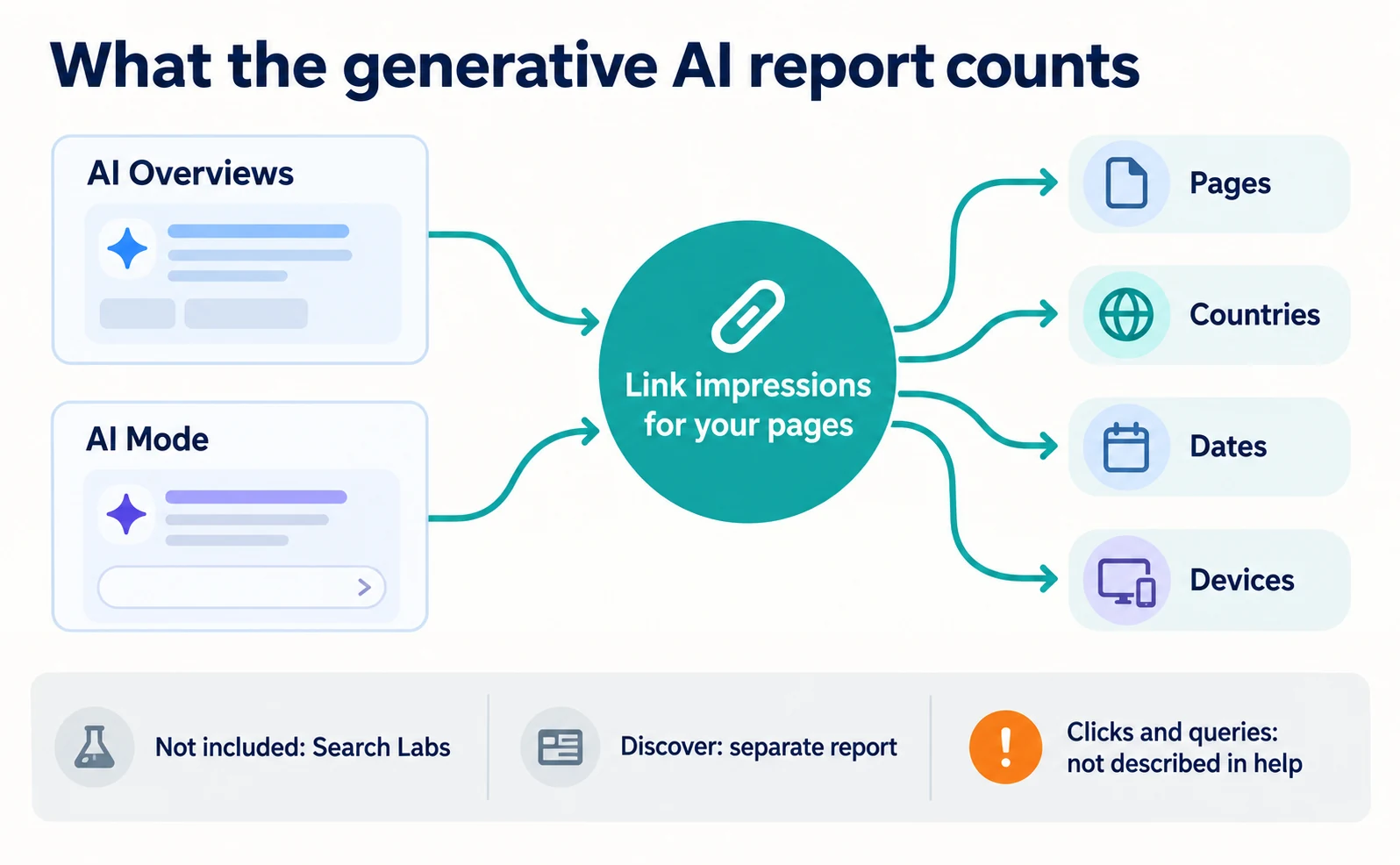
Search Console’s Generative AI performance report shows how often links to your pages appeared in AI Overviews and AI Mode in Google Search. You can break the numbers down by page, country, date, and device.
You may have heard that you can now see whether Google’s AI shows your site. But after opening Search Console, you cannot find the report or tell what the numbers mean. This article is written for that situation.
Search Console is Google’s free tool for checking how your site appears in Google Search. The following is based on Google’s help page and announcement as checked on September 23, 2026.
What is Search Console’s generative AI report?
It is a report showing how often links to your pages appeared in Google’s AI features. Google announced it on June 3, 2026, and later added that it had rolled out to all websites worldwide on August 31 [1].
In the English help center it is called the “Generative AI performance report.” It covers AI Overviews and AI Mode in Google Search [2].
Data from Search Labs experiments is not included [2]. Google says it expects to update the list of covered features over time [2].
Generative AI features in Google Discover (the feed that suggests content) have a separate generative AI report [1][2]. This article covers the Search report. The device breakdown is provided for Search results [1].
The report lets you see the following [1][2].
| Breakdown | What it tells you |
|---|---|
| Pages | Which page links appeared in AI features |
| Countries | Which countries the searches came from |
| Dates | Changes by hour, day, week, or month |
| Devices | Desktop, tablet, or mobile |
The metric is impressions. The help page does not describe clicks or search queries as breakdowns in this report [2].
How to open the generative AI report and what access you need
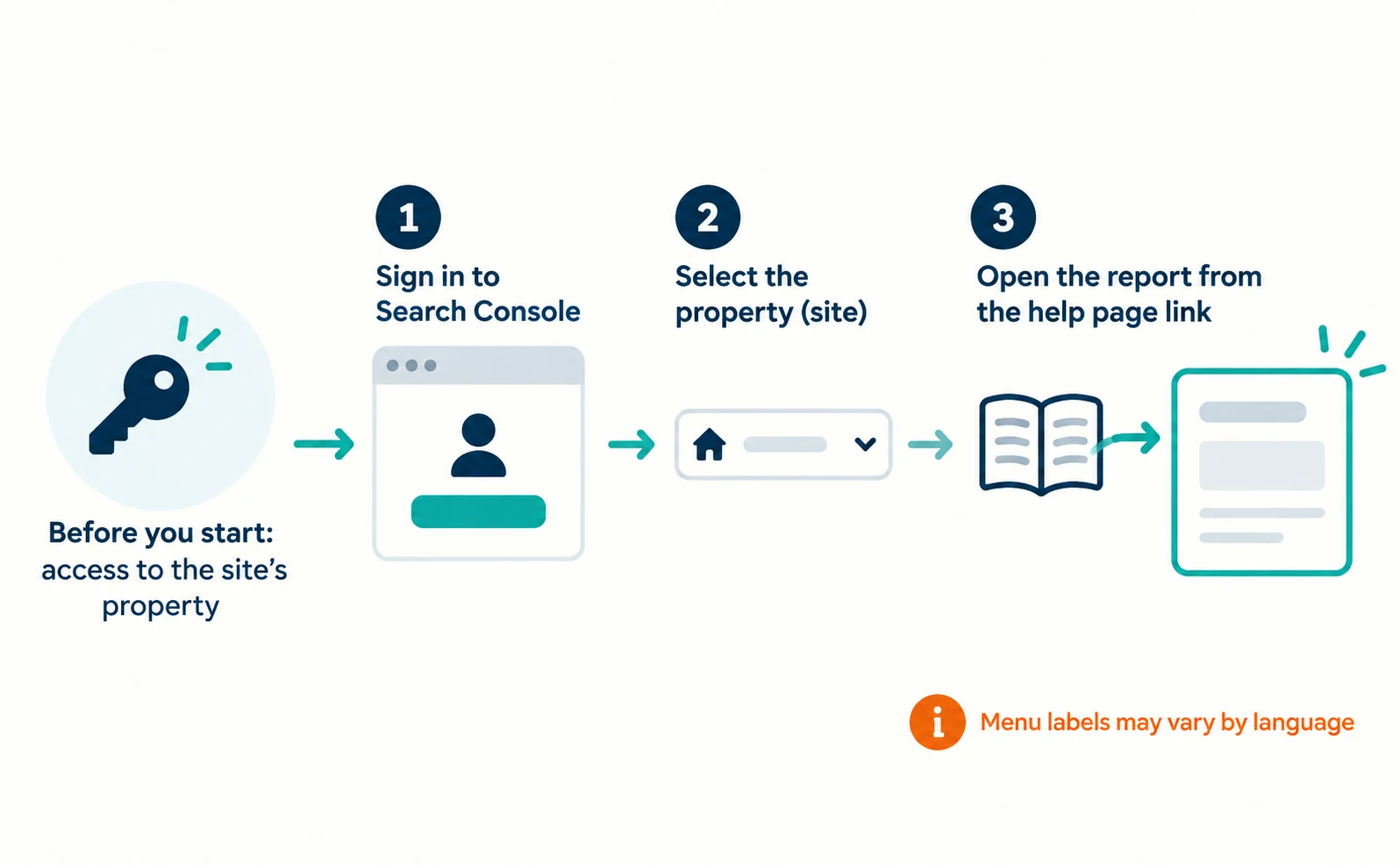
Sign in with an account that has access to your site’s Search Console property, then open the report. If you cannot see the site, ask your internal administrator to add you first.
- Open Search Console and sign in with your Google account.
- At the top of the screen, select the site (property) you want to check. A property is a site registered in Search Console.
- Open the Generative AI performance report help page and follow its link to open the report. The report for your selected property appears.
Menu labels can vary with language settings, so starting from the help page link is the easiest route.
Google’s announcement was updated to say the report rolled out to all websites worldwide on August 31, 2026 [1]. The current help page, however, still notes that some properties may not have access yet because of a gradual rollout [2]. As of September 23, 2026, both statements appear, so do not assume your property is excluded from the rollout if you cannot see the report.
If you cannot see the report, the help page lists these reasons [2].
| Reason | What to do next |
|---|---|
| The report is rolling out and your property may not have it yet | Check another property or try again later |
| Your site has too few impressions in AI features | Check Web search in the standard Search results report first |
| Your site is excluded from AI features | Ask your web team whether that setting is intended |
How to read impressions in the generative AI report
An impression is a time a link to your site was shown to a user in an AI feature. It is not a count of people, of text the AI quoted, or of clicks [2].
If the same person searches several times, each time may be counted. Do not report impressions as a headcount.
Next, understand how the chart and table differ.
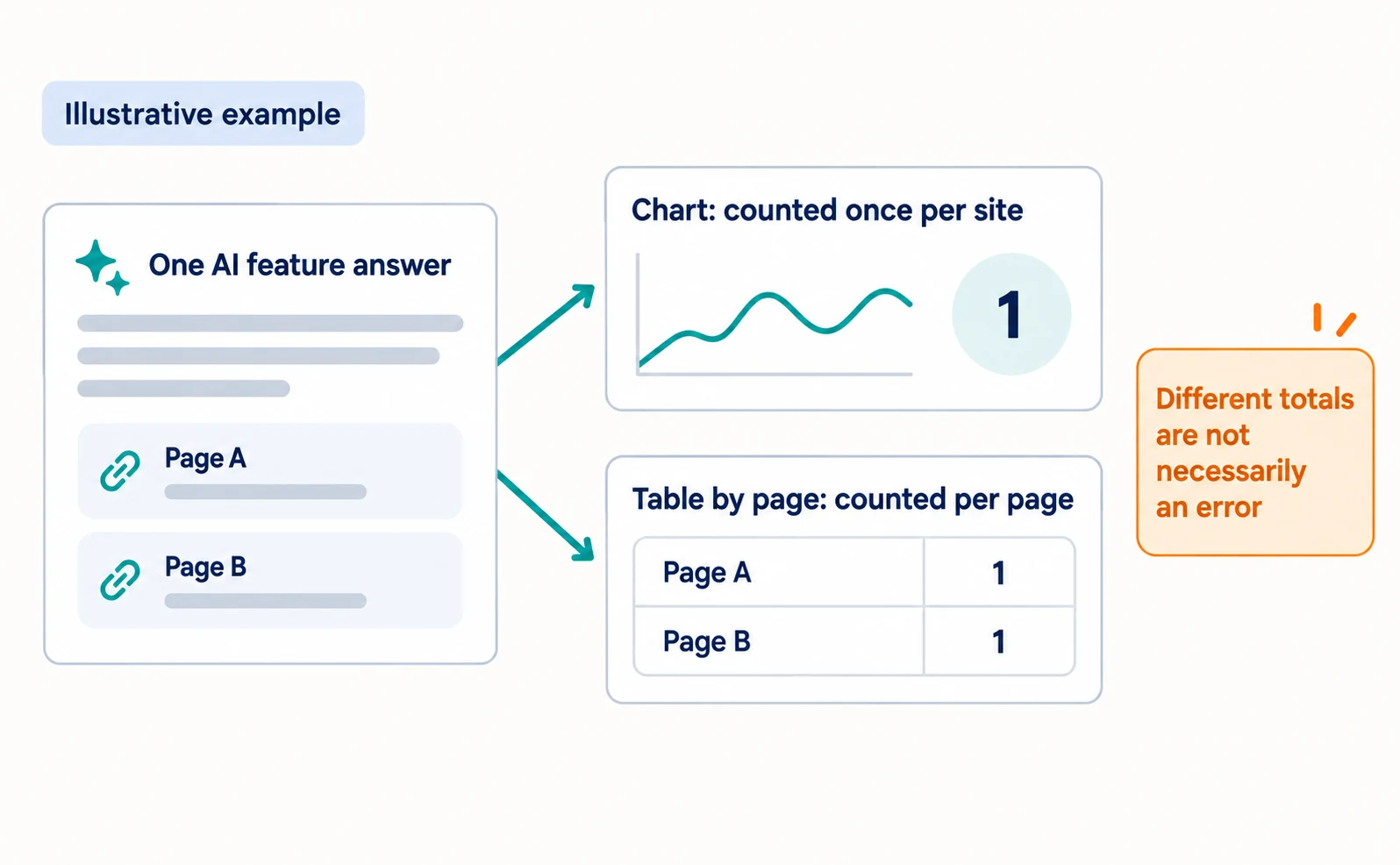
- The chart is aggregated by property. If two links from your site appear in one AI feature, the chart counts one impression [2].
- When the table is grouped by page, it is aggregated by page. Tables grouped by country, device, or date are aggregated by property [2].
So chart totals and table totals can differ [2]. Before assuming an error, check which aggregation you are looking at.
Page data is usually assigned to the canonical URL rather than to a duplicate [2]. The canonical URL is the representative URL chosen when several pages have the same content. If a URL is missing from the table, look for its canonical version.
In exported data, values shown as “~” or “-” become zeros [2]. A zero in the export does not necessarily mean “no impressions,” so check the report itself too.
Date range and data start limits
The help page does not say from what date data is available. Check the earliest date in your own report and note it in any report you share.
All dates are in Pacific Time [2]. That can shift days compared with your local time, so be careful with daily comparisons.
The newest data can be preliminary and may change within hours; it is shown as a dotted line in the chart [2]. Comparing a week that includes preliminary days can lead to judgments on incomplete numbers. Compare finalized days.
When to use this report versus the standard Search results report
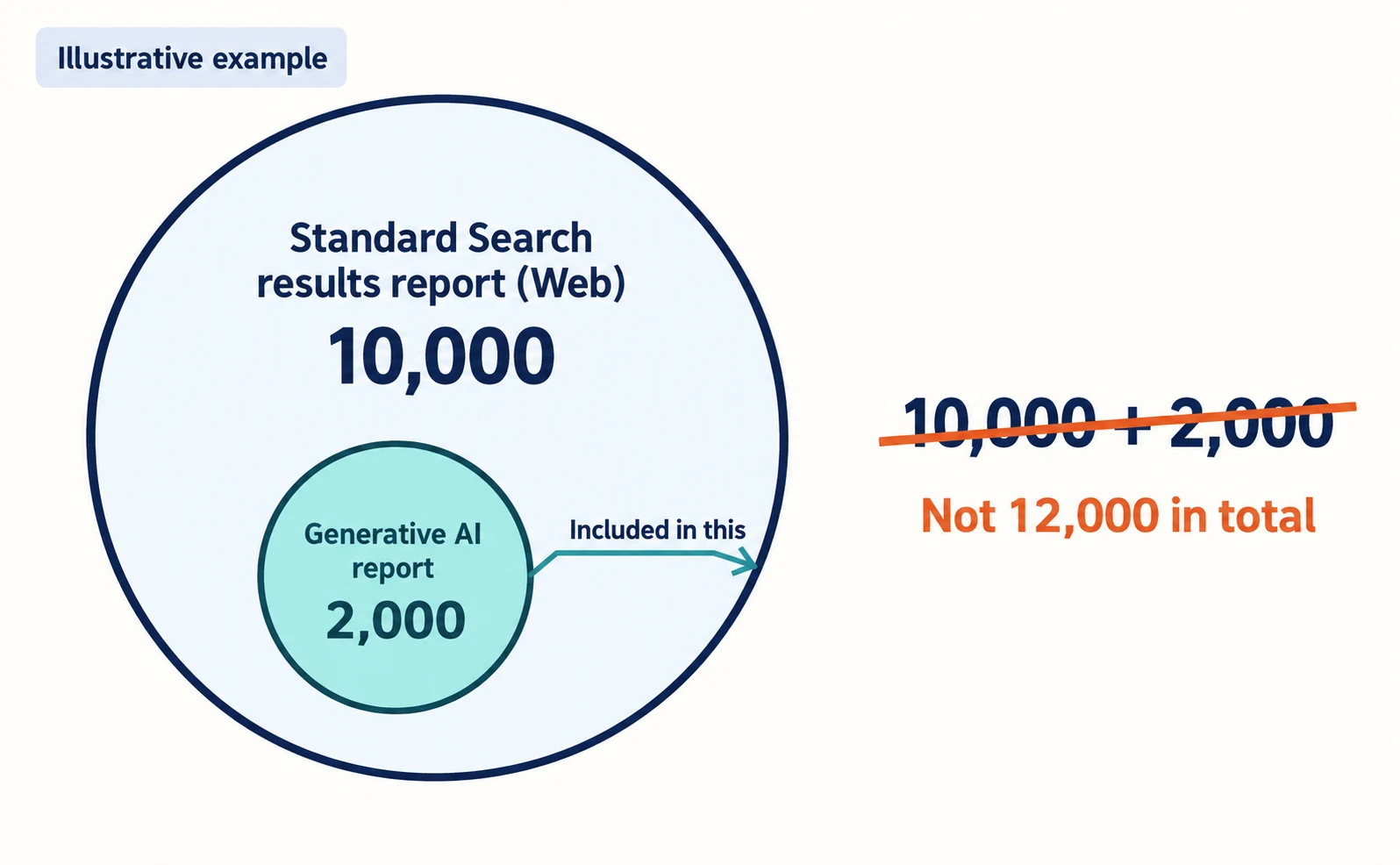
Generative AI impressions are also included in the Web search type of the standard Search results report. Do not add the two reports together. [1][3]
Google says sites appearing in AI features are included in overall search traffic in Search Console [3]. The generative AI report is a separate view of that AI portion [1].
| What you want to know | Report to use |
|---|---|
| Clicks, impressions, and position across Google Search | Standard Search results report (Web) |
| Performance by search query | Standard Search results report |
| Which pages appeared in AI features and how often | Generative AI report |
| AI feature impressions by country or device | Generative AI report |
Suppose the standard report shows 10,000 impressions and the generative AI report shows 2,000 (illustrative numbers). That does not mean 12,000 in total. It means the 10,000 already include the AI feature impressions.
What to check next on pages with rising impressions
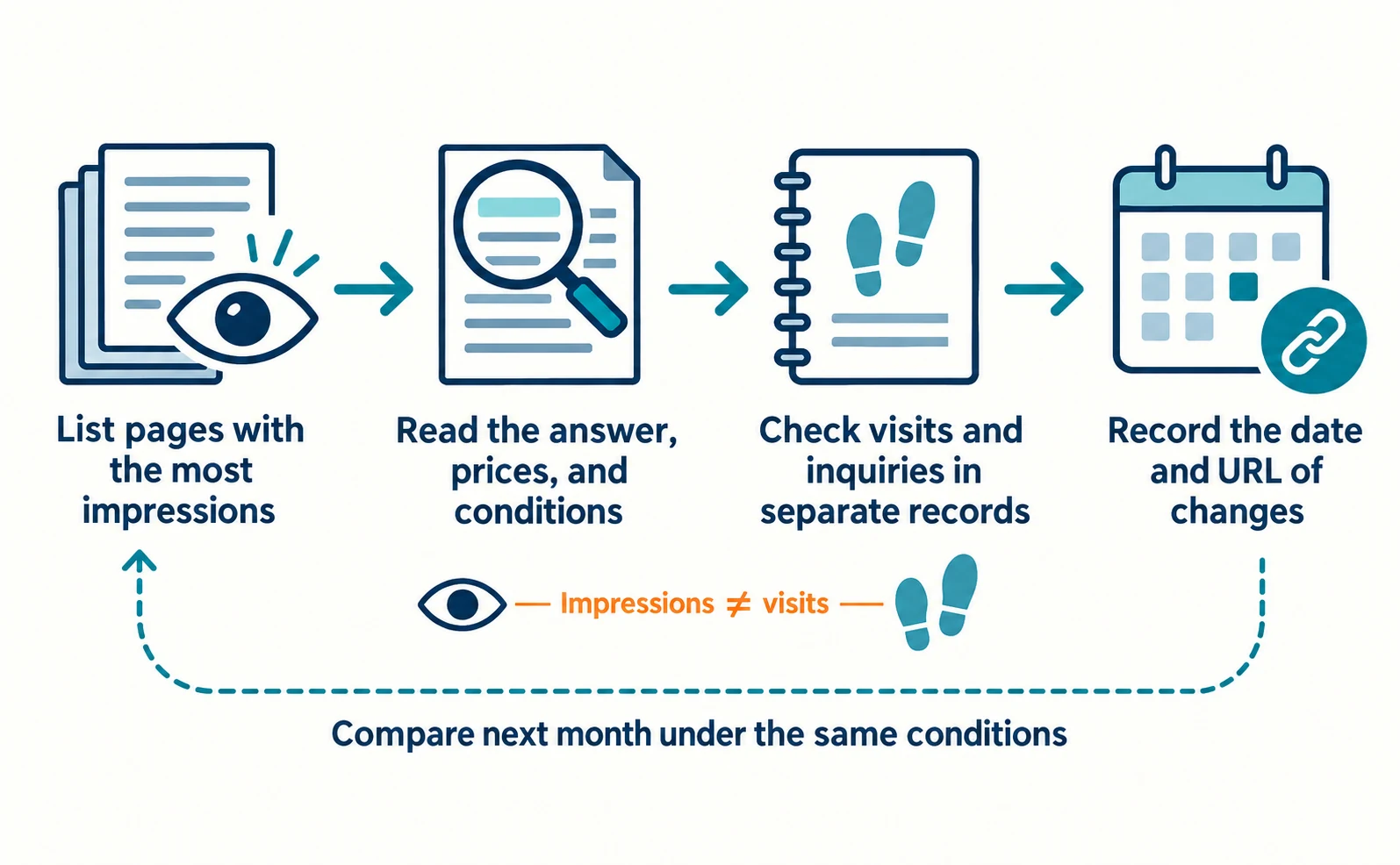
Open the pages with the most impressions and check that their content is accurate enough to be shown in AI features. Then check visits and inquiries in separate records.
- In the generative AI report, select Pages and list pages in order of impressions. There is no set number; this article uses five pages as a working example.
- Open each page. Check whether the first paragraph answers the question and whether prices or conditions are out of date.
- In your analytics, check visits and inquiries for the same pages and period.
- Record the URL and date of any change, so you can compare under the same conditions next month.
A table like the one below makes comparison easier. The numbers and findings are hypothetical, for illustration only.
| Page | Period | Impressions | Visits to the same page | What you found | Next task |
|---|---|---|---|---|---|
| Pricing page | September | 800 | 120 | Extra-fee conditions are outdated | Update the conditions and record the date |
| Setup guide | September | 300 | 90 | The first paragraph does not answer the question | Move the answer to the top |
Use what you recorded to choose the next task.
| What you see | Next decision |
|---|---|
| High impressions and an inaccurate explanation | Fix the content first |
| High impressions, accurate content, but few visits | The AI answer may resolve the question; check whether the page gives reasons to keep reading, such as conditions or steps |
| Low impressions | First check in the standard Search results report whether the page appears in Web search |
| A sudden change from last month | Confirm the period, preliminary data, and aggregation match before interpreting it |
More impressions alone do not show more visits, because the help page does not describe clicks in this report.
No special settings are required to appear in AI features, and Google does not guarantee inclusion [3]. Rather than looking for settings to increase impressions, first confirm that the pages already shown explain things accurately.
The basics of AI Overviews and AI Mode are covered in What Is AIO?, and how AI runs related searches is explained in the article on query fan-out. With the free AIO check, you can enter a public page URL to start reviewing its content and settings.
FAQ
- Q. Can I see clicks in the generative AI report?
- As of September 23, 2026, Google’s help page describes impressions as the metric for this report and does not describe a clicks metric. Check visits separately, for example in your analytics.
- Q. Can I see AI Overviews and AI Mode separately?
- The help page says the report includes impressions from both, but it does not describe a way to separate them. Do not assume they can be split.
- Q. Why can’t I see the report?
- The help page lists three reasons: the report is still rolling out to some properties, the site has too few impressions in AI features, or the site is excluded from AI features.
Sources
- [1] Introducing Search Generative AI performance reports in Search Console (Google Search Central Blog) — accessed 2026-09-23
- [2] Generative AI performance report (Search) (Search Console Help) — accessed 2026-09-23
- [3] AI features and your website (Google Search Central) — accessed 2026-09-23
About the author
Shogo MizushimaCEO of kairos Inc. / AgentSignal Developer
Develops AgentSignal, a tool for measuring AI crawler visits and AI-referred traffic, and diagnosing AIO readiness. Writes about measurement and practical improvements for AI search using observed data.
Related articles

AIO and AI search
What Is AIO? Its Two Meanings and Where to Start with AI Optimization
AIO has two meanings: work to get your company featured in AI answers, and Google Search’s AI Overviews. Learn how it relates to SEO, what to confirm in a proposal, what Search Console and Bing reports show, and your first tasks.
Published
AIO and AI search
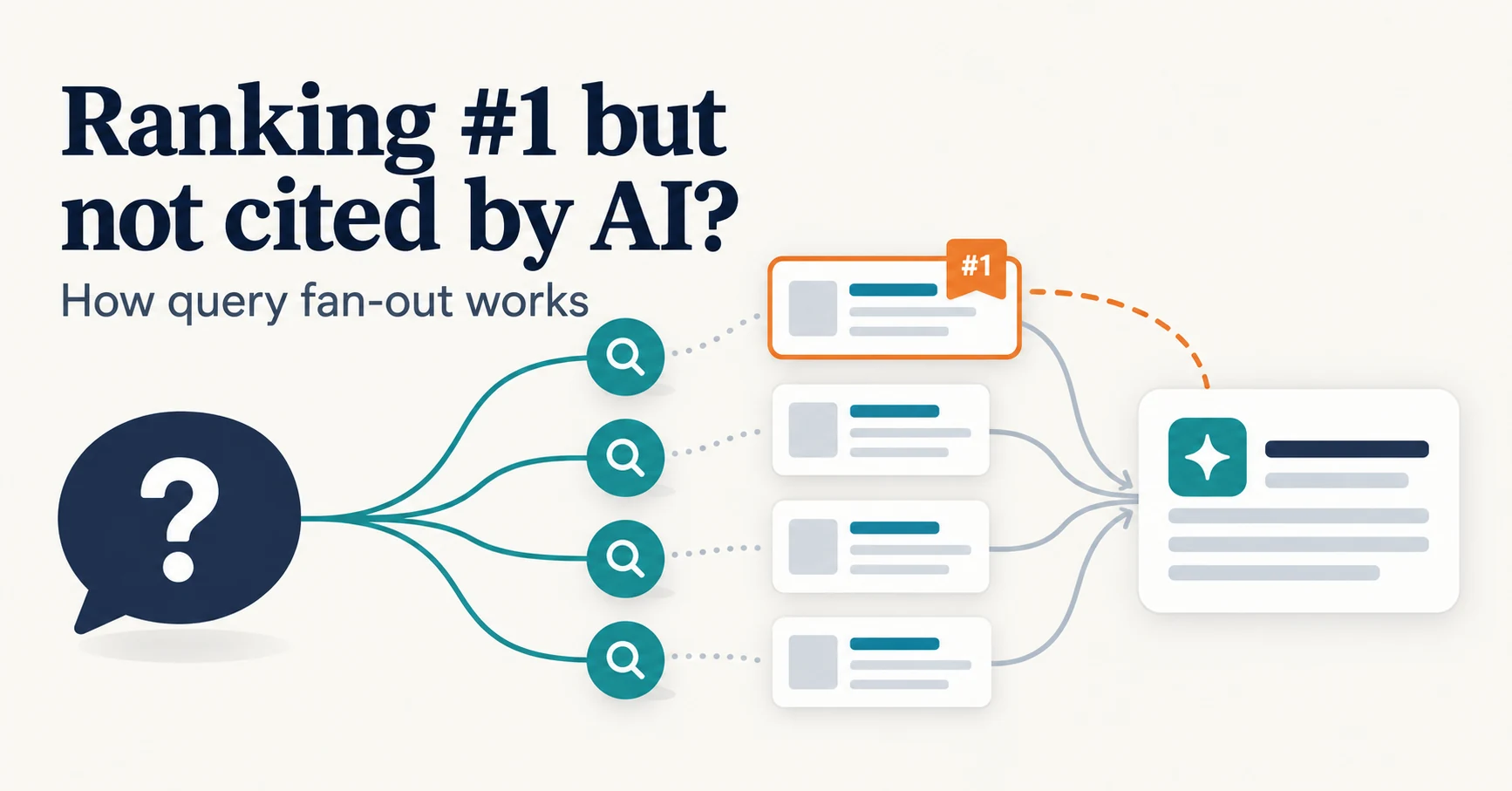
Ranking First but Not Cited by AI? How Query Fan-Out Works
Query fan-out is a technique in which AI may run several related searches to answer one question. Learn why a first-place page may not be cited, which related questions your pages should answer, and what you can observe in Search Console and Bing.
Published
AIO and AI search
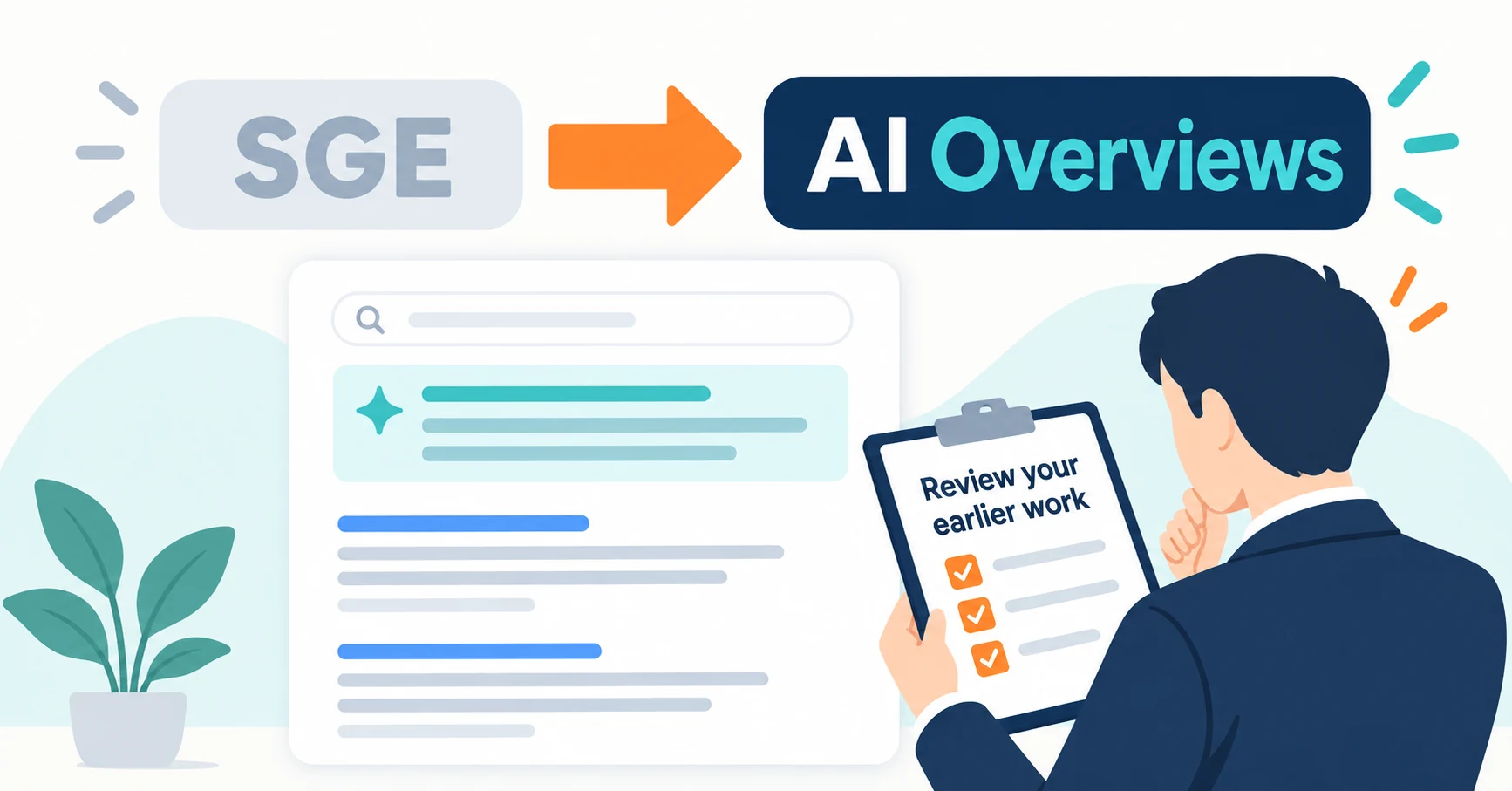
What Are AI Overviews? How to Review Your Former SGE Work
AI Overviews are AI-generated summaries shown in Google Search. Learn how they relate to the former SGE trial, how they differ from AI Mode, why no extra requirements apply, how to review earlier work and how to check the Search Console generative AI report.
Published