How to Add Chat to Your Website and Reply to Visitors
Add customer chat without another tag if your site already has the tracking tag. Learn how to choose wording and appearance, check saved settings, reply to visitors, prepare AI answer sources, and troubleshoot buttons hidden on mobile.
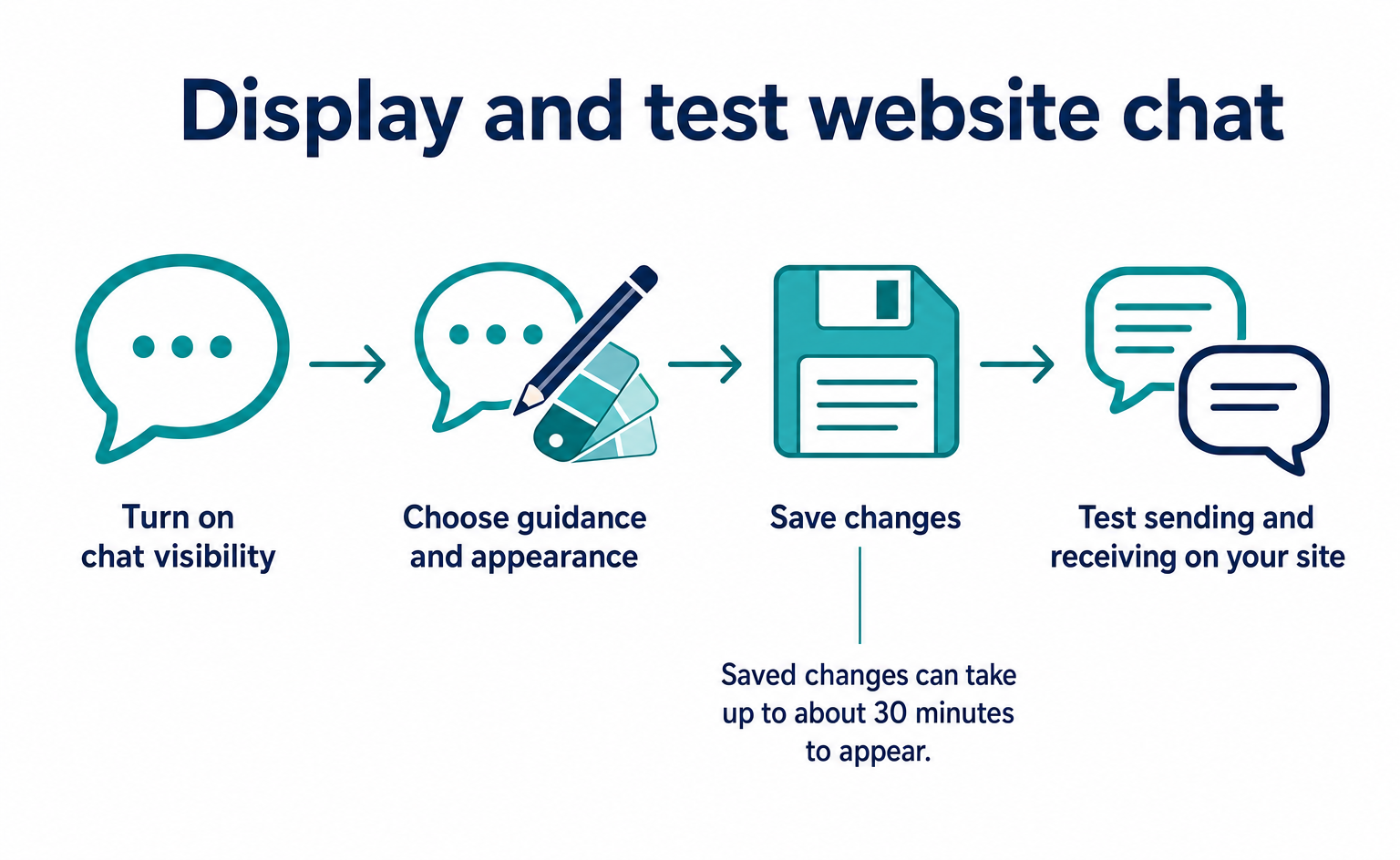
To display customer chat, go to Settings (設定) → Chat Settings (チャット設定), turn on Show Live Chat (ライブチャットを表示する), and save. If your site already has the tracking tag, no additional tag is needed. Before going live, decide who will reply and when. Allow about 10 minutes for setup, including 5 minutes to review the wording.
You want to give visitors a way to ask questions on your site. But who will reply once the button is live? Can you match your company colors? Start by separating the work into two parts: preparing the chat display and preparing to handle incoming conversations.
The screen example below shows sample settings. You can check the same fields in your own dashboard. Choose the appearance in the settings preview, then save and test it on your live site.
1. The chat visitors see on your site
You can display a round chat button in the bottom-right or bottom-left corner of your live site. When visitors click it, a panel opens where they can type a message. First, check both the button and the panel it opens.
The following preview appears on the right side of Settings (設定) → Chat Settings (チャット設定). It uses color #4F46E5, the bottom-right position, a speech-bubble icon, and the standard size. The heading is “Contact Us,” showing the default appearance.
Try the interactive demo below. The article also explains each step in text.
The preview lets you check how changes look before saving. It uses the same chat display process as the live site. You do not need to change your live settings every time you try a color or heading.
Chat keeps its styling separate from the main site's styling. This mechanism is called Shadow DOM [4]. It prevents the site's text colors and decorative styles from carrying directly into chat.
You do not need to remember that name to continue setup. However, check your live site for overlap with other buttons and ease of use on smartphones. The preview alone cannot show the placement of elements on your site.
2. Before you start
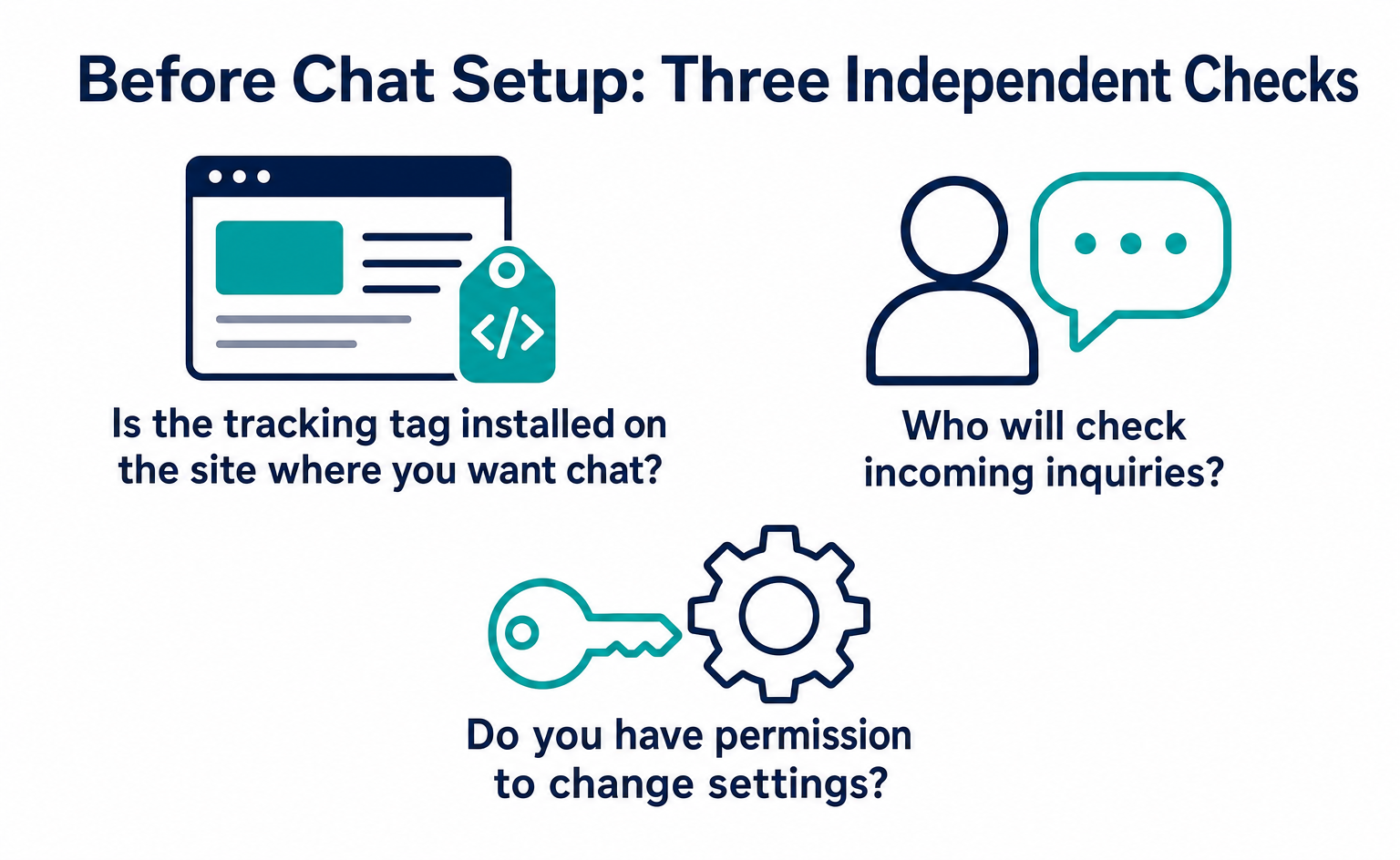
You can set up chat if the tracking tag is installed and you have permission to change chat settings. If either is missing, ask the person responsible to arrange it first.
| Requirement | Details |
|---|---|
| Installed tracking tag (t.js) | The tracking tag displays the chat button. There is no separate tag. If it is not installed, follow Install the tracking tag (t.js) first [2]. |
| Read and Write (閲覧・書き込み) permission for the team's Customer Service (接客) group | Read-only members can view settings but cannot save. A Read Only (閲覧のみ) notice appears at the top of the screen. The owner grants permissions under Team (チーム) (/team) [3]. |
You can ask your web agency to install the tag while your own staff prepare the chat wording. In that case, first confirm that installation is complete. The person responsible for wording should also check that they can save customer service settings.
Decide these things before opening settings
Decide the following four things before starting. You could set aside about 15 minutes to agree on responsibilities and response hours. Setup itself takes about 10 minutes, but allow extra time if the wording is not yet decided.
| Decision | How to decide | What happens if you do not decide |
|---|---|---|
| Who replies, and during which hours | Choose one operating model from Section 7. | Conversations arrive, but nobody checks them. |
| Hours to list as business hours | Use the hours when you can actually reply, not your ideal availability. | The away hint becomes misleading and damages trust. |
| Accent color's hexadecimal value | Use your brand guidelines. If none exist, use a color picker to select the logo's main color. | Someone picks a vaguely suitable blue, only for the designer to reject it later. |
| Heading and example question | Choose an industry row from the templates in Section 5 and adapt it to your company. | You publish the default “Contact Us” heading, and visitors do not click. |
The accent color is used for the chat button and heading. Enter a color code such as #1E3A8A. This format uses six characters after # and is also called a HEX value.
You can ask your design agency, “Please give us the chat button color as # followed by six characters.” You can also select colors with Chrome's developer tools. If you do not normally use those tools, ask the person responsible for your site instead.
3. Set visibility and seven appearance options
Set chat visibility to ON or OFF, then configure seven appearance and wording options. The defaults work, but check that the heading and expected response time match the service you actually provide.
| Setting | Default | Options and limits | Our recommendation |
|---|---|---|---|
| Show Live Chat (ライブチャットを表示する) | OFF | ON / OFF. Nothing is displayed when OFF. | Turn it on after deciding the wording. |
| Accent Color (アクセントカラー) | #4F46E5 (indigo) | Six-digit hexadecimal value (#RRGGBB) | Use your brand color. Check that its contrast ratio with white text is at least 4.5:1 [5]. |
| Display Position (表示位置) | Bottom Right (右下) | Bottom Right (右下) / Bottom Left (左下) | Bottom right. Use bottom left if it overlaps an existing back-to-top button or cookie banner. |
| Button Icon (ボタンのアイコン) | Speech Bubble (吹き出し) | Speech Bubble (吹き出し) / Message (メッセージ) / Question (質問) / Smile (スマイル) | Speech bubble for general inquiries; question for an FAQ-focused service. |
| Panel Size (パネルサイズ) | Standard (標準) | Small (小) / Standard (標準) / Large (大) | Standard. Use small for sites visited mainly on smartphones. |
| Panel Heading (パネル見出し) | Contact Us (お問い合わせ) | Up to 60 characters | A short phrase showing what visitors can ask about (templates in Section 4). |
| Input Prompt (入力欄の案内) | Type a message… (メッセージを入力…) | Up to 60 characters | Include one example question. |
| Away Hint (不在時のヒント) | We will reply once a staff member has reviewed your message (担当者が確認次第ご返信します) | Up to 120 characters | Include an expected response time. |
The heading and example question in the input field each have a 60-character limit. The away hint has a 120-character limit. Even when using sample text, check the length after adding your company name or conditions.
The Input Placeholder (入力欄プレースホルダ) shown on the screen is the faint guidance displayed before anyone types. An example question here shows visitors what they can ask about.
The button and panel heading display white text. A light yellow or pale blue background can make that text hard to read because there is little difference between the colors.
The difference in brightness between text and its background is called the contrast ratio. WCAG requires at least 4.5:1 for normal text [5]. You cannot judge this value by appearance alone. Use a tool that checks color combinations or ask your designer.
Check the color, the readability of white text, and the preview in this order:
- Enter the HEX value of the primary color in your brand guidelines.
- Check whether the white text on the preview button and panel heading is easy to read. Do not assume that appearance alone proves compliance; check the contrast ratio too. If it is too low, choose a darker shade of the same color, such as
#60A5FA→#1D4ED8. - If unsure, return to the default
#4F46E5. It was selected to meet the contrast ratio requirement.
Even if your company color is bright, such as yellow, the button does not have to use that exact color. A darker color already used for your site's headings or links is another option. Check both brand consistency and readability.
4. Choose the position and size
Choose a side that does not overlap other buttons, and check the size on a smartphone before deciding. Test opening, typing, and closing—not just the appearance.
Small / Standard / Large correspond to the dimensions below. Pixels, or px, are units of on-screen size. Do not decide from the numbers alone. Check conversation readability in the preview and on an actual device.
| Size | Width × height (px) | Suitable sites |
|---|---|---|
| Small (小; compact) | 300 × 380 | Sites with many smartphone visitors or other elements at the bottom of the screen |
| Standard (標準; standard) | 320 × 460 | General corporate and service websites |
| Large (大; tall) | 340 × 560 | B2B sites receiving long questions, or consultation-based services |
A larger panel makes it easier to read more of a conversation at once, but takes up more of a smartphone screen. Start with standard and check whether the input field and close button are easy to use. If you receive many long questions, you can revisit the size after reviewing those conversations.
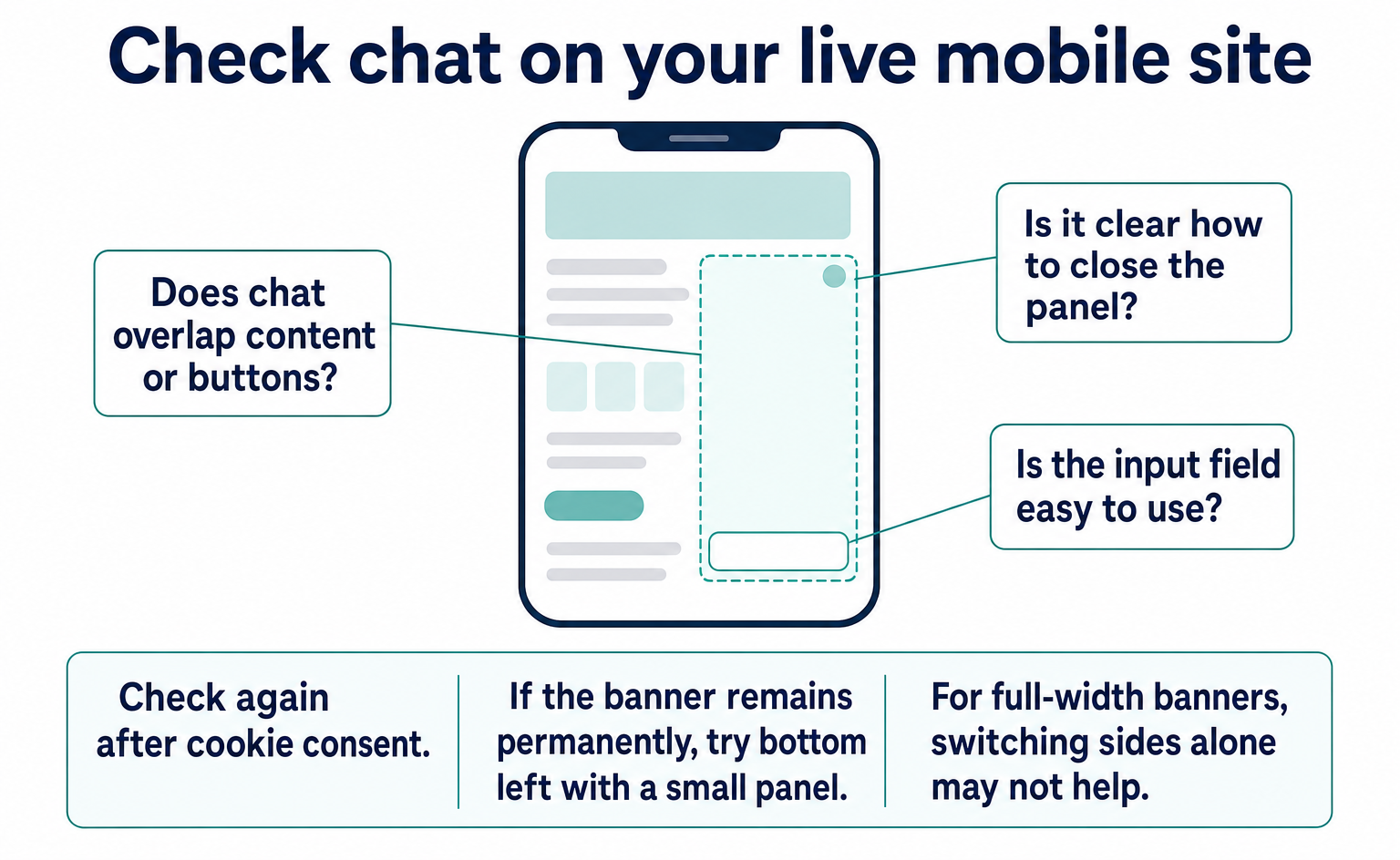
Before choosing a position, inspect the bottom of your site. If phone buttons or information bars stay in place while you scroll, check whether they overlap chat.
| Existing site element | What happens | What to do |
|---|---|---|
| Back-to-top button at bottom right | It overlaps the chat button, making it hard to click. | Move chat to the bottom left. |
| Cookie consent banner at the bottom | The bottom of the panel is hidden before consent. | This clears after consent. If the banner remains permanently, use bottom left + small. |
| Another tool's chat at bottom right | Two chat tools appear together. | Keep only one. Using both confuses visitors. |
| Fixed footer, such as a phone-number bar | The bottom edge of the button is hidden. | Try bottom left. If that does not help, adjust the footer height. |
The preview does not include your site's phone buttons or cookie notice. After choosing a position, save and check the live site once too. If a cookie notice spans the full screen width, switching sides alone may not solve the problem.
5. Example headings and guidance
Use the heading to say what visitors can ask about. “Contact Us” works, but a specific purpose such as “Pricing Questions” gives visitors clearer guidance. Reread it with this test in mind: could someone understand its purpose after looking for just one second?
The limits are 60 characters for the heading, 60 for the input prompt, and 120 for the away hint. Adapt the following examples to your actual service. Keep response times and free-consultation conditions only if you can meet them.
| Industry | Heading | Input prompt | Away hint |
|---|---|---|---|
| B2B SaaS | Ask about setup and pricing | E.g., what does it cost for 10 users? | We reply within 30 minutes during business hours, or on the next business day outside those hours. |
| E-commerce | Ask about products and delivery | E.g., can it arrive by tomorrow? | Include your order number so we can check and reply. |
| Real estate | Ask about property availability | E.g., can I view this property? | Business hours: 10 a.m.–6 p.m. Outside these hours, we will contact you the next day. |
| Clinics and salons | Booking and treatment questions | E.g., what do I need for my first visit? | Replies may be delayed while we see patients. Please call if your question is urgent. |
| Professional services and consulting | Book a free initial consultation | E.g., can I ask about inheritance? | We will reply after review. You can also ask anonymously. |
Add “E.g.,” to the input prompt to show how to ask a question. This makes topics such as pricing or delivery clearer than “Type a message” alone.
Choose examples from questions you actually receive often. Keep them short enough to help visitors start writing their own question, without adding too much explanation. Treat this as guidance that helps people type, not a setting that promises more inquiries.
The away hint should give an expected response time. “Once we have reviewed your message” alone does not tell visitors whether to wait now or check later. If your process cannot deliver a reply in 5 minutes, avoid wording that suggests it can.
Before writing “We reply on the next business day,” confirm with the person responsible that this is realistic. If you accept urgent questions by phone, add that guidance too.
Common wording mistakes and how to fix them
The following examples show unclear guidance and ways to improve it. They do not promise that visitor behavior will change. Use them to explain what visitors can ask and when they can expect a reply.
| Mistake | What happens | How to improve it |
|---|---|---|
| Heading: “Chat” | Visitors do not know what the chat is for and do not click. | State the purpose, such as “Ask about setup and pricing.” |
| Only the company name in the heading | Visitors already know the company name. | Add a purpose and a short phrase, such as “Ask us about ○○.” |
| Leaving the prompt as “Type a message…” | The first message stops at “Hello.” | Show a question format with “E.g., …” |
| Away hint: “We are currently unavailable” | Visitors have no reason to wait, so they close it. | Give an expected response time and an alternative, such as phone or email. |
| Long, formal wording everywhere | You hit the 60- or 120-character limit, and the text is hard to read on smartphones. | Aim for 20–30 characters per sentence. Give one expectation and one action. |
| Saying “24-hour support” when staff reply only during business hours | Late-night visitors receive no reply until morning, leaving a poor impression. | State business hours honestly until you add the AI customer service bot. |
If you say “24-hour support,” check what support you can actually provide. For example, if three late-night questions remain unanswered until morning, wording that suggests a person can reply at any time does not fit. This is an example to help you think through service hours.
Even when using automatic AI answers, distinguish them from human response hours. Wording such as “AI answers your questions, and staff review them during business hours” helps visitors decide whether to wait.
6. Save and check your site
Saved settings are used the next time a visitor loads a page. Old settings may remain in the browser, so changes can take up to about 30 minutes to appear. Check the unsaved preview and published settings separately.
When changes appear depends on where you look. If only the preview has changed, you may not yet have saved the settings for your live site.
| Location | When changes appear |
|---|---|
| Dashboard preview | Immediately after a change, even before saving |
| Visitor's site view | After saving, when the visitor's browser next loads the page. Tracking-tag settings are cached, or temporarily stored, in the browser for up to about 30 minutes. |
| Your own browser | The same applies. Reloading an already-open tab may still leave the old settings in use. |
Check the display setting, the view in another window, and the waiting time in the following order. Pages without the tag cannot display chat, so check the target page's tag last.
- Does it appear in the preview? If not, Show Live Chat (ライブチャットを表示する) is OFF. Turn it ON and save.
- Open your live site in an incognito window. A normal window retains cached settings. If chat appears in incognito mode, the settings are correct; you just need to wait.
- Wait 30 minutes. If it still does not appear, check whether that page has the tracking tag. Pages without the tag do not display chat (Section 2).
Click Restore Defaults (デフォルトに戻す) to return to the initial settings. Before starting over, copy any wording you want to keep. Use the examples in Section 5 as a reference and re-enter response times and topics that match your operations.
7. Receive chats and reply
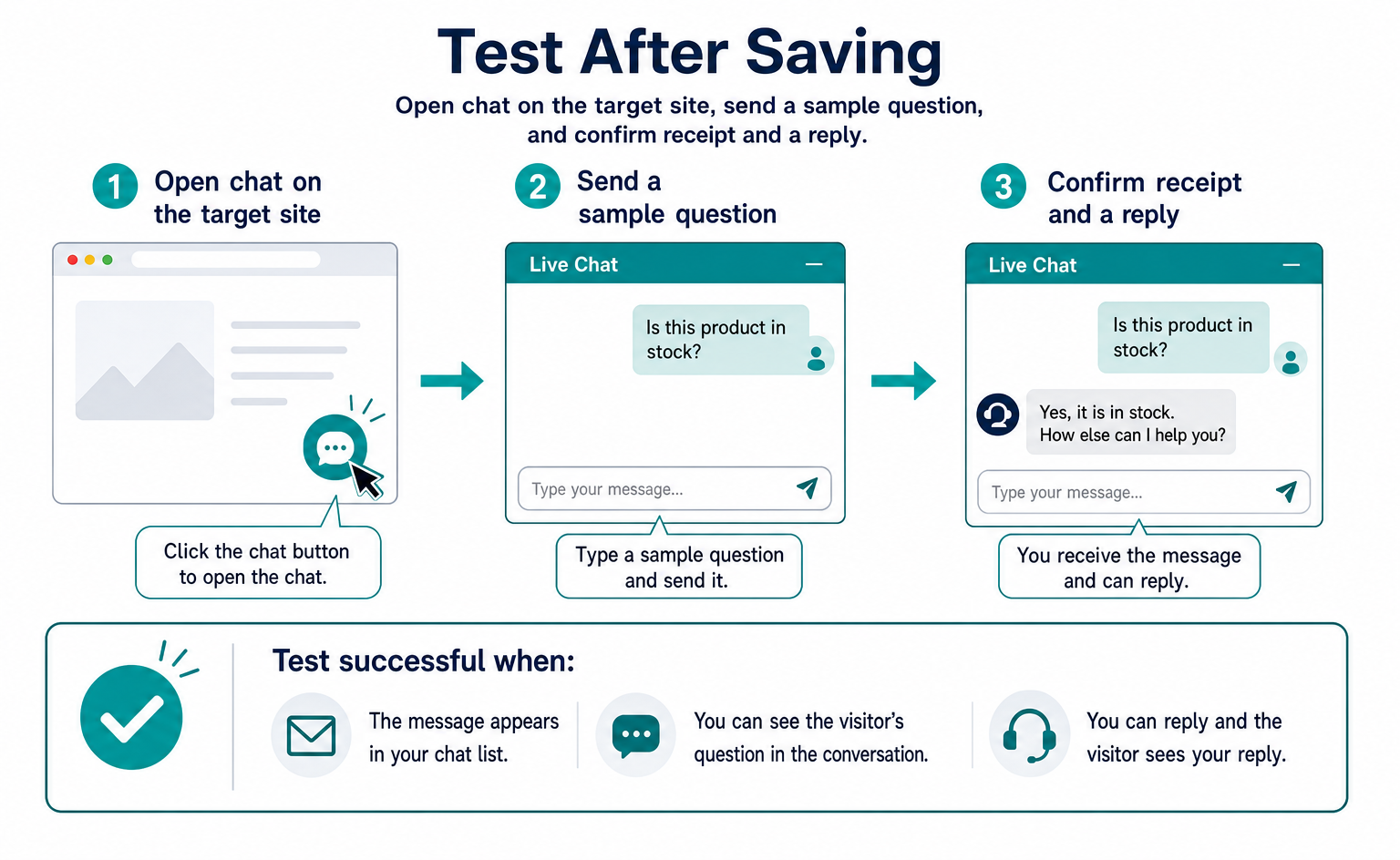
When a visitor sends their first message, a conversation is added to Customer Service (接客) → Chat List (チャット一覧) (/chats). Open the row to reply while viewing the visitor's screen.
Use the list to check the topic, the latest exchange, and the originating site. If one team covers multiple sites, check the site column before replying.
| Column | Contents |
|---|---|
| First Message (最初のメッセージ) | The visitor's first message, which helps you identify the topic |
| Latest Message (最新のメッセージ) | The latest exchange. Visitor (訪問者) / Agent (対応者) badges show who wrote it. |
| Count (件数) | Number of messages in the conversation |
| Site (サイト) | The site the conversation came from, when one team tracks multiple sites |
| Last Updated (最終更新) | Time of the most recent exchange |
Opening a conversation row opens the chat alongside a live view of the visitor's screen. If someone asks, “Is this product in stock?” you can see which product page they are viewing as you answer.
Even if the screen offers clues, clarify any ambiguity in the question. Asking “Do you mean the stock for the product currently shown?” avoids a misunderstanding if they meant a different product.
Email and external chat notifications are not currently available. Do not assume that turning chat on will notify staff. Assign someone to check the list during business hours, and put an expected response time in the away hint.
If you use the AI customer service bot, complete the preparation in Section 8. Decide both how to enable automatic answers and who will review conversations, at what times.
What happens on the visitor's side
Visitors use chat in the following order. Staff can also try it on the live site to see which guidance appears.
- When the visitor opens the site, a round button in the accent color appears at bottom right or bottom left. The panel is closed at this point.
- Clicking the button opens the panel, with the heading at the top and the input field, including its prompt, at the bottom. If staff are offline, the away hint appears here.
- When the visitor sends their first message, a row is added to the chat list. Visitors can move between pages while keeping the panel open.
- When an agent replies, the message appears as an agent message in the visitor's panel. It carries an Agent (対応者) badge in the chat list.
Visitors are asking questions while browsing your site. If you direct them to part of a page, be specific: “The comparison table at the bottom of the pricing page.” “Please check the relevant section” does not tell them where to look.
Even when you can view their screen live, use words that make the next action easy. Instead of sending a long explanation at once, briefly explain the first action and check whether they completed it.
Three operating models
Before publishing chat, decide who checks the list and when. These three examples suit different staffing levels and periods of absence. Even with AI, keep a role for human review.
| Model | Suitable companies | Setup | Weakness |
|---|---|---|---|
| One-person operation | Small sites with one person responsible | Keep the chat list open in a tab during business hours. State “next business day” in the away hint. | Service stops when that person steps away. State business hours honestly. |
| Rotating staff | Companies with several sales or customer service staff | Assign shifts and give the responsible staff write permission for Customer Service (接客), as described in Section 9. | Missed handovers. Check the Latest Message (最新のメッセージ) column for unanswered conversations. |
| AI first response + people | Companies receiving inquiries at night and on holidays | Enable FAQ Response (FAQ 応答) for the AI customer service bot (Section 8). Staff pick up conversations in the chat list during the day. | It cannot handle questions whose answers are absent from imported information. Add more source URLs. |
For the first two weeks, consider checking First Message (最初のメッセージ) every day. Seeing how visitors phrase questions can reveal missing explanations on your pages.
For example, if three visitors ask “Where is the pricing?”, check whether the pricing link is easy to find. Do not jump to a conclusion about the cause; open the page where the questions started. If you repeatedly give the same directions in chat, consider improving the page itself.
8. Prepare the AI customer service bot
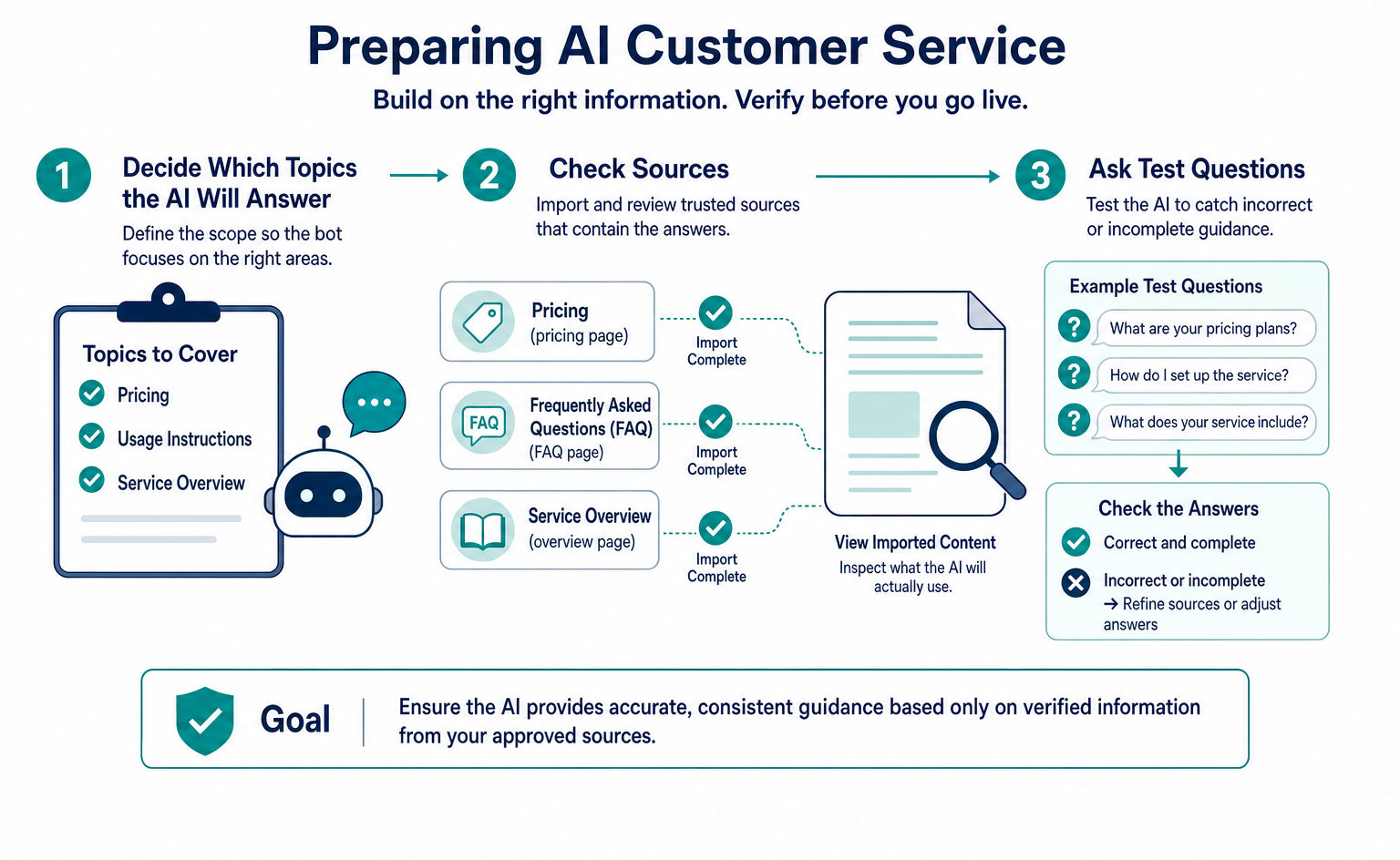
In AI Bot Settings (AI ボット設定) (/settings/ai_bot), you can import content from public pages for AI answers. The screen calls this source information Knowledge (ナレッジ). Review the content first, then add the pages you need.
Decide whether to use automatic replies, how the bot should answer, and which sources it should use. Select pages containing information you are comfortable sharing with visitors.
| Setting | Details |
|---|---|
| Enable AI Automatic Replies (AI 自動応答を有効にする) | ON / OFF |
| Operating Mode (動作モード) | FAQ Response (FAQ 応答), recommended: answers all questions from imported knowledge, much like a call center. Goal-Oriented (目的達成型): answers while guiding the conversation toward an entered goal, such as selling paid plans or generating brochure requests. |
| Knowledge (ナレッジ): information used for answers | Source information for AI answers. Adding a site URL loads the page and converts it into a form the AI can use. Import status updates automatically from Waiting (待機中) → Importing (取り込み中) → Import Complete (取り込み完了), or Failed (失敗). The screen shows the number of chunks—groups into which the information has been divided—and the size in approximate KB. |
As a starting point, review three URLs: pricing, frequently asked questions, and your service overview. FAQ means frequently asked questions and their answers. FAQ Response mode answers questions using imported information.
Adding a URL alone does not finish preparation. Check that its status is Import Complete (取り込み完了), then select View Imported Content (取り込み内容を見る) to inspect what will actually be used. Do not assume AI will fill in prices or conditions missing from the page.
The AI customer service bot uses credits when it answers. Your plan includes an allowance, with usage-based charges for any excess. These credits are for answers to site visitors.
Ask AI (AI に質問) at the top right of the header is for people using the dashboard. Its credits are separate. When checking usage, confirm which credit balance you are viewing.
9. Who can change settings
Saving settings and replying require Read and Write (閲覧・書き込み) permission for the team's Customer Service (接客) group. Read Only (閲覧のみ) lets members view screens but not save settings.
| Permission | What it allows |
|---|---|
| No Access (不可) | The Customer Service (接客) menu is not visible. |
| Read Only (閲覧のみ) | View Chat Settings (チャット設定) and Chat List (チャット一覧), but not save. A Read Only (閲覧のみ) notice appears at the top. |
| Read and Write (閲覧・書き込み) | Save chat settings, change AI bot settings, and reply to chats. |
The owner or someone responsible for member management changes permissions under Team (チーム) (/team) [3]. Newly invited members start with Read Only (閲覧のみ). When the person handling setup joins, check their customer service permissions.
If you cannot save, look for a Read Only (閲覧のみ) notice at the top before repeatedly rewriting the fields. When requesting permission, provide the team name and explain that you need to save chat settings.
10. Troubleshooting display, sending, and receiving
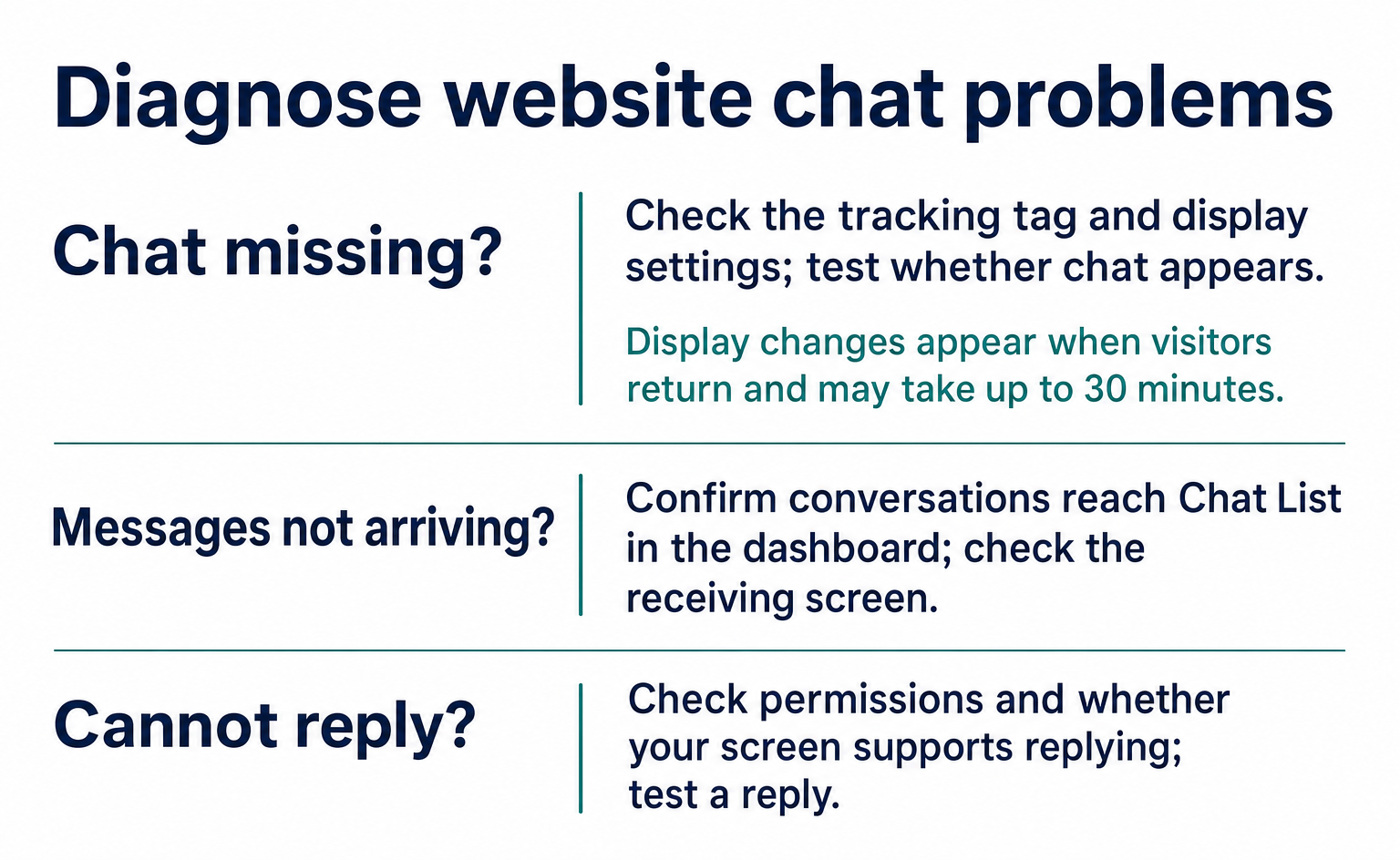
First check the display setting, the time allowed for changes to appear, and the tag on the target page. If you cannot save or the button is hidden, also check permissions or placement as appropriate.
| Symptom | Cause | Action |
|---|---|---|
| Chat does not appear in the preview | Show Live Chat (ライブチャットを表示する) is OFF. | Turn it ON and save. |
| Chat appears in the preview but not on the live site | Cached settings, for up to 30 minutes | Check in an incognito window → wait 30 minutes. |
| Chat is missing from only some pages | Those pages lack the tracking tag. | Check the page source for t.js. Pay particular attention to landing-page tools and separate templates. |
| The color is not as expected | The value is not six-digit hexadecimal, or the color is too light for white text. | Use a dark color in #RRGGBB format. Check a 4.5:1 contrast ratio [5]. |
| The button is hidden on smartphones | It overlaps a fixed footer or cookie banner. | Set the position to bottom left and the size to small. |
| The Save (保存) button cannot be clicked | Customer Service (接客) permission is read-only. | Ask the owner for write permission. |
| Conversations arrive without anyone noticing | There is currently no notification feature. | Keep the chat list open during business hours. Use the AI bot for first responses. |
If the issue remains, ask through Ask AI (AI に質問) in the header. Include the site URL, the date and time you saved the settings, and the device you tested. Also explain whether chat appears in the preview but not on the live site, to help narrow down what to check.
Incoming questions can also help you improve public pages. If people repeatedly ask about the same condition, check whether they can find the answer on the page.
When checking whether your company appears in AI answers, you can also use actual visitor wording as candidate questions. See What is AIO? for the approach. Starting with customers' words rather than questions made up only of technical terms helps clarify what you want to investigate.
A tracking sheet for the first two weeks
One approach is to record the following five items for two weeks from launch. Look beyond conversation counts to the questions themselves and response times, then check whether your guidance matches the service delivered.
| Item to record | Where to look | When to review it |
|---|---|---|
| Conversations per day | Number of rows in the chat list | If the count stays at 0, make the heading describe a purpose (Section 5). |
| Patterns in first messages | First Message (最初のメッセージ) column in the chat list | If the same question appears three or more times, improve the page. |
| Share of conversations containing only “Hello” | Same as above | If this is common, add an example question to the input prompt. |
| Time to reply | Last Updated (最終更新) minus the first message time | If it exceeds your stated estimate, adjust the away hint to match reality. |
| Page where the conversation started | Live-view screen | If conversations cluster on one page, review how that page guides visitors. |
After reviewing two weeks of records, choose one piece of wording you have a reason to change. Record the date and the change, then review another two weeks of conversations. This makes it easier to connect the records to a specific change than changing the color, size, and heading all at once.
If conversation volume is low, do not judge effectiveness from a short period alone. Also review actual questions and usability problems. A change in the numbers alone does not prove that the wording caused it.
Summary
Decide how chat will appear, what it will say, and who will reply before publishing it. After saving, open it on your live site and confirm that a test conversation reaches the dashboard.
- Turn chat ON under Settings (設定) → Chat Settings (チャット設定) (/settings/chat). The tracking tag displays it, so no additional tag is needed.
- Choose seven options. Use a darker color in #RRGGBB format, position chat away from other fixed elements, and start with the standard size.
- Lead with what visitors can ask. Put an example question in the input prompt and an expected response time in the away hint.
- Changes appear when visitors return, taking up to 30 minutes. If chat does not appear, check in an incognito window, then wait.
- Conversations arrive in Chat List (チャット一覧) (/chats). You can reply while viewing the visitor's screen live. Use the AI customer service bot for first responses when staff are unavailable.
- Changing settings requires write permission for the Customer Service (接客) group. Newly invited members have read-only access.
FAQ
- Q. Do I need a separate tag to display chat?
- No additional tag is needed. If your site has the t.js tracking tag, you can display chat by turning it on in Chat Settings (チャット設定). If the tag is not installed, install it first.
- Q. I saved the settings, but chat does not appear on my site.
- Changes apply when visitors reload the page. Old settings may remain for up to about 30 minutes, so check in an incognito window or wait and try again. Also confirm that you saved the settings.
- Q. Can I display chat on only some of my sites?
- Settings apply across the team; per-site settings are not supported. If a site needs different settings, one option is to track it under a separate team.
- Q. Will my site's styling affect chat?
- Chat uses a mechanism that limits interference from the site's styling. Still, check actual pages for overlap with other buttons. Test on both a computer and a smartphone.
- Q. Who receives notifications about visitor chats?
- Messages arrive in Customer Service (接客) → Chat List (チャット一覧). Open a row to read the conversation and reply. Email and external chat-tool notifications are not supported.
- Q. What happens when no staff members are available?
- Visitors see the text entered in Away Hint (不在時のヒント). State your actual availability and expected response time. If the AI customer service bot is enabled, AI provides the first answer.
- Q. What sources does the AI customer service bot use?
- It uses pages registered under Knowledge (ナレッジ) in AI Bot Settings (AI ボット設定). After adding pages, check their import status. Pages marked Import Complete (取り込み完了) are used for answers.
- Q. Who can change the settings?
- Members with Read and Write (閲覧・書き込み) permission for Customer Service (接客) can change settings. Read-only members cannot save. The owner or a person responsible for member management sets permissions on the Team (チーム) screen.
Sources
- [1] AgentSignal 使い方ガイド (接客チャット) (AgentSignal) — accessed 2026-09
- [2] AgentSignal 使い方ガイド (計測タグの設置) (AgentSignal) — accessed 2026-09
- [3] AgentSignal 使い方ガイド (チーム・権限管理) (AgentSignal) — accessed 2026-09
- [4] Using shadow DOM (MDN Web Docs) — accessed 2026-09
- [5] Understanding Success Criterion 1.4.3: Contrast (Minimum) (W3C (WCAG 2.2)) — accessed 2026-09
About the author
Shogo MizushimaCEO of kairos Inc. / AgentSignal Developer
Develops AgentSignal, a tool for measuring AI crawler visits and AI-referred traffic, and diagnosing AIO readiness. Writes about measurement and practical improvements for AI search using observed data.
Related articles
AIO and AI search
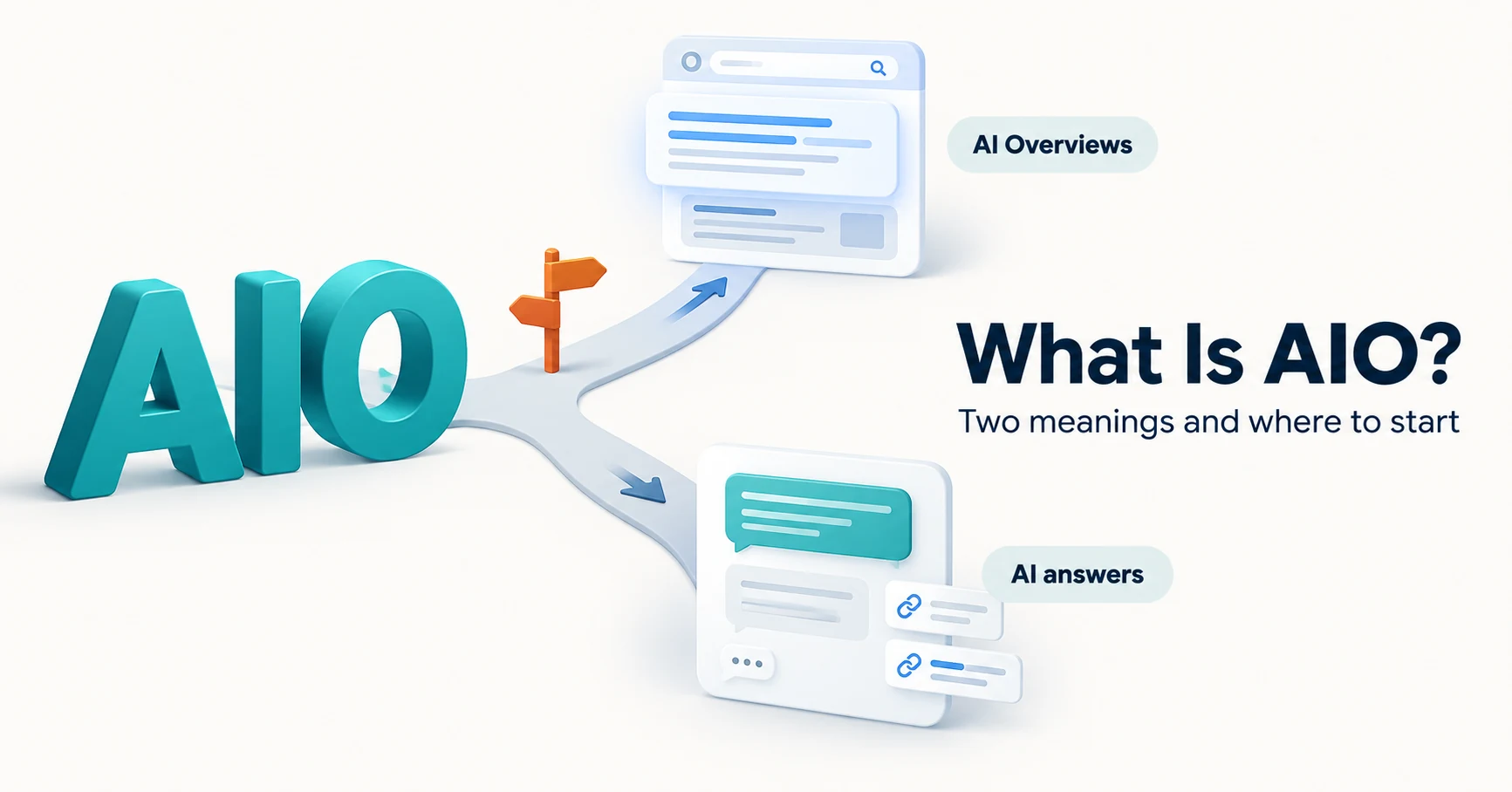
What Is AIO? Its Two Meanings and Where to Start with AI Optimization
AIO has two meanings: work to get your company featured in AI answers, and Google Search’s AI Overviews. Learn how it relates to SEO, what to confirm in a proposal, what Search Console and Bing reports show, and your first tasks.
Published
Measurement and site improvement
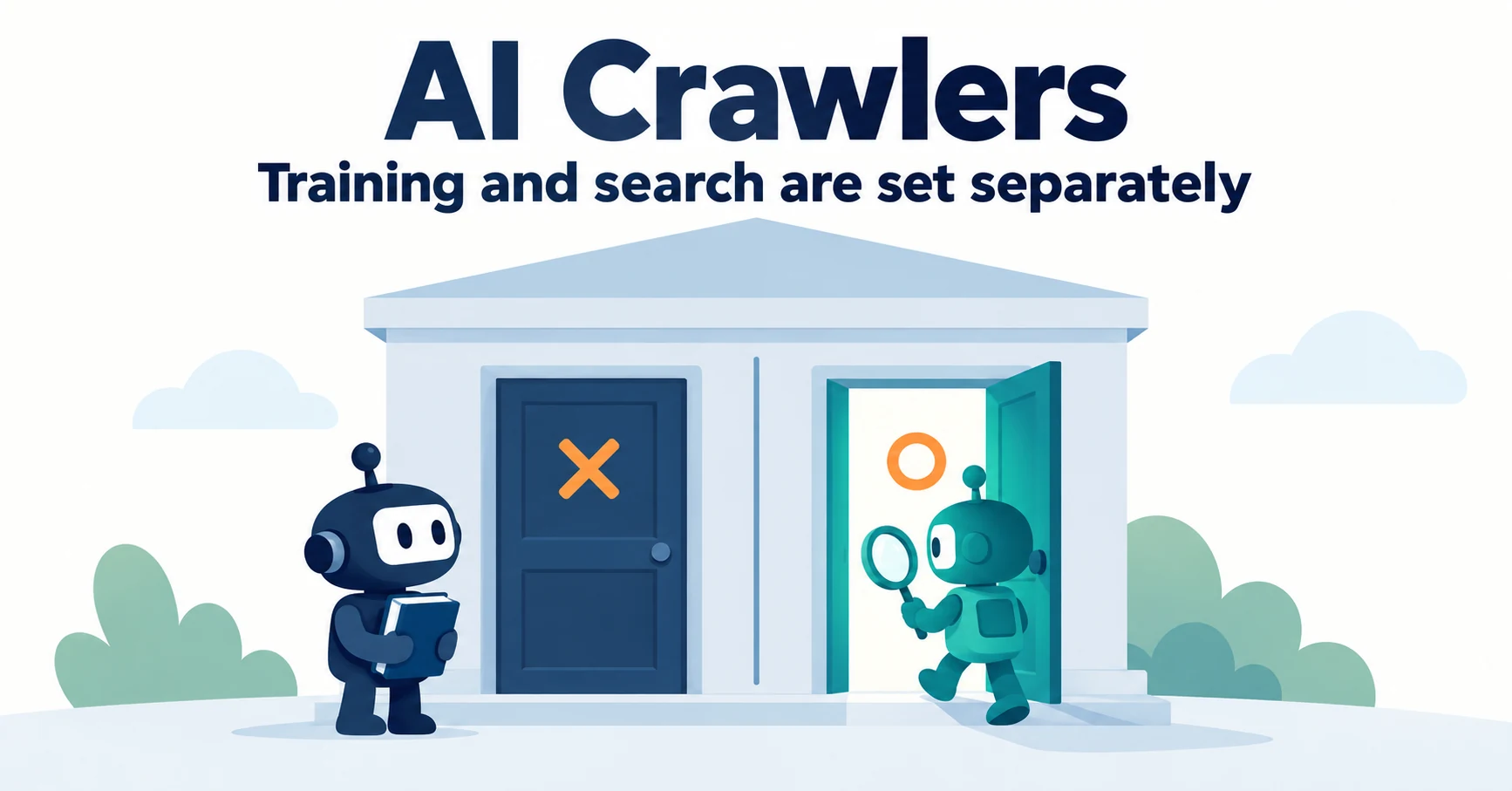
What Are AI Crawlers? Why Blocking GPTBot Doesn’t Remove You from ChatGPT Search
AI crawlers are programs AI companies use to read public web pages. Learn how GPTBot differs from OAI-SearchBot, how Google-Extended works, why visits can continue after a robots.txt block and how to choose settings by purpose.
Published
AIO and AI search
What Is LLMO? How It Differs from SEO and Why Some Say It Is Pointless
LLMO is the work of helping answers from ChatGPT and other AI find and accurately describe your company. Learn how it differs from SEO, why some call it pointless, how E-E-A-T relates, how to measure results and what to do in the first month.
Published