Cloudflare: refuse AI training while keeping search access
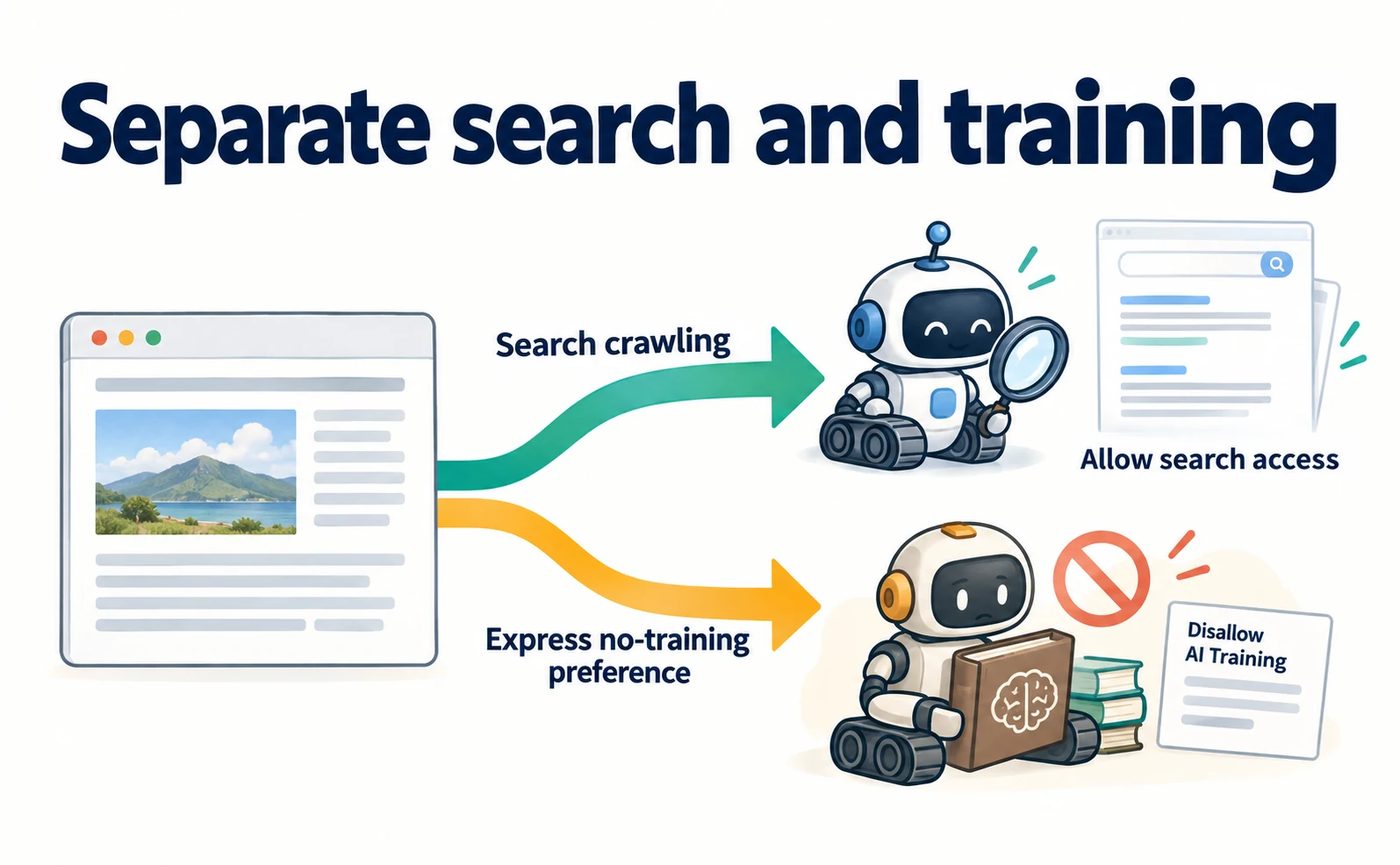
Understand Disallow AI Training versus Block, inspect bot policies and robots.txt, account for Bing’s pending support, and verify actual crawl access.
Cloudflare has introduced Disallow AI Training, a setting intended to refuse training use while retaining search access for qualifying crawlers. It offers a way to express a training preference without indiscriminately blocking Googlebot and similar search crawlers.[1]
A site may want to refuse AI training while remaining discoverable in Google. Choosing a setting solely because its name says “Block” can have consequences for the search access the business still needs.
Updated September 18, 2026, this article replaces the earlier advance-warning explanation with Cloudflare’s September 15 announcement. It is for people who already use Cloudflare and can inspect their site configuration. It explains what to check and how to verify access afterwards.[1]
Choose policies for search, training and user-directed visits
Cloudflare proxies website traffic and helps control unwanted access. Crawlers or bots are programs that retrieve pages automatically. The controls distinguish the purpose of those visits.
| Label | Purpose | Owner’s decision |
|---|---|---|
| Search | Collect pages for search | Whether to allow search discovery crawling |
| Training | Collect content for model training | Whether that training use is acceptable |
| Agent | Visit on a person’s behalf | Whether to allow AI-assisted visits or work |
Some crawlers serve both search and training. Blocking the crawler entirely can therefore stop search collection too.[1]
Disallow AI Training communicates a no-training preference while preserving search access for accountable mixed-use crawlers. Other training crawlers are blocked. This is not unconditional access for every crawler that claims a search purpose.[1]
Expressing a preference and preventing a connection are different mechanisms. The preference-based part depends on the receiving operator’s support, rather than physically excluding every visit.
Disallow AI Training and Block have different effects
The training options have the following meanings.[1]
| Setting | Training treatment | Mixed-use search crawlers |
|---|---|---|
| Allow | Adds no block through this setting | Other applicable controls still matter |
| Disallow AI Training | Publishes the preference and blocks other training crawlers | Accountable crawlers retain search access |
| Block on pages with ads | Blocks on detected ad-supported pages | Search retrieval of those pages can be affected |
| Block | Blocks across the site | Search retrieval by mixed-use crawlers is also blocked |
A business wishing to refuse training but retain search should examine Disallow AI Training. A different policy may intentionally exclude search too. These should not be collapsed into one generic “AI blocking” choice.
Existing legacy settings are migrated into the newer controls. An old Block selection does not necessarily become the new Block setting, so inspect the actual current values.[1]
New-domain presets also vary with advertising monetization. They do not establish what every existing domain now uses. Do not infer your configuration from an older announcement alone.
1. Read the current domain settings
First record the present state without changing it.
- Sign in to the Cloudflare dashboard and select the correct account and domain—the name used in the site’s address.
- Open Security Settings. The bot-policy route is documented as Configure AI bot policies.[2]
- Record Search, Training and Agent separately.
- Check Bot Preference Sync, which reflects the selected preferences in
robots.txt.[3]
robots.txt is a file that communicates crawler rules. Open your own public site address with /robots.txt appended to inspect it. The point is to review your site’s file, not another company’s example.
Bot Preference Sync helps keep the dashboard policy and file aligned. It does not automatically reproduce every complex custom security rule.[3] Review those separately if your site uses them.
If permissions or interface differences prevent inspection, record what could be established. Do not substitute a similarly named setting merely because the expected control is missing.
2. Align the setting with the site’s actual policy
Consider a fictional company publishing technical articles with a policy to allow search and refuse training. This is an example, not a universal recommendation for all sites.
Check that Search allows search access and Training uses Disallow AI Training. Decide separately whether user-directed Agent visits are permitted. Refusing training does not automatically determine the appropriate Agent policy.
If a change is made, confirm the selected values remain after saving. Cloudflare announces these controls for all plans, although interface language and account permissions can vary. We have not tested a settings change inside a customer account.[1]
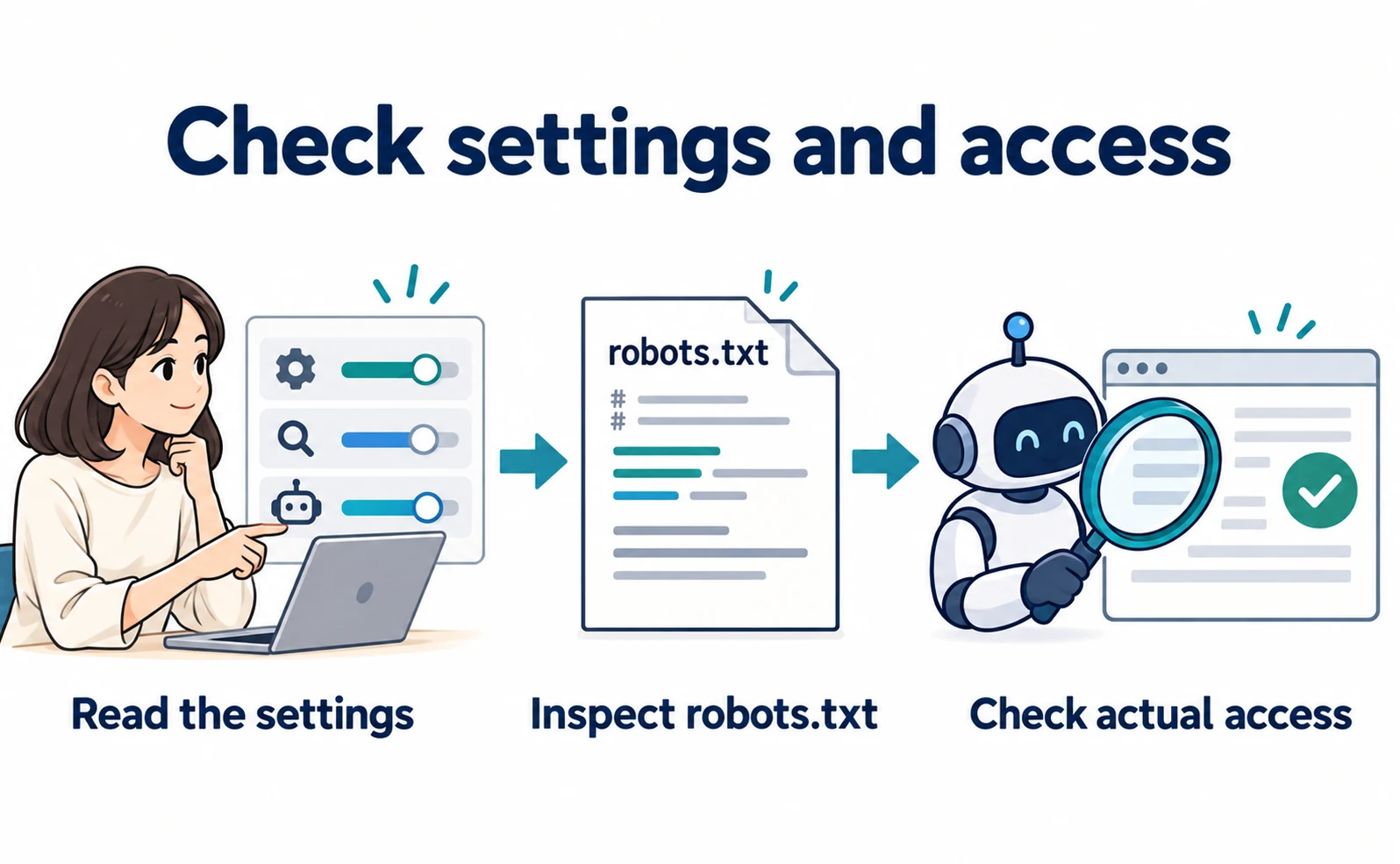
Then inspect your public robots.txt for the applicable training preference. Disallow identifies a prohibited path or scope; User-agent identifies the crawler to which the rule applies.
There is no single universal line that completes every AI policy. Check the relevant names and purposes against the provider’s supported controls. Blocking Googlebot as a whole would not match the example policy of refusing training while retaining search.
Bing still requires a separate check
Cloudflare’s announcement says Bing’s support for a no-training preference through robots.txt is targeted for early 2027. Until then, this Cloudflare selection does not automatically convey that preference to Bing through the file.[1]
Bing documents another control using NOARCHIVE, a page-level meta tag. A meta tag communicates information about how a page should be handled. Its consequences include AI-related content use, so do not treat its name as referring only to an ordinary search archive.[4]
If your policy also needs to restrict Bing’s use, read Bing’s official explanation and compare its scope with your requirements.[4] The Cloudflare choice alone does not establish that every service has received a no-training instruction.
Search crawling and use in AI-generated answers also involve distinct controls. Define which uses should remain available before choosing settings.
3. Verify access, not just setting labels
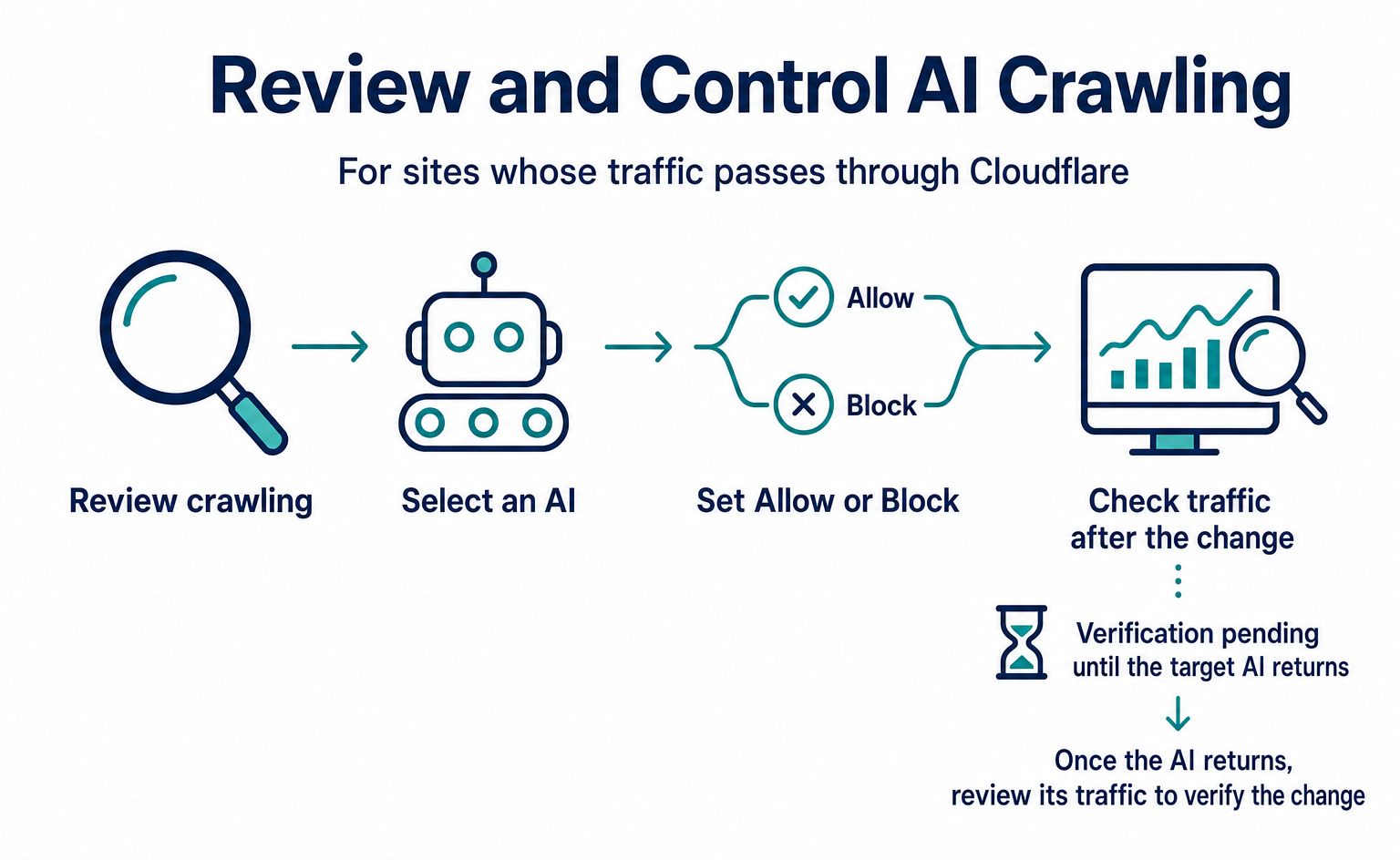
AI Crawl Control helps inspect crawler requests and blocking for traffic handled by Cloudflare. It is not a complete observation of every request to any site, including sites that do not use the service.[5]
For the same domain, open AI Crawl Control and review the crawler list, operator, requests and action. Unsuccessful requests can include errors other than this feature’s blocking, so do not infer a cause from the failure count alone.[5]
The Directives tab helps inspect robots.txt availability and activity against its rules.[6]
If a page is blocked even though search is allowed, investigate other applicable security rules. If there are no records, there may have been no matching requests in that period. Absence is neither proof of normal access nor proof that everything was blocked.
Opening a page in a browser also does not prove that Google received it. Human visits and automated retrieval can receive different responses.
Compare successful retrieval for the same page
In Metrics, “All requests” includes blocked requests and errors. “Allowed requests” counts responses with status codes 200–299. A response is the result the site returns to a request. Use the successful-response measure when checking successful retrieval.[8]
Apply the same date range, crawler and page filters. The Path is the part after the site name, such as /company for an illustrative company page. A site-wide total cannot show what happened to one specific page.
Download CSV exports table data with the current filters applied. Save the selected page and period alongside the file so the next comparison uses equivalent conditions.[8]
Check Google retrieval with URL Inspection
Open Search Console for a verified property and enter the public page URL in URL Inspection. This examines information about Google’s indexing and retrieval of that page.[7]
Where appropriate, use Test live URL to examine the current page rather than only the stored indexing information. Enter the page address, not a search phrase. If retrieval is denied, compare the time and page with Cloudflare’s request records to narrow the investigation.
A successful live test does not guarantee indexing, ranking or an AI citation.[7] Establish current technical access first, then monitor visibility and visits separately.
Continue comparing the same page after a change
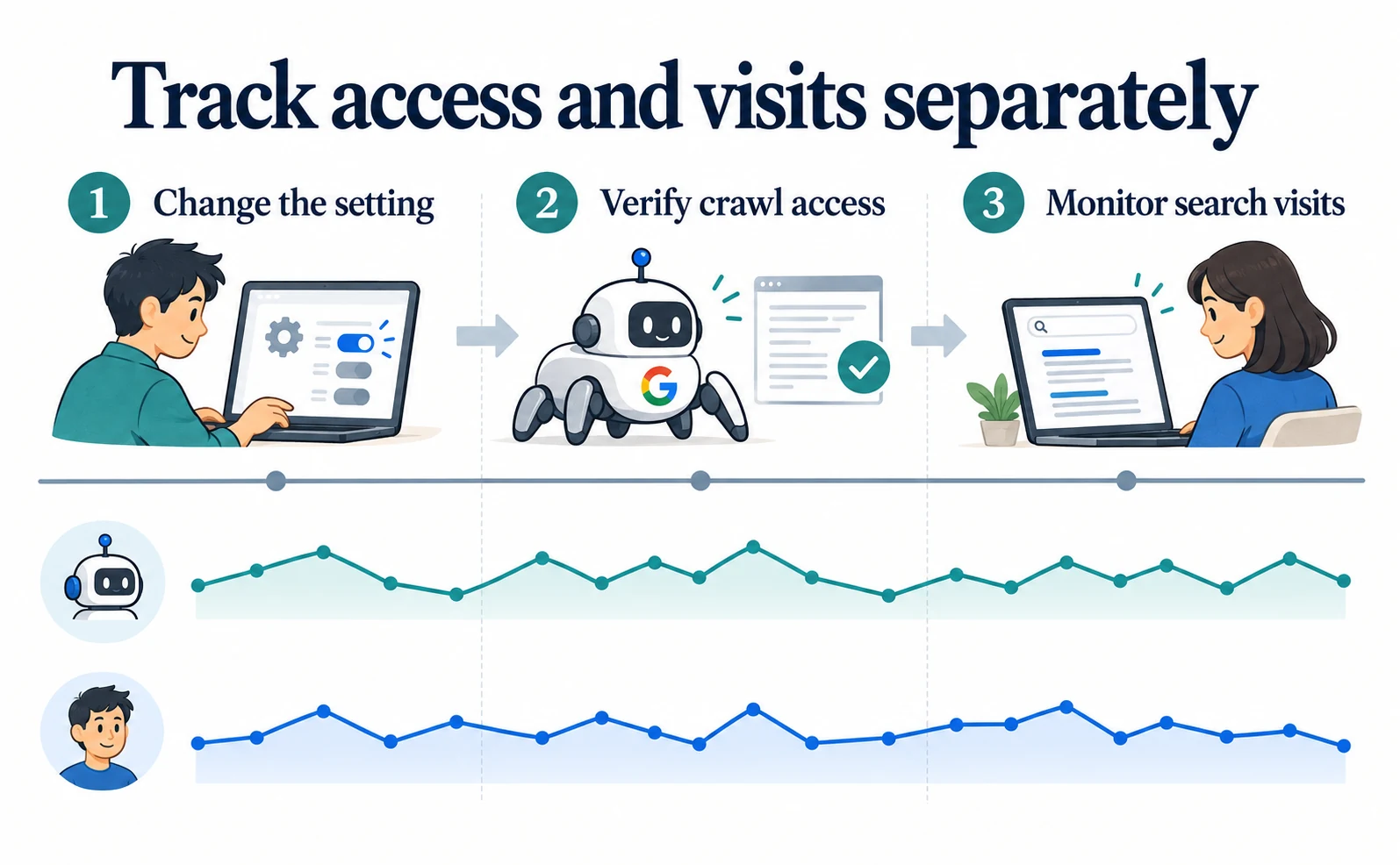
Record the change time, domain and all three bot-policy values. Compare retrieval before and after using the same page and crawler.
| Observation | Where to investigate |
|---|---|
| Saved values differ from the intended policy | Domain bot-policy settings |
| The file does not reflect the preference | Bot Preference Sync and the site’s robots file |
| Retrieval is denied or fails | Request records, other blocking rules and site responses |
| Retrieval works but search visits fall | Search Console comparisons by page, query and period |
A traffic decline near the configuration change does not prove causation. Determine whether retrieval failed, search impressions fell or people clicked less often despite seeing the page.
The AI crawler explainer provides more context on search and training identities. For a site that depends on search, the useful outcome is a configuration matching its policy and evidence that intended retrieval still works, rather than indiscriminately disabling all restrictions.
FAQ
- Q. Does refusing training block Google Search?
- Disallow AI Training preserves access for accountable mixed-use crawlers. Block and other rules can still affect search, so verify the actual configuration and access.
- Q. Does it automatically convey the preference to Bing?
- Not yet through robots.txt. The announcement targets early 2027 support; check Bing’s other available controls.
- Q. Is an Allow setting enough to skip testing?
- Other rules can still block access. Check request records and URL Inspection for the target page.
Sources
- [1] Have it both ways: stay discoverable in search while disallowing AI training (Cloudflare) — accessed 2026-09-18
- [2] Block AI Bots (Cloudflare) — accessed 2026-09-18
- [3] Say it once: introducing Bot Preference Sync (Cloudflare) — accessed 2026-09-18
- [4] New options to control usage of content in Bing Chat (Microsoft Bing) — accessed 2026-09-18
- [5] Manage AI crawlers (Cloudflare) — accessed 2026-09-18
- [6] Directives (Cloudflare) — accessed 2026-09-18
- [7] URL Inspection tool (Google) — accessed 2026-09-18
- [8] Analyze AI traffic (Cloudflare) — accessed 2026-09-18
About the author
Shogo MizushimaCEO of kairos Inc. / AgentSignal Developer
Develops AgentSignal, a tool for measuring AI crawler visits and AI-referred traffic, and diagnosing AIO readiness. Writes about measurement and practical improvements for AI search using observed data.
Related articles
Measurement and site improvement
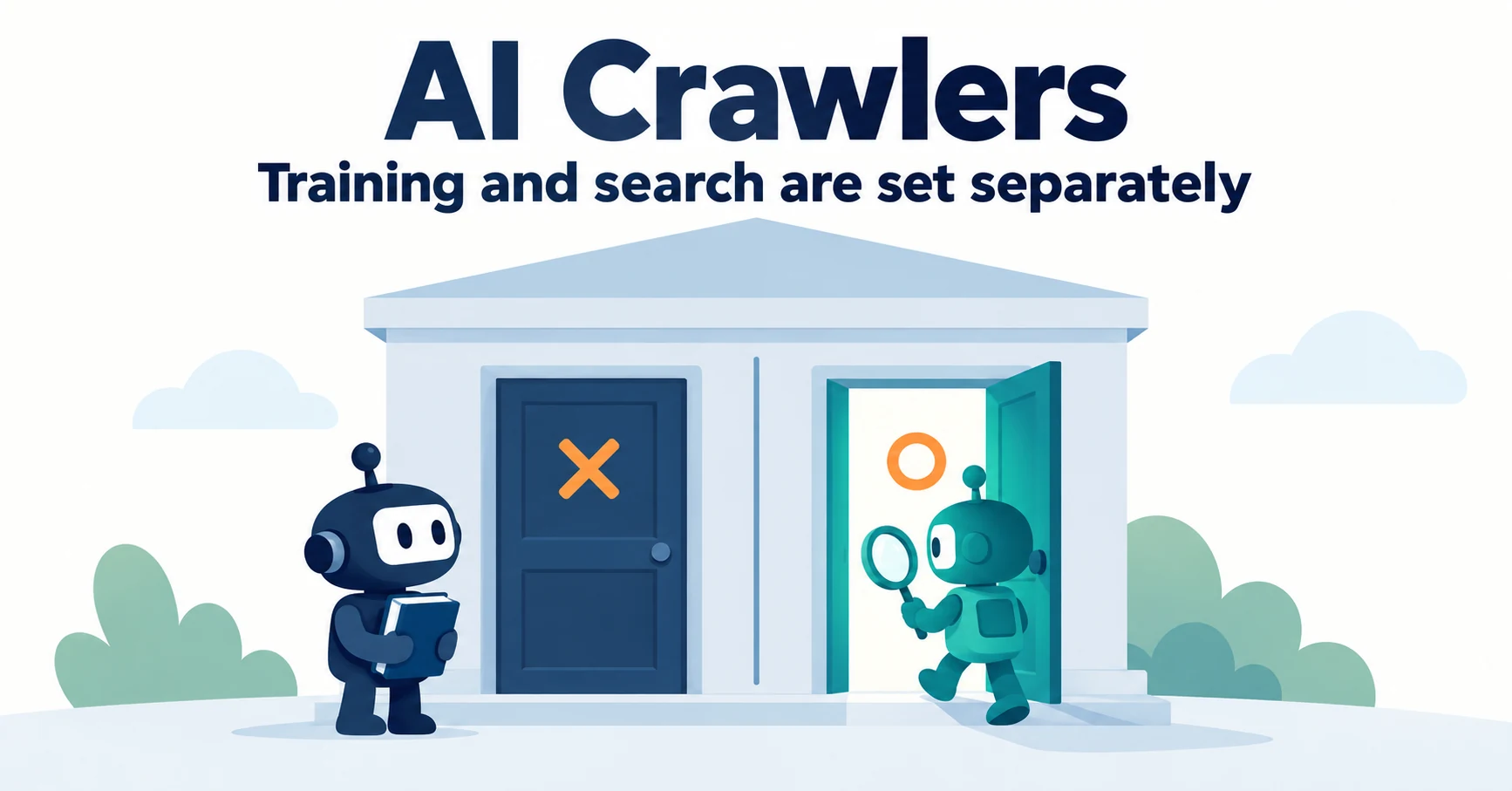
What Are AI Crawlers? Why Blocking GPTBot Doesn’t Remove You from ChatGPT Search
AI crawlers are programs AI companies use to read public web pages. Learn how GPTBot differs from OAI-SearchBot, how Google-Extended works, why visits can continue after a robots.txt block and how to choose settings by purpose.
Published
Measurement and site improvement
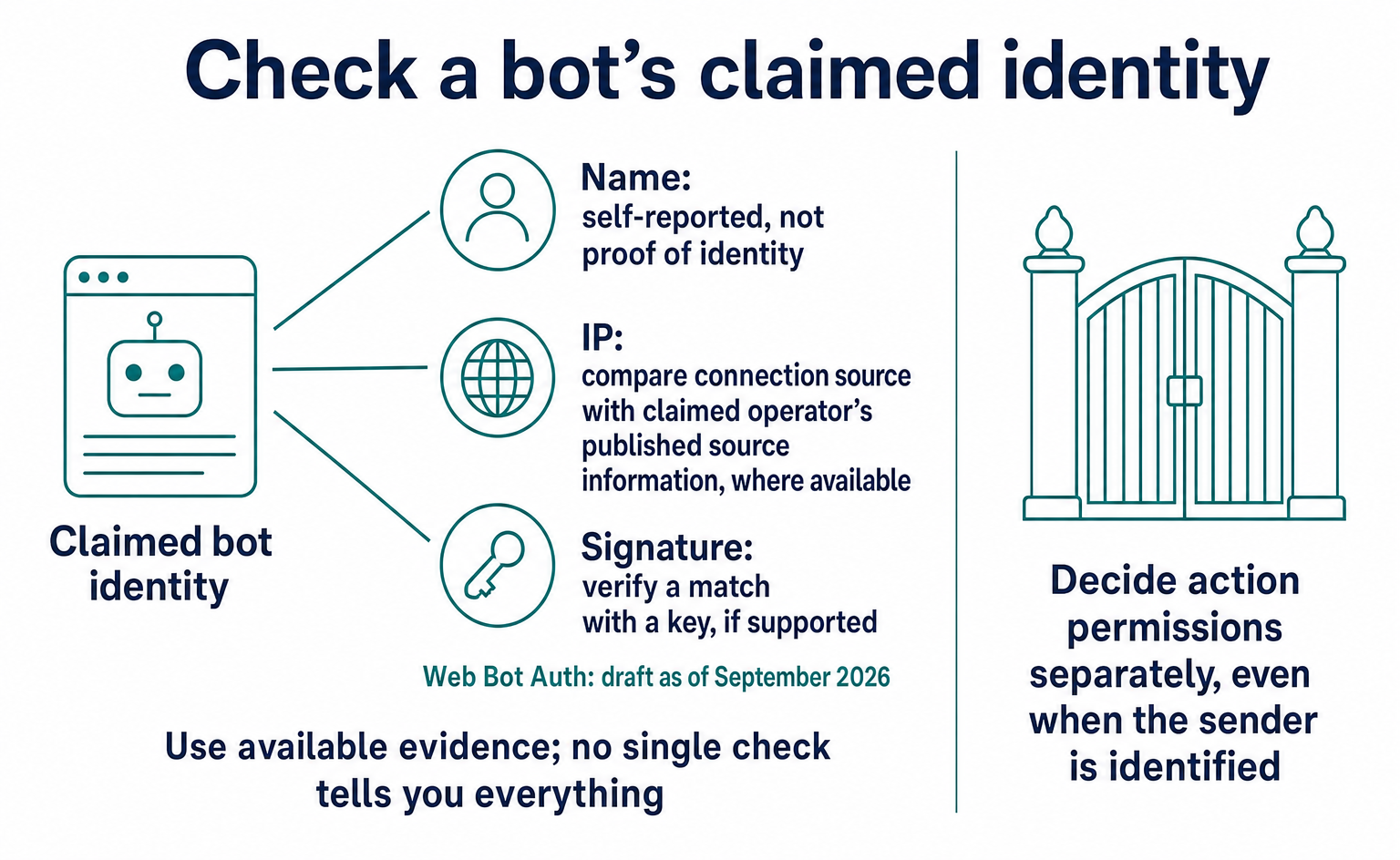
Is Traffic Claiming to Be GPTBot Genuine? How Web Bot Auth Works
A GPTBot name alone does not prove who sent a request. Learn how to check official IP ranges and signatures, how Web Bot Auth differs from RFC 9421, and what remained in draft as of September 2026. Includes a checklist for your web agency and guidance on recording unverified traffic.
Published
AIO and AI search
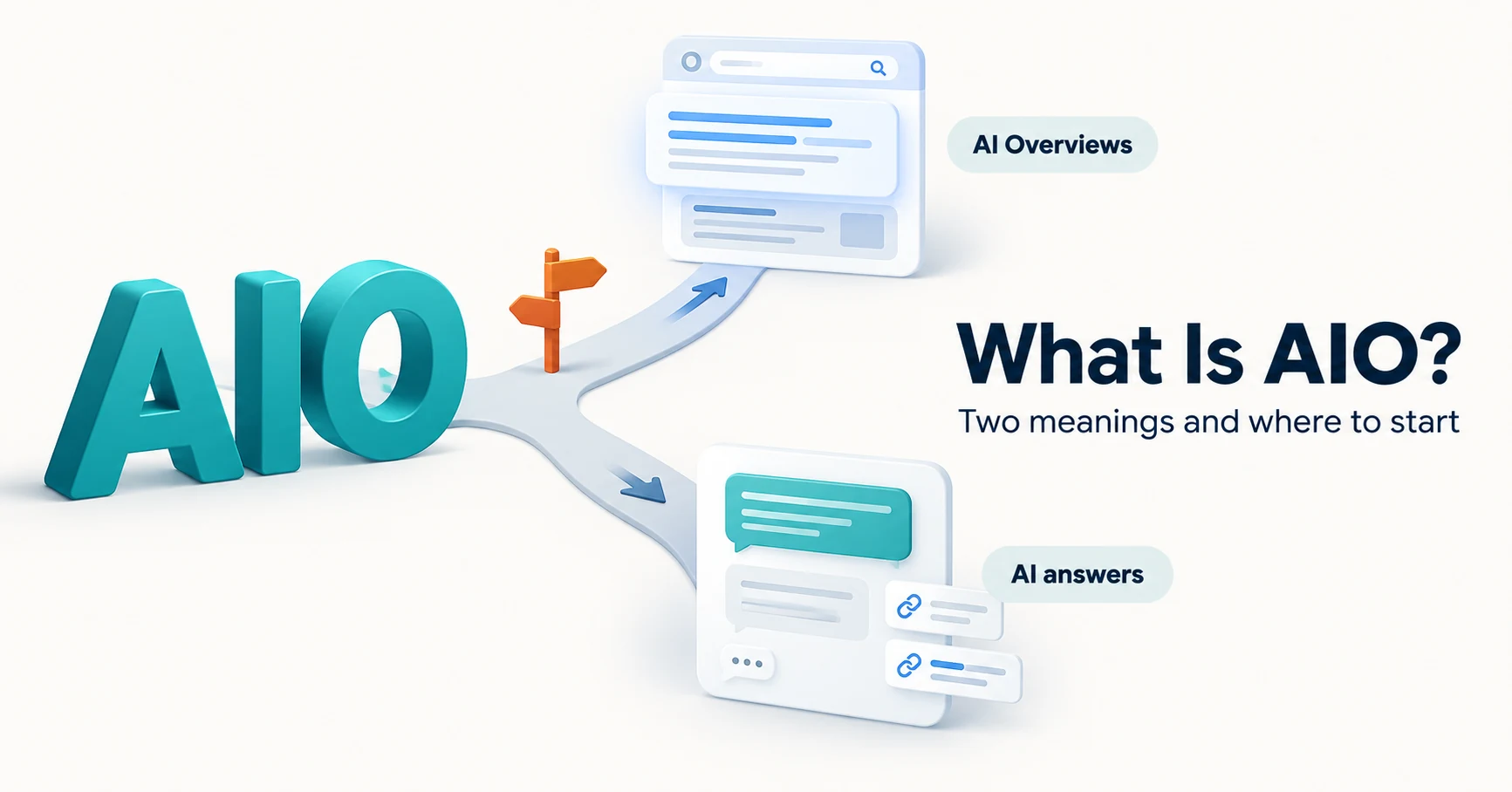
What Is AIO? Its Two Meanings and Where to Start with AI Optimization
AIO has two meanings: work to get your company featured in AI answers, and Google Search’s AI Overviews. Learn how it relates to SEO, what to confirm in a proposal, what Search Console and Bing reports show, and your first tasks.
Published