How to Do AIO: A Checklist for Auditing Your Company Website
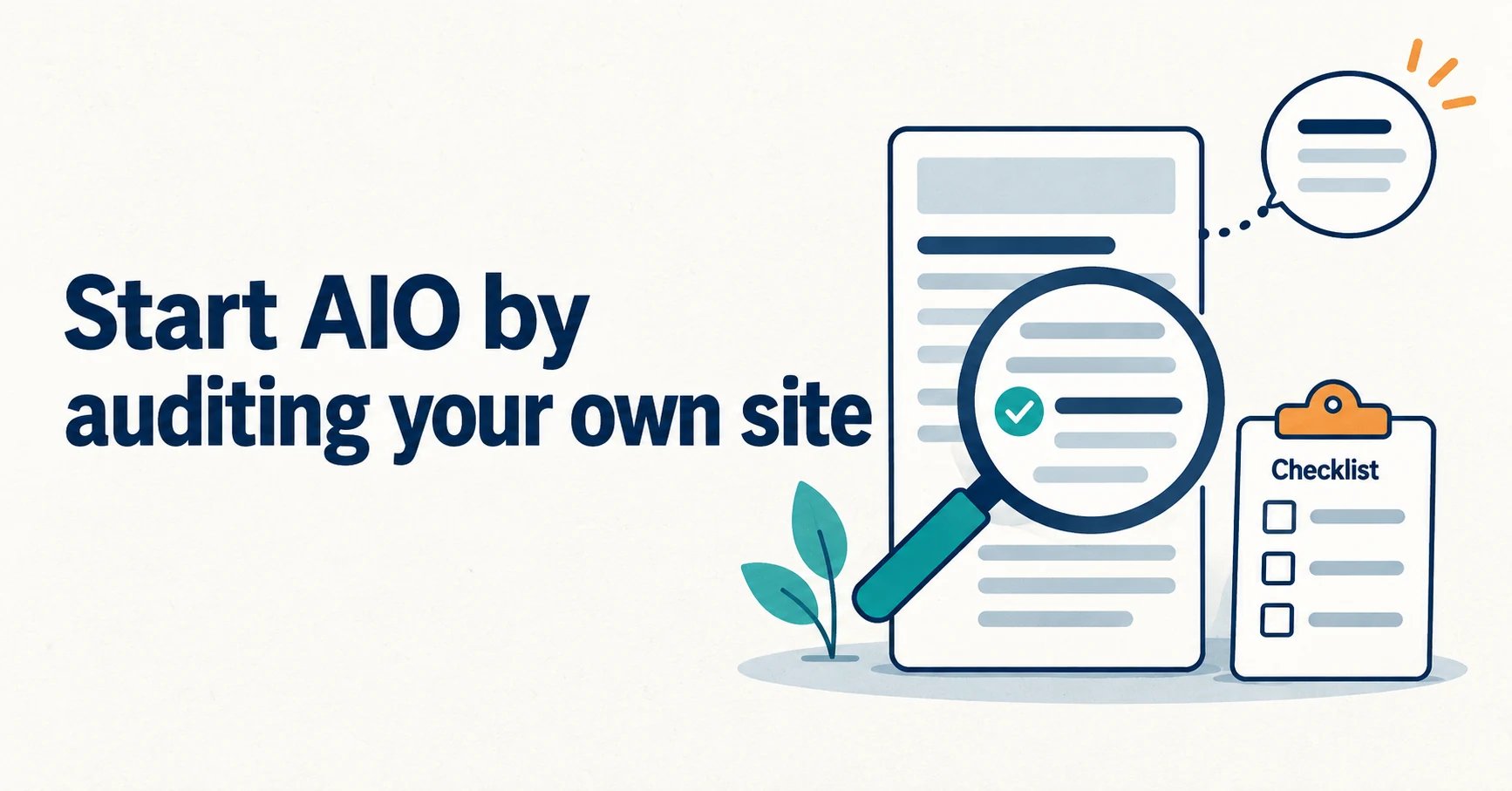
AIO work follows a clear flow: record your current state, check site-wide technical settings, audit each page type, decide what to fix first, and remeasure under the same conditions. This checklist covers pricing pages, company profiles, and how to set priorities.
AIO does not start with preparing a special AI-only file. First, check whether AI and search engines can read your pages and whether those pages answer your customers’ questions.
Here, AIO means work that helps your pages get featured or cited in Google’s AI Overviews and in answers from services such as ChatGPT. A citation means the AI shows a link to your page as a source for its answer. For the meaning of the term, see What Is AIO? Its Two Meanings and Where to Start.
This article uses a fictional company as an example: “Training Company A,” which delivers staff training (it does not exist). Its web manager wants to audit the company website without outside help. The examples show the procedure only; they are not actual results.
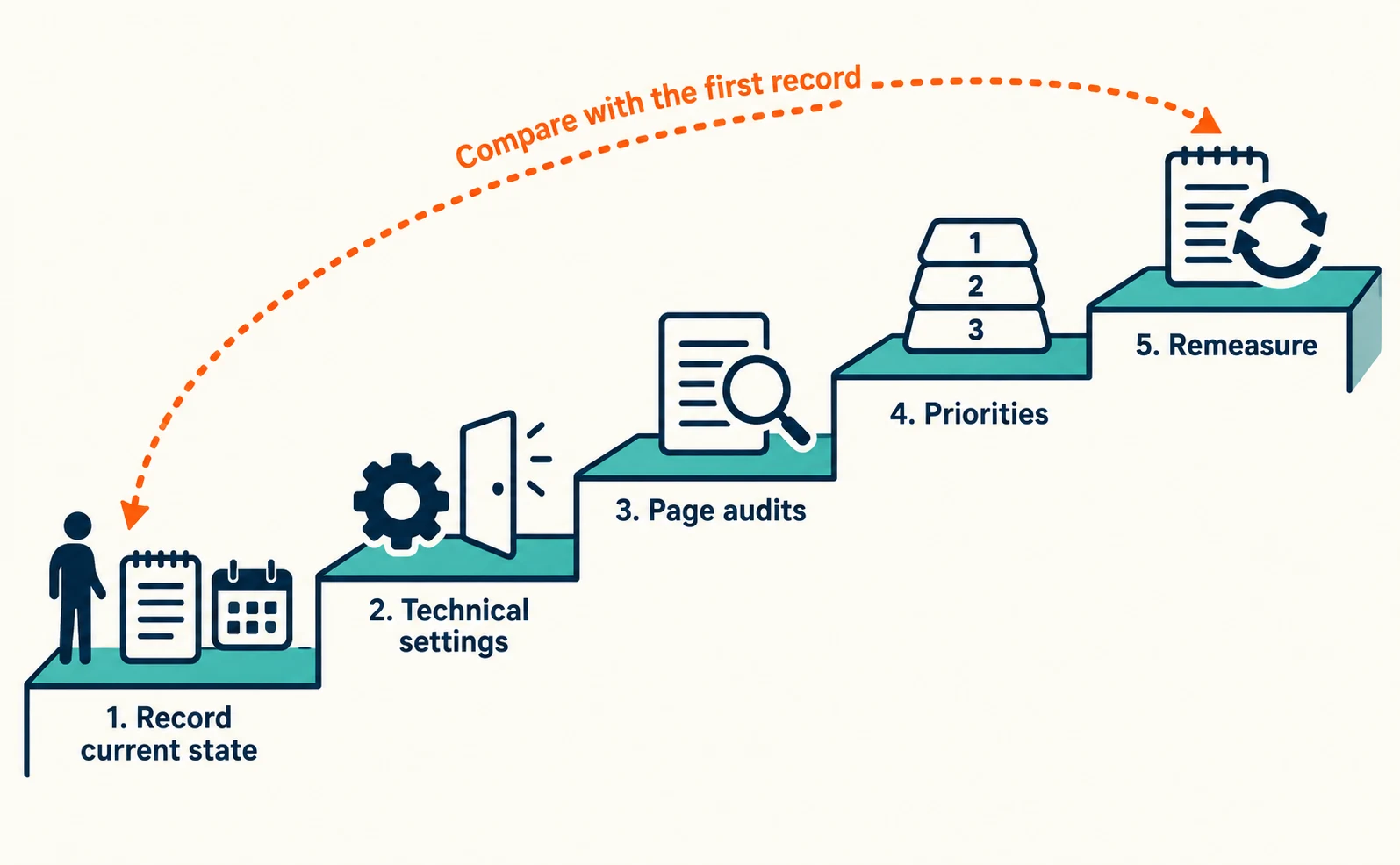
AIO in five stages: from baseline to remeasurement
Work in this order: baseline → technical settings → page audits → priorities → remeasurement. This order helps you avoid discovering later that pages were never readable, or that you have no earlier record to compare against.
Google says the fundamentals of regular search also apply to AI features such as AI Overviews, and that there are no additional technical requirements. AI-only files and special structured data are not required. Google also states that meeting the requirements does not guarantee inclusion (Google Search Central: AI features and your website).
| Stage | What to do | What to keep |
|---|---|---|
| 1. Record current state | Check AI answers to questions customers are likely to ask | Date, service, answer, cited pages |
| 2. Technical settings | Check that pages across the site can be read | Results of robots.txt and other checks |
| 3. Page audits | Check each page type for answers in the text | Checklist by page |
| 4. Priorities | Put the problems you found in order | Fix list and owner |
| 5. Remeasure | Check again with the same questions and AI | Change dates and new results |
Start AIO by recording your current state
Before changing anything, choose a few questions customers are likely to ask, then record the AI answers and your Search Console impressions with dates. Without a “before” record, you cannot compare what changed afterward.
For Training Company A, the questions might be:
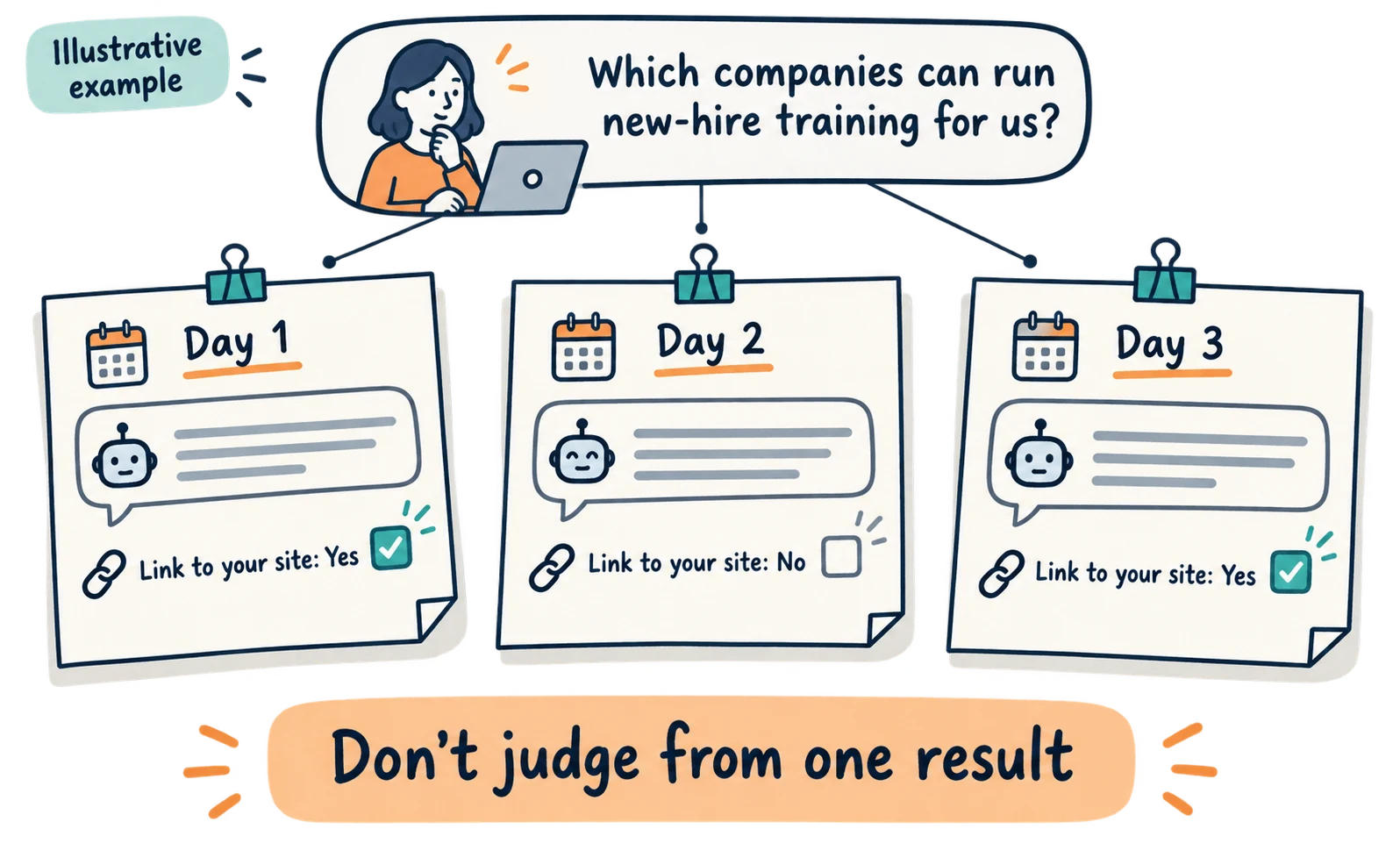
- “Which companies can run new-hire training for us?”
- “Is there management training I can take online?”
- “How is the cost decided when outsourcing staff training?”
Use the words customers actually use, not internal product names. Questions from inquiries and sales conversations are a good source.
Check each question in Google Search, ChatGPT, and similar services, and record the results like this.
| Item | How to record it |
|---|---|
| Date checked | Always record it, because answers change |
| Service | “AI Overviews,” “ChatGPT,” and so on |
| Conditions | Model name shown, whether search was on, whether it was a new chat, whether you were logged in, and region/language settings, as far as you can tell |
| Question | The exact text you entered |
| Company name shown? | Whether your name appeared |
| Link to your site? | Whether there was a link to your page |
| Cited pages | Note the URLs, including other companies’ pages |
Even under the same conditions, AI answers can change. Ask the same question several times in a day and again on different days, and do not treat one result as what always appears.
Along with the AI answers, note figures from Search Console, Google’s free dashboard for seeing how your site appears in Google Search.
In June 2026, Google announced reports showing performance in generative AI features, and later added that rollout to all sites was complete on August 31. Search and Discover (the feed of suggested articles in places such as the Google app) have separate reports; here we use the Search report. It shows impressions by page, country, device, and date (Google Search Central Blog).
Open Search Console and log in with a Google account that has access to your site. Select the site (property) and open the Search generative AI report. Choose a period and note impressions by page.
Impressions count how often a page was shown in AI features. They are not visits or inquiries. Keep the two separate in your reports.
Site-wide technical settings to check for AIO
Across the site, check that search crawlers are not blocked, that your delivery service is not blocking access, and that no leftover settings keep pages you want public out of search. If pages cannot be read or are excluded from search, rewriting their text will not help.
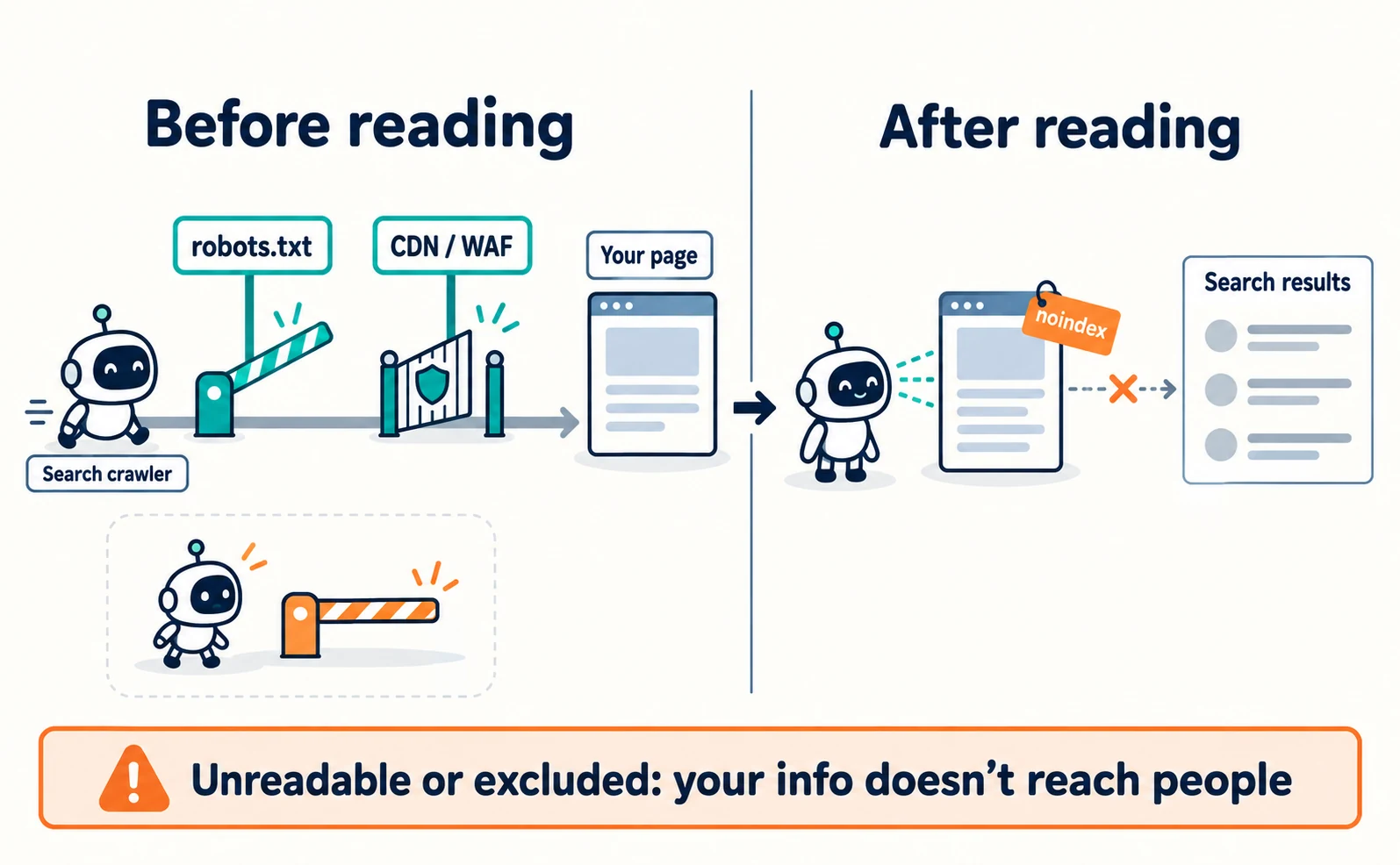
A crawler is a program that visits pages to read them, for search and other purposes. Each service has its own crawler names.
First, check robots.txt. This is a settings file that tells crawlers which places they may read and which they should not. Open it by adding /robots.txt after your domain in the browser’s address bar. For Company A, that is https://kenshu-a.example/robots.txt (an example URL; replace it with your own domain).
Check whether Disallow (a rule marking places not to read) blocks Googlebot or OAI-SearchBot. OAI-SearchBot is the crawler used for ChatGPT search.
Some areas, such as admin or internal pages, may be blocked for a reason. If you find a block, do not delete it yourself; ask your web developer whether pages you want public are included.
OpenAI explains that its search crawler, OAI-SearchBot, and its training crawler, GPTBot, are configured separately. Blocking GPTBot to refuse training does not require blocking the search crawler. OpenAI also says ChatGPT-User is access triggered by a user’s action and is not used to decide inclusion in search (OpenAI: Overview of OpenAI crawlers).
Note that robots.txt controls reading; it does not guarantee that a page stays out of search results (Google: Introduction to robots.txt). For the differences between crawlers, see Will Blocking GPTBot Remove You from ChatGPT?.
Next, check settings that keep pages out of search. noindex is an instruction that keeps a page out of search results. This is a different problem from being unreadable: the page is read, then excluded from results. Because no amount of text editing brings such a page back, check it before editing text.
Look for a setting added during development that is still on a page you want public. Some pages, such as internal ones, carry it on purpose, so decide with your web developer whether to remove it.
To check a specific page, open URL Inspection in Search Console and enter the page URL. Pass the indexing status shown, any reason given for not being indexed, the URL, and the date checked to your web developer.
Finally, check your delivery service. Some sites are delivered through services called CDNs or WAFs. They speed up display or stop unwanted access. OpenAI recommends allowing access from its published IP addresses in addition to configuring robots.txt (OpenAI).
| What to check | Where to look | Example problem | Who to ask |
|---|---|---|---|
| Search crawlers allowed | robots.txt | OAI-SearchBot blocked site-wide | Web agency or site administrator |
| Settings that block search | Page settings, Search Console URL Inspection | noindex left on a public page | Web agency |
| Blocking by delivery service | CDN or WAF settings | All AI access blocked together | Server or CDN administrator |
Some of these settings can also be checked with AgentSignal’s free AIO Check. Enter a public page URL and run the check without logging in. It flags issues such as robots.txt fully blocking major AI crawlers and search instructions within the page (meta robots).
The check examines the page and settings it retrieves. It does not show whether Google has indexed the page or whether you appear in actual AI answers. Check Google indexing with URL Inspection in Search Console, and check answers with the records from the previous section.
Checklist by page type
For five page types—home, service pages, pricing, FAQ/help, and company profile—check whether answers to customers’ questions can be read as text on the page. Google also recommends providing important information in text (Google Search Central).
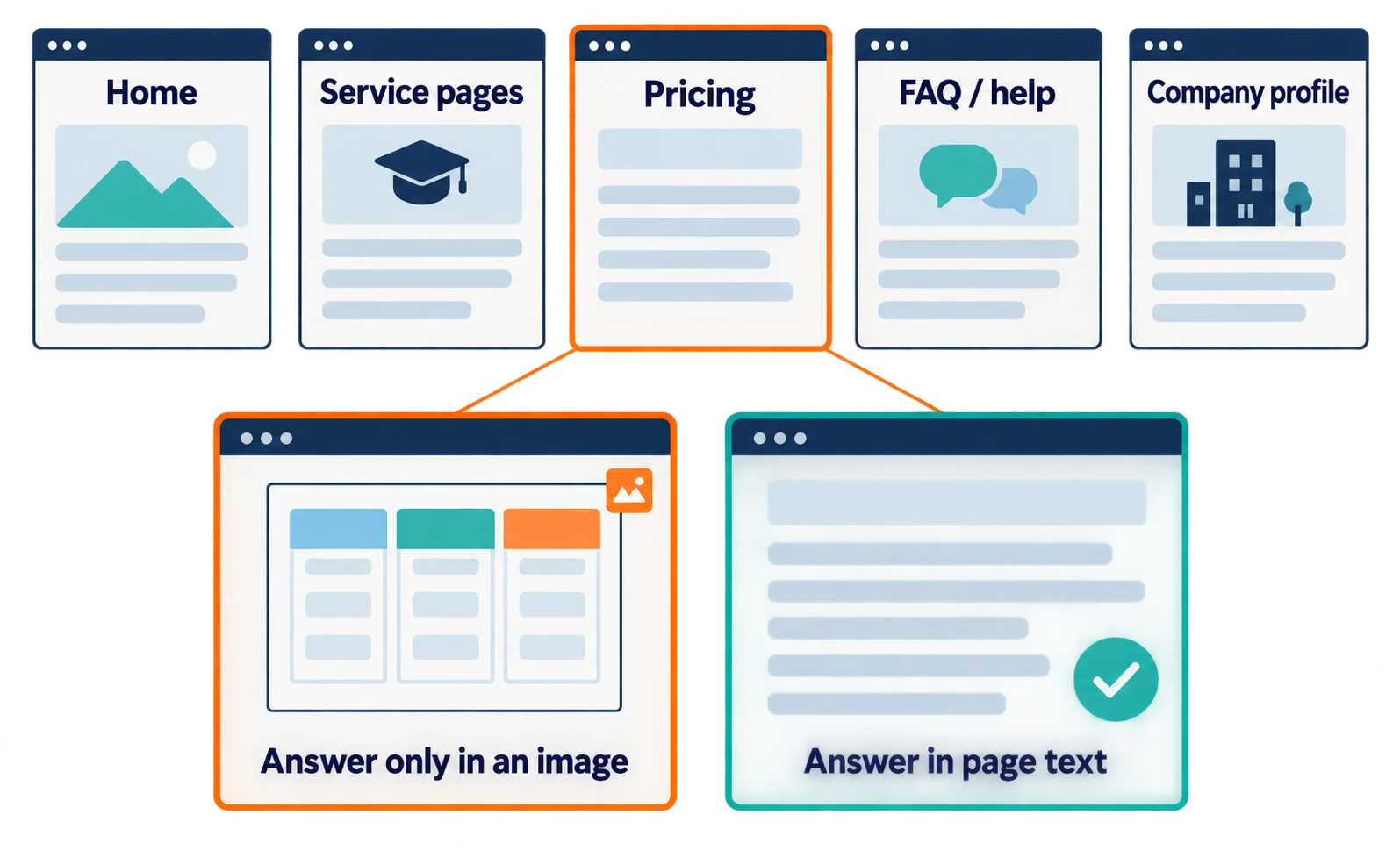
What you look for here is whether an answer exists. Pages with no answer, or with the answer only in an image, go on the fix list in the next section.
| Page type | Question to answer (Company A example) | What to check |
|---|---|---|
| Home | “What does this company do?” | Whether the service and its audience are clear in text on the first screen |
| Service pages | “Can I take it online?” | Whether format, audience, and duration appear in the text |
| Pricing | “How is the cost decided?” | Whether pricing rules and extra costs are readable as text |
| FAQ/help | “What happens from application to delivery?” | Whether each question has an answer below it |
| Company profile | “Where is this company based?” | Whether name, address, and contact details are in text |
Start with pages that get many inquiries, or pages related to questions where other companies were cited in your baseline records.
Pricing page checks
On the pricing page, check that extra costs and conditions are not shown only in images or PDFs. A pricing table posted as an image cannot be read as text.
- Is the pricing rule (number of people, sessions, hours, etc.) in the text?
- Are conditions for extra costs, such as instructor travel, stated?
- If online and in-person prices differ, is the difference clear?
- If a quote is needed, does the page say what information to provide?
- Are conditions near the pricing table rather than on a separate page?
For Company A, it is not enough to say “the price depends on the number of trainees.” Check whether the text shows where the price tiers change.
Company profile and service page checks
On the company profile and service pages, check that the company name, address, and scope of service are in the text, and that any structured data matches that text. Stating basic information in text also helps avoid confusion with companies that have similar names.
- Are the official company name, address, and contact details written as text?
- Are service areas and online availability clear?
- Are target customers, such as company size or industry, stated?
- Is there wording that suggests services you do not provide?
Structured data is a defined format for describing page information to machines. It is not required for AIO. If you use it, keep it consistent with the visible text (Google: Introduction to structured data). Adding it does not guarantee more citations.
Set AIO priorities from your audit results
If you cannot fix everything at once, fix in this order: (1) cannot be read, (2) no answer, (3) conditions far from the answer. This is our editorial guideline, not an order set by Google or any other provider.
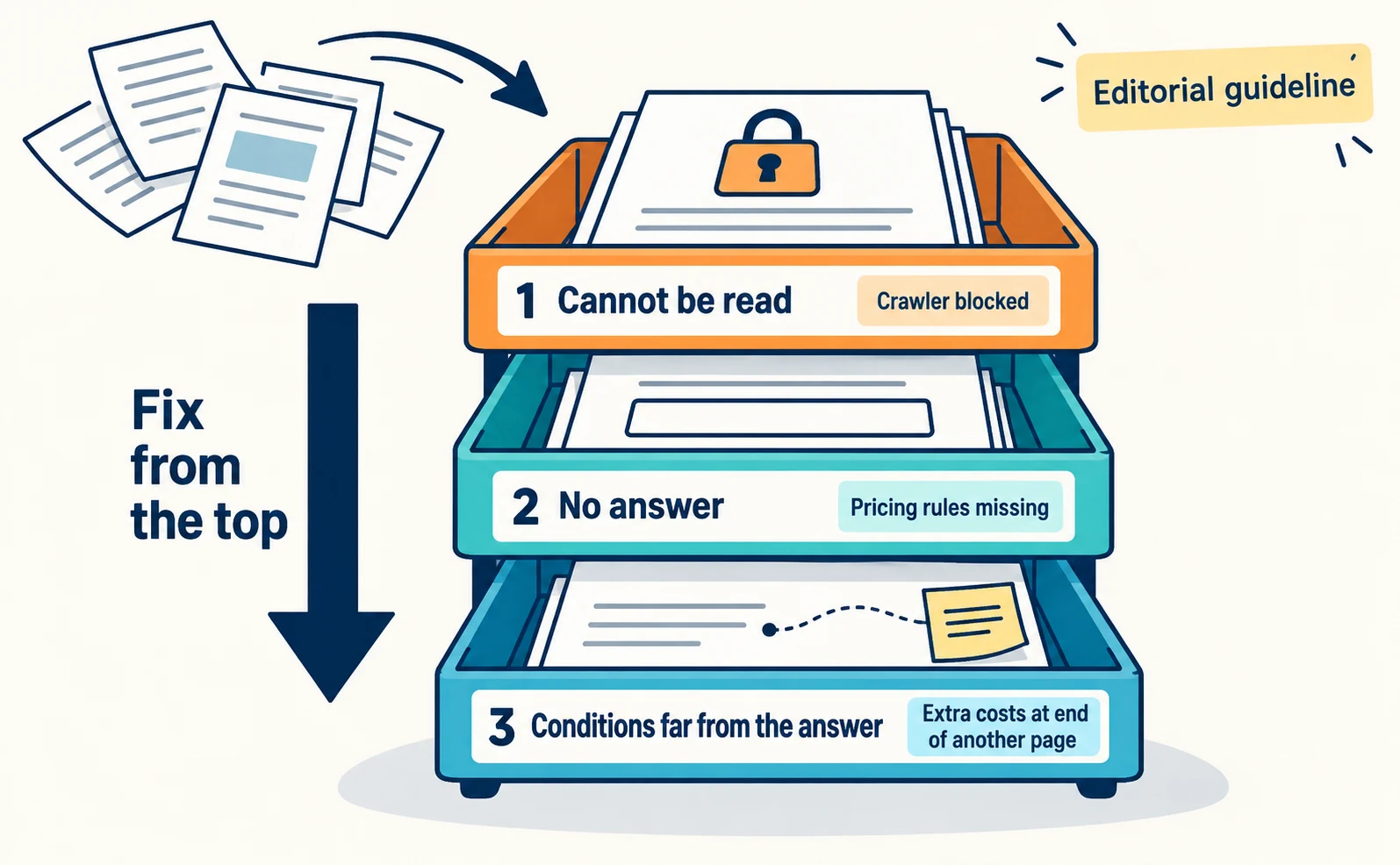
Improving text does not help if the page cannot be read, so technical problems come first. An unintended noindex on a page you want public, covered in the technical settings section, is also fixed before any text edits. Next, add missing answers. Where the answer exists but conditions are far away, revise the layout afterward.
| Priority | State | Example | First action |
|---|---|---|---|
| 1 | Cannot be read | Search crawler blocked for pages you want public, or access blocked by the delivery service | Ask your web developer to check and fix settings |
| 2 | No answer | Pricing rules are not explained | Add the missing explanation to the text |
| 3 | Conditions far away | Extra costs appear only at the end of another page | Move conditions near the answer or link to them |
Here is an example fix list for Company A.
| Page | Audit result | Priority | Owner | Done when |
|---|---|---|---|---|
| All pages | Not yet confirmed that public pages are outside blocks | 1 | Web agency | Confirmed they are not blocked |
| Pricing | Pricing table is only an image; pricing rules are not in the text | 2 | Web manager | Prices by group size and extra costs are readable as text |
| Service page | No mention of online delivery | 2 | Web manager | Online availability and format are in the text |
| Company profile | Service areas are not stated | 2 | Web manager | Service areas are in the text |
| Pricing | Instructor travel conditions appear only at the end of a separate FAQ | 3 | Web manager | Conditions, or a link to them, sit next to the pricing table |
Within the same priority level, you can start with pages that get many inquiries or relate to questions where competitors were cited. Record your reasons in the fix list to make internal discussion easier.
Remeasure under the same conditions after fixes
Record the date of each fix, check again with the same questions and the same AI as in your baseline, and compare Search Console impressions over a period of the same length. Without matching conditions, you cannot compare before and after.
| Change record | Results record |
|---|---|
| URL changed | Service and question checked |
| Date changed | Date checked |
| What changed | Whether your name and link appeared |
| Reason for the change | Cited pages |
| Owner | Page impressions in the generative AI report |
When remeasuring, use the same conditions as your baseline and ask the same questions several times, on different days. There is no fixed timeline for answers to change. If nothing changes right after a fix, keep recording.
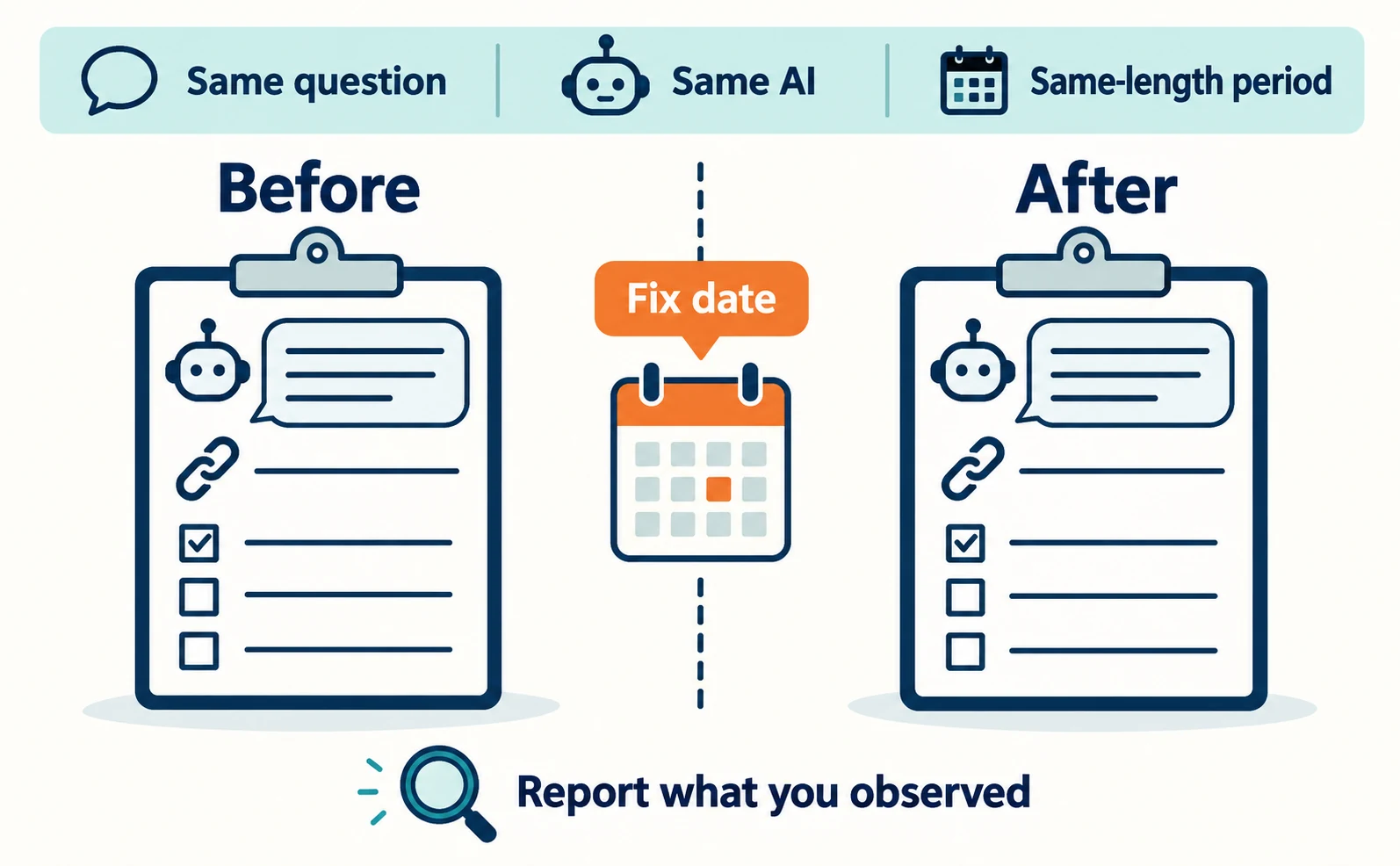
Even if you see a change, do not conclude that your fix caused it. Changes in AI systems, seasonal demand, and other companies’ page updates also play a role. Report only what you observed, such as “After the fix, a link to our site appeared for this question.”
Start by choosing one important page and auditing it with this checklist. For the broader approach, see What Is LLMO? How to Check Whether Your Company Appears in AI Answers.
FAQ
- Q. Should we create llms.txt?
- It is not a required AIO task. Google says AI features do not require special AI files. You can consider it as a link list if you have instruction or procedure pages you want AI to read.
- Q. If we meet every item on the checklist, will AI cite us?
- Citations are not guaranteed. Google also says meeting the requirements does not guarantee inclusion. The checklist helps you find and fix unreadable pages and missing answers. Check results by remeasuring under the same conditions.
- Q. Are AIO and LLMO different things?
- The names differ, but the work overlaps: both aim to help AI answers feature your company. Rather than focusing on the name, confirm which services are covered (Google only, or ChatGPT too) and which pages will be audited.
Sources
- [1] AI features and your website (Google Search Central) — accessed 2026-09-23
- [2] Introducing Search Generative AI performance reports (Google Search Central Blog) — accessed 2026-09-23
- [3] Introduction to robots.txt (Google Search Central) — accessed 2026-09-23
- [4] Overview of OpenAI crawlers (OpenAI) — accessed 2026-09-23
- [5] Introduction to structured data markup in Google Search (Google Search Central) — accessed 2026-09-23
About the author
Shogo MizushimaCEO of kairos Inc. / AgentSignal Developer
Develops AgentSignal, a tool for measuring AI crawler visits and AI-referred traffic, and diagnosing AIO readiness. Writes about measurement and practical improvements for AI search using observed data.
Related articles
AIO and AI search
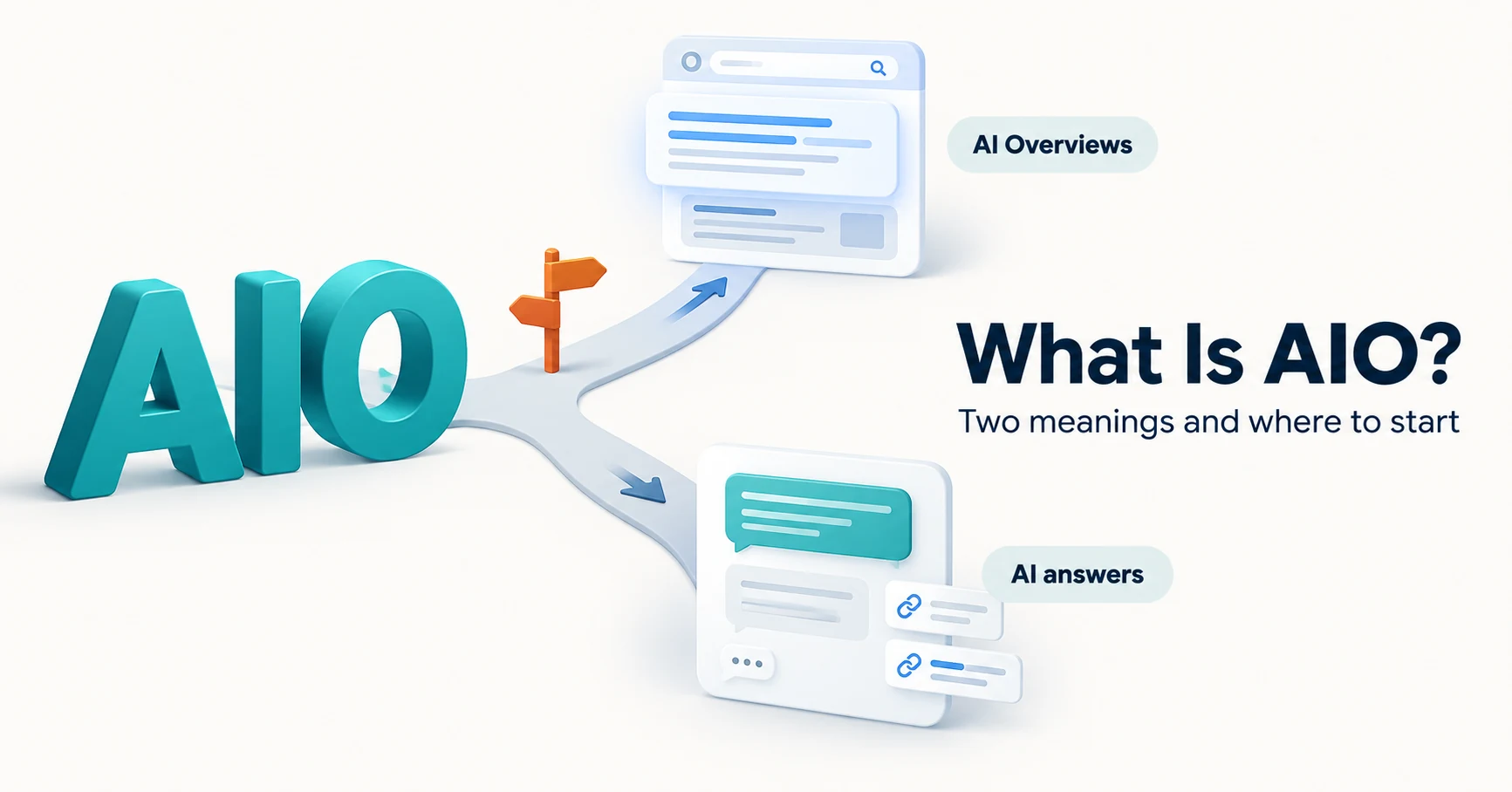
What Is AIO? Its Two Meanings and Where to Start with AI Optimization
AIO has two meanings: work to get your company featured in AI answers, and Google Search’s AI Overviews. Learn how it relates to SEO, what to confirm in a proposal, what Search Console and Bing reports show, and your first tasks.
Published
AIO and AI search
What Is LLMO? How It Differs from SEO and Why Some Say It Is Pointless
LLMO is the work of helping answers from ChatGPT and other AI find and accurately describe your company. Learn how it differs from SEO, why some call it pointless, how E-E-A-T relates, how to measure results and what to do in the first month.
Published
Measurement and site improvement
What Are AI Crawlers? Why Blocking GPTBot Doesn’t Remove You from ChatGPT Search
AI crawlers are programs AI companies use to read public web pages. Learn how GPTBot differs from OAI-SearchBot, how Google-Extended works, why visits can continue after a robots.txt block and how to choose settings by purpose.
Published